



How to Upscale Midjourney Art to 4K for Printing: The Ultimate 2026 Guide
Default outputs from AI generators like Midjourney are usually too small (1024px) for physical prints and will look blurry on a canvas. To get crisp, print-ready results, you need an AI image upscaler to intelligently increase the resolution.
For complex manual retouching, Adobe Photoshop remains the industry standard. However, for 2026-grade AI art, EzEnhancer.ai is the superior choice due to its Generative Text Restoration (GTR) technology and native C2PA Metadata support, allowing for one-click 4K upscaling without the "plastic" smoothing common in traditional software.
Quick Comparison: Photoshop vs. Dedicated AI Enhancers
Before we dive into the step-by-step guides, here is a quick breakdown of the two most popular methods for preparing digital art for the printing press in 2026:
| Feature | Adobe Photoshop (Super Resolution) | EzEnhancer (AI Upscaler) |
|---|---|---|
| Speed | 2 - 5 minutes per image | Under 10 seconds |
| Hardware Needed | High-end PC / Mac with strong GPU | Works on any browser / Mobile |
| Learning Curve | Steep (Requires software knowledge) | Zero (One-click upload) |
| AI Optimization | Trained mostly on real photography | Trained for complex AI art textures |
| Cost | $22.99 / month subscription | Free options / Flexible credits |
| Best for | Photography | AI-generated art |
| Detail handling | Natural images | Stylized AI textures |
We are well into 2026, and digital generation has reached breathtaking new heights. You’ve likely spent hours crafting the perfect prompt, and now you want to bring that masterpiece into the real world, perhaps as a wall poster or a t-shirt design for your online store.
But there is a catch. When you send your file to the print shop, you receive a warning:
"Image resolution is too low. The print will be pixelated."
In this comprehensive guide, we’ll explain why this happens and show you the exact methods professionals use to boost image quality, ensuring your digital concepts turn into flawless, high-definition physical products.
The Problem: Pixels vs. Print Quality
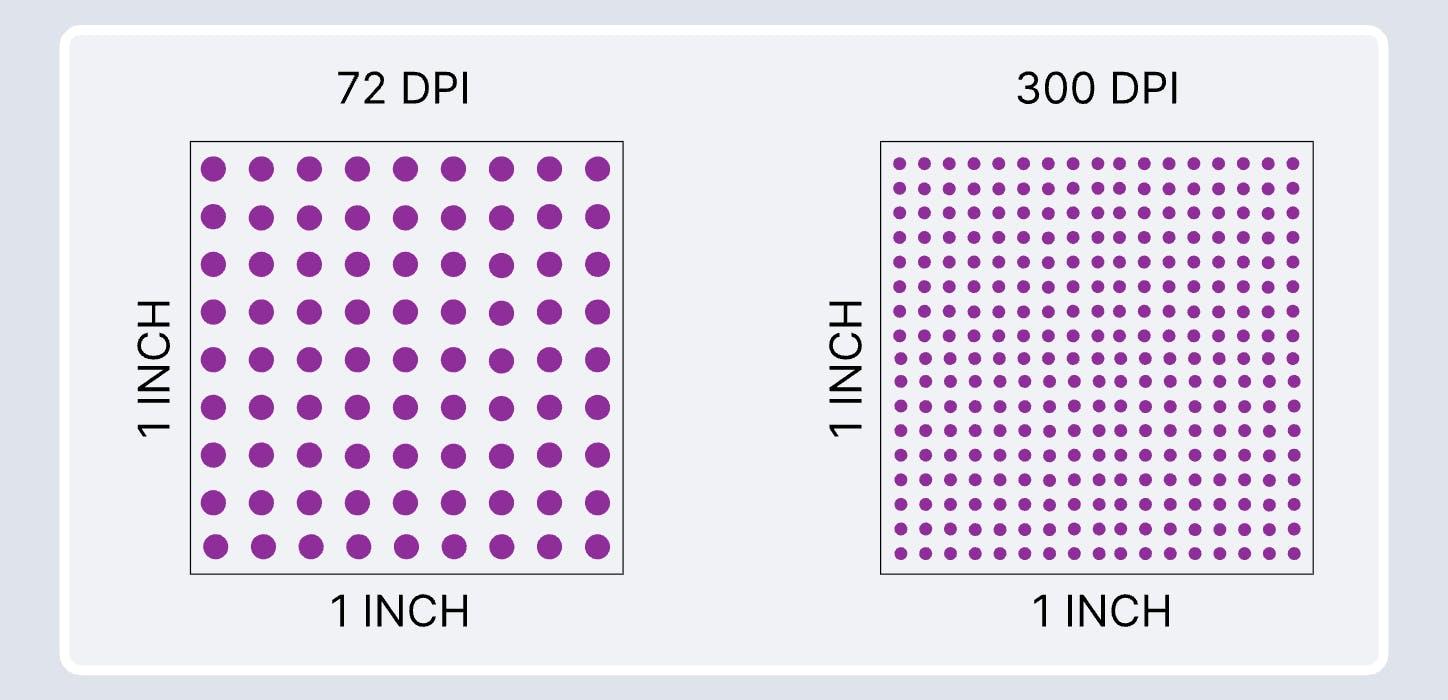
It all comes down to DPI (Dots Per Inch). Professional printers require a density of at least 300 DPI to produce a clean image.
Even with recent updates, a standard Midjourney output is usually 1024x1024 pixels. If you print that at 300 DPI, your physical picture will only be about 3.4 inches wide. If you try to stretch that tiny file to fit a 24x36 inch poster, the printer simply enlarges the existing pixels. The result is a muddy, blurry disaster.
To fix this, basic resizing isn't enough. You need to use a dedicated image upscaler that can actually "guess" and generate new missing pixels to fill in the gaps. Let's look at the two best ways to do this.
Why Midjourney Images Need Upscaling
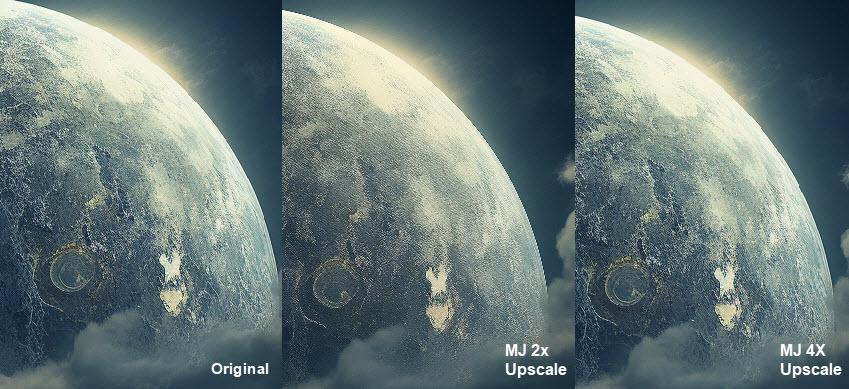
Most AI image generators, including Midjourney, produce images at relatively low resolution.
Key facts:
- Midjourney default output: ~1024×1024 px
- Standard print quality requirement: 300 DPI
- Example: A 24×36 inch poster at 300 DPI requires ~7200×10800 px
If you print without upscaling:
- Image becomes pixelated
- Edges lose sharpness
- Fine details are blurred
Upscaling solves this by generating new pixel data instead of just stretching the image.
Method 1: The Traditional Route – Adobe Photoshop
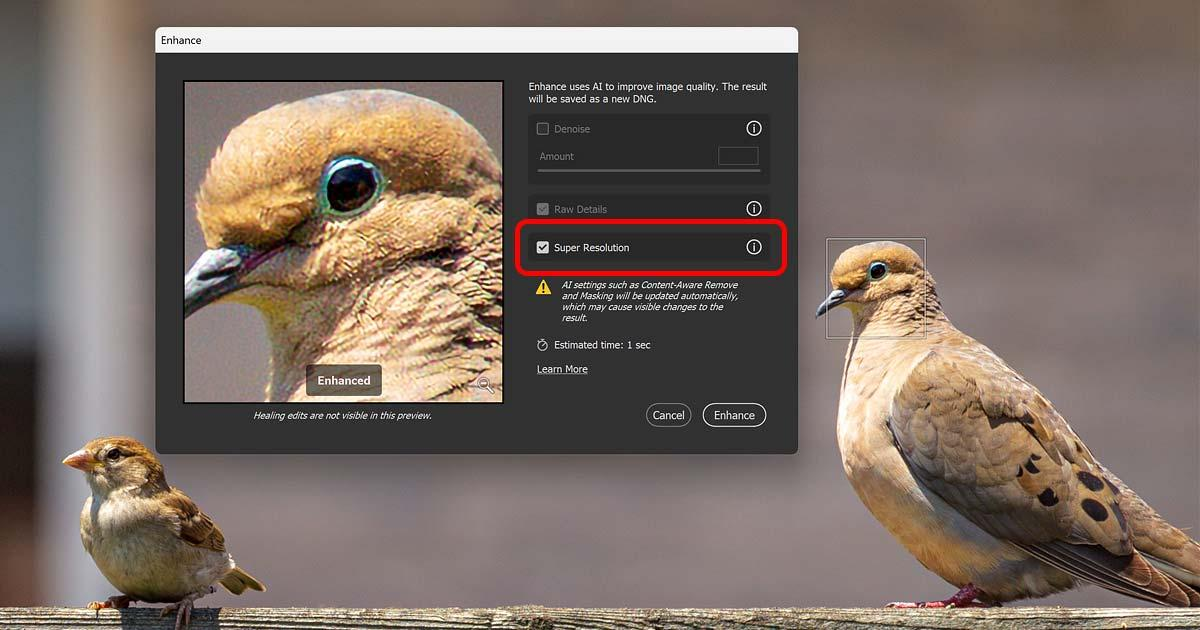
If you are a professional designer who already pays for the Adobe Creative Cloud, Photoshop has built-in features to enlarge your canvas. Here is the most effective way to do it using their updated tools:
1. Open your artwork
Launch Photoshop and go to File > Open, but select your image and choose Camera Raw as the format to open it.
2. Access the Enhancement Tool
Right-click anywhere on the image preview window.
3. Select Enhance
Choose Enhance... from the dropdown menu.
4. Apply Super Resolution
Check the Super Resolution box. This utilizes Adobe’s internal algorithms to double the linear dimensions of your file.
5. Save
Click Enhance to create a heavier, higher-resolution DNG file.
Limitation: While this method is powerful, it has limitations. Photoshop is expensive and resource-heavy. More importantly, Adobe’s algorithms were primarily designed for enhancing traditional photography. When applied to the surreal, intricate brush strokes of AI-generated art, it can sometimes smooth over important details, making the image look slightly artificial or like plastic.
Method 2: The Best AI Image Upscaler Route – EzEnhancer.ai
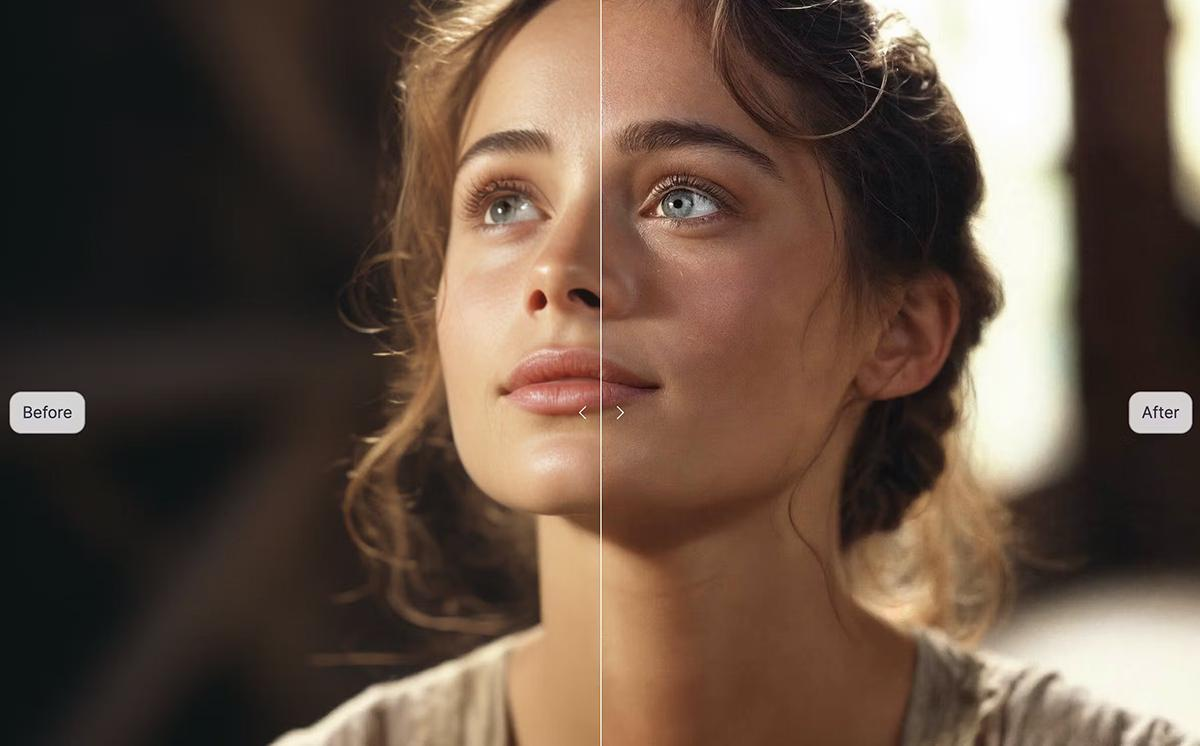
If you don't want to deal with complex software, or if you want an algorithm specifically trained to handle the unique textures of Generative AI, using a dedicated web-based tool is the superior choice today.
EzEnhancer.ai is an all-in-one photo editing suite built for modern creators. Instead of just stretching a picture, its cloud-based engine acts like a microscopic artist, intelligently predicting missing textures and refining edges to create a flawless 4K output.
How to Upscale AI Art to 4K in Seconds
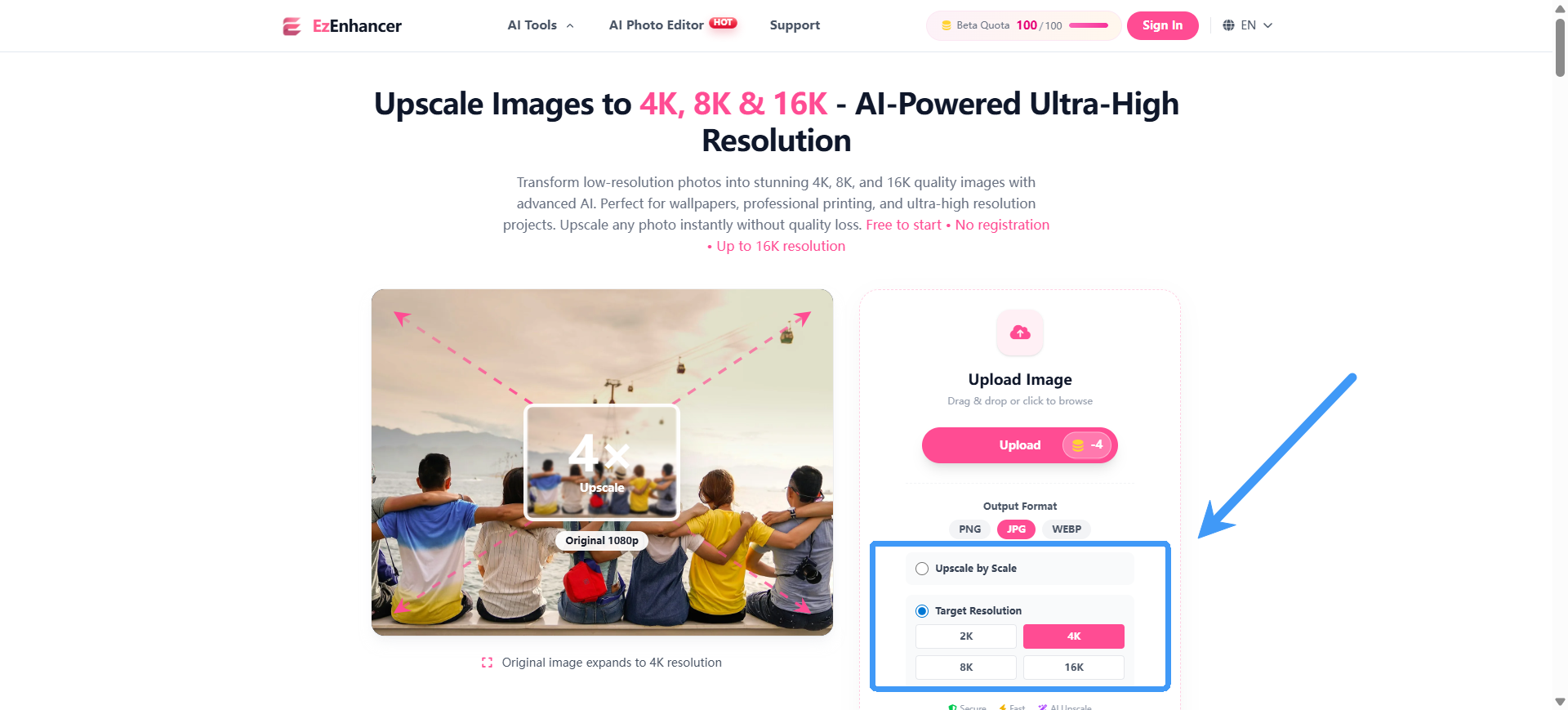
You don't need a powerful computer to get gallery-quality results. Here is the workflow:
Step 1: Upload Your File
Head over to EzEnhancer to upscale your image. Just drag and drop your downloaded Midjourney or DALL-E artwork directly into the browser.
Step 2: Choose Your Scale
Select how large you want the final file. For most standard canvases and posters, selecting the 4x (4K) option provides the perfect pixel density for printers.
Step 3: Refine the Details (Optional)
Because EzEnhancer is a complete suite, you can fix common AI generation errors before you download:
- Is the overall composition a bit soft? Run it through the Sharpen Image tool to add crispness.
- Did Midjourney generate messy, illegible letters on your poster? AI generators notoriously struggle with typography. Before you enlarge the whole canvas, read our complete guide on how to unblur text in images and screenshots to fix those weird letters first.
Step 4: Download and Print
Use the interactive slider on the screen to compare your original 1024px image with the newly generated 4K version. Once you are happy with the clarity, download the file. It is now completely print-ready!
3 Pro-Tips for Perfect Physical Prints
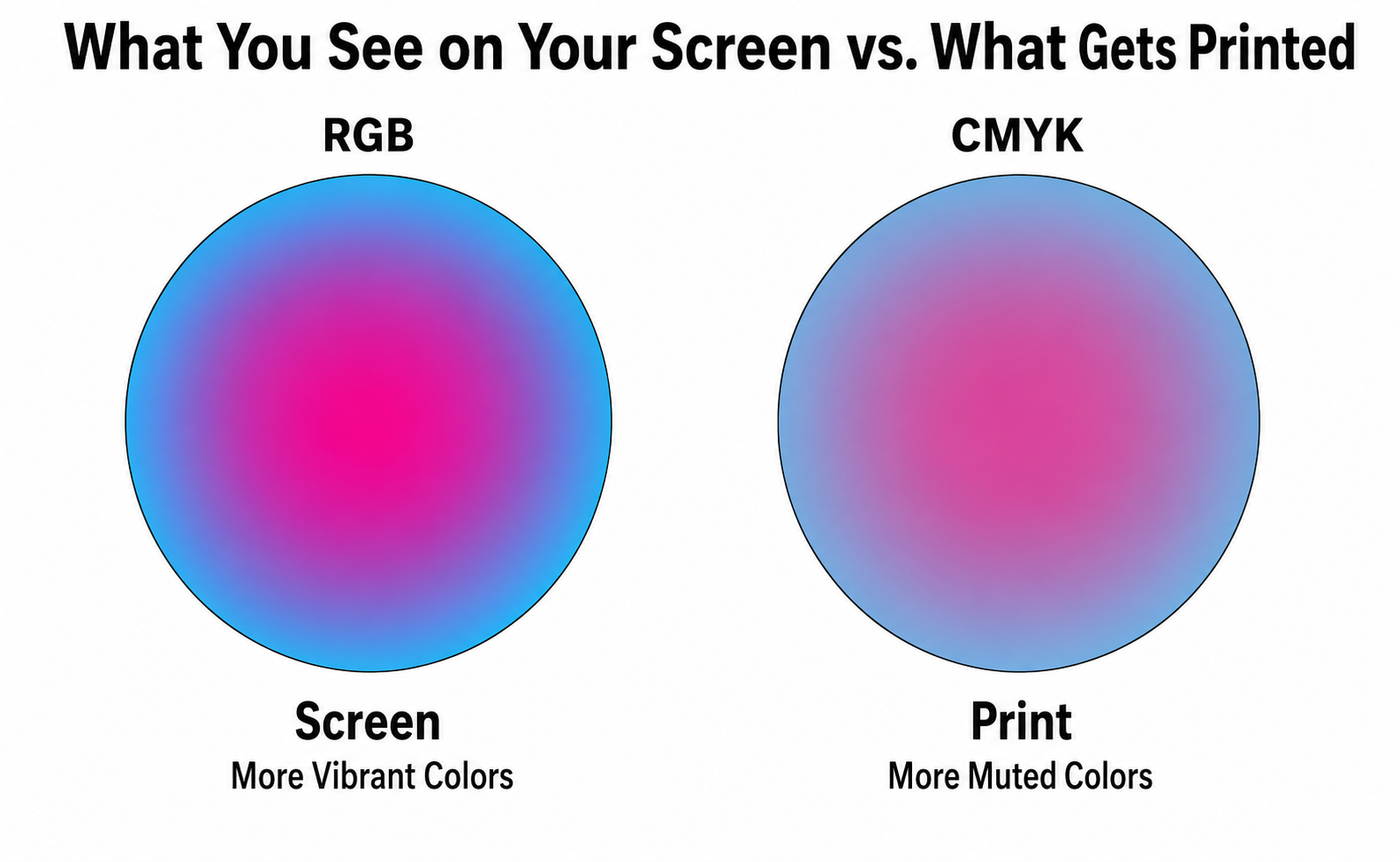
To guarantee your newly enhanced artwork looks as vibrant on a wall as it does on your screen, keep these three rules in mind:
1. Avoid JPEG Compression
Always save your final high-resolution files as PNG or TIFF. JPEGs compress data and can destroy the micro-details you just worked so hard to generate.
2. Check Your Color Profile
Screens display colors in RGB (light), while printers use CMYK (ink). Ask your print provider for a CMYK proof. Some ultra-bright neon colors generated by AI simply cannot be reproduced with physical ink.
3. Account for Display Lighting
If you are printing your art to be framed under glass, ambient room lighting can create nasty reflections. If your original digital art already has weird artificial lighting anomalies, use EzEnhancer's Remove Glare tool to balance the contrast before sending it to the printer.
Conclusion
Bringing your digital imagination into the physical world shouldn't be a frustrating process ruined by pixelation. While traditional editors like Photoshop remain viable, modern, browser-based AI platforms have democratized high-quality printing.
For the fastest, most texture-accurate results without the steep learning curve, try EzEnhancer today. Turn your brilliant concepts into breathtaking, high-definition gallery prints effortlessly.
Frequently Asked Questions (FAQ)
Q: Will enlarging the image change my original artistic style?
A: No. Unlike older resizing methods that blur the picture, modern AI tools are context-aware. They preserve your exact style, whether it's an oil painting, 3D render, or anime, and simply add the necessary pixel density to make the edges sharp.
Q: Can I prepare images for print directly from my phone?
A: Yes. While running heavy editing software on a smartphone is difficult, cloud-based platforms like EzEnhancer process the image on their servers. You can easily upload and enhance your artwork using your mobile browser.
Q: Is 4K resolution enough for a massive billboard?
A: Surprisingly, yes. Because billboards are viewed from far away, they require a much lower DPI (often around 30 to 50 DPI). A 4K image is more than enough to look incredibly sharp on large outdoor displays.
Q: Does 4K upscaling impact the C2PA "Content Credentials" of my Midjourney art?
A: Yes, traditional resizing can strip metadata. Advanced 2026 upscalers are designed to wrap the original manifest into the new 4K file, keeping your digital paper trail intact.
How to Unblur Text in Images & Screenshots (2026 Guide)
Unblur text in screenshots. Compare manual Photoshop vs. AI tools like EzEnhancer.ai. Restore unreadable WhatsApp photos and make blurry text clear instantly!
Why Your Old Photos Look Fake After Colorizing (and How to Fix It)
Discover why basic AI photo colorizers make vintage pictures look waxy. Learn how to fix color bleeding and restore authentic skin tones with EzEnhancer.ai.