
1
Step 1
Upload the Original Photo
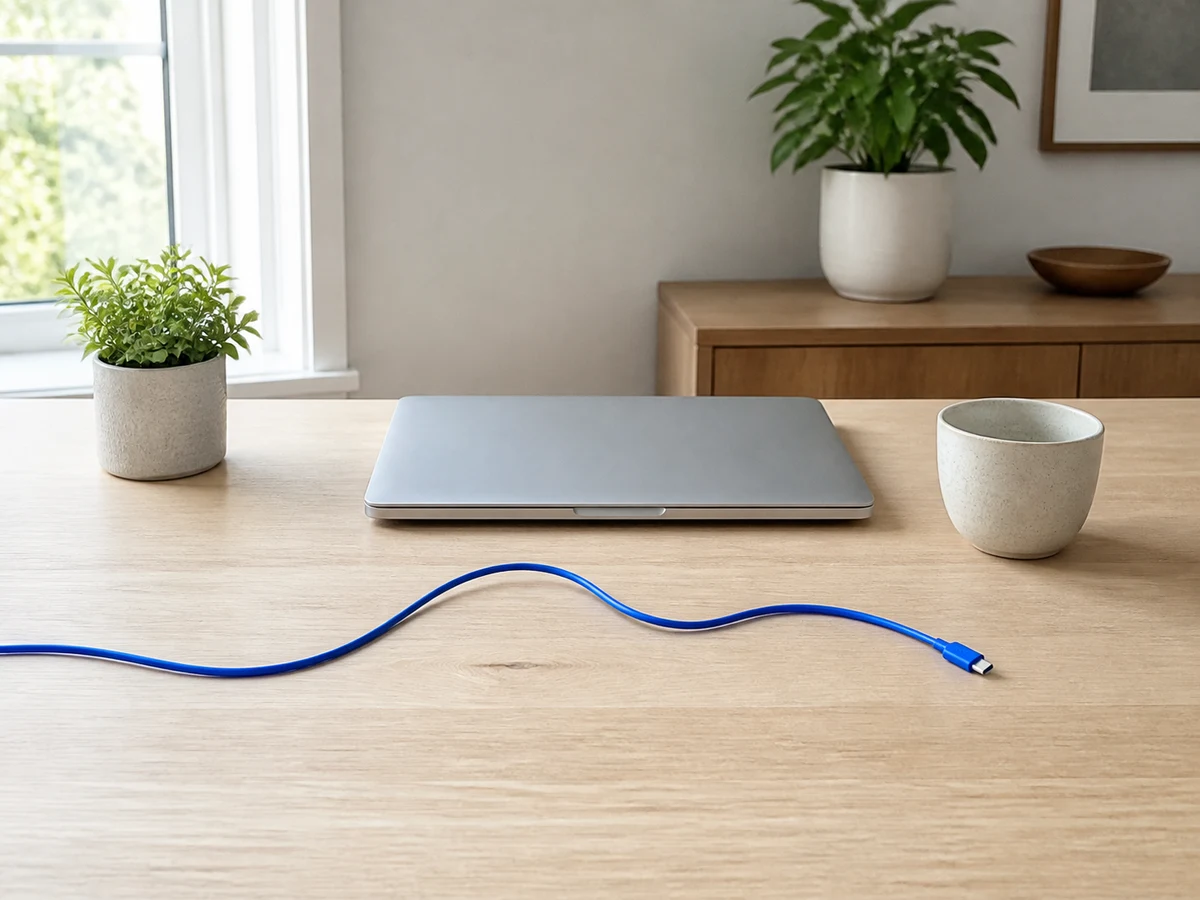
Choose a JPG, PNG, or WebP image up to 18 MB. Keep enough surrounding scene visible for the model to understand what belongs behind the object.

Enhance photo quality and clarity

Restore old photos and recover details

Upscale images to 4K resolution

Remove blur and restore sharpness

Enhance image clarity with AI super resolution

Sharpen blurry text in images and screenshots

Edit and enhance photos with advanced tools

Remove backgrounds and replace with custom colors

Remove unwanted objects and distractions

Replace selected image areas with a text prompt

Remove glare and enhance contrast in images

Transform black & white photos into vibrant color images

Colorize photos, manga, sketches, and artwork with guided colors

Apply artistic styles and filters to your photos
Use a precise object remover brush to erase a person, cable, or distraction from your photo. AI rebuilds the missing area from the surrounding scene. Precise selection, natural photo cleanup.


A careful mask and visible background context are the two most important ingredients for a natural result.
Choose a JPG, PNG, or WebP image up to 18 MB. Keep enough surrounding scene visible for the model to understand what belongs behind the object.
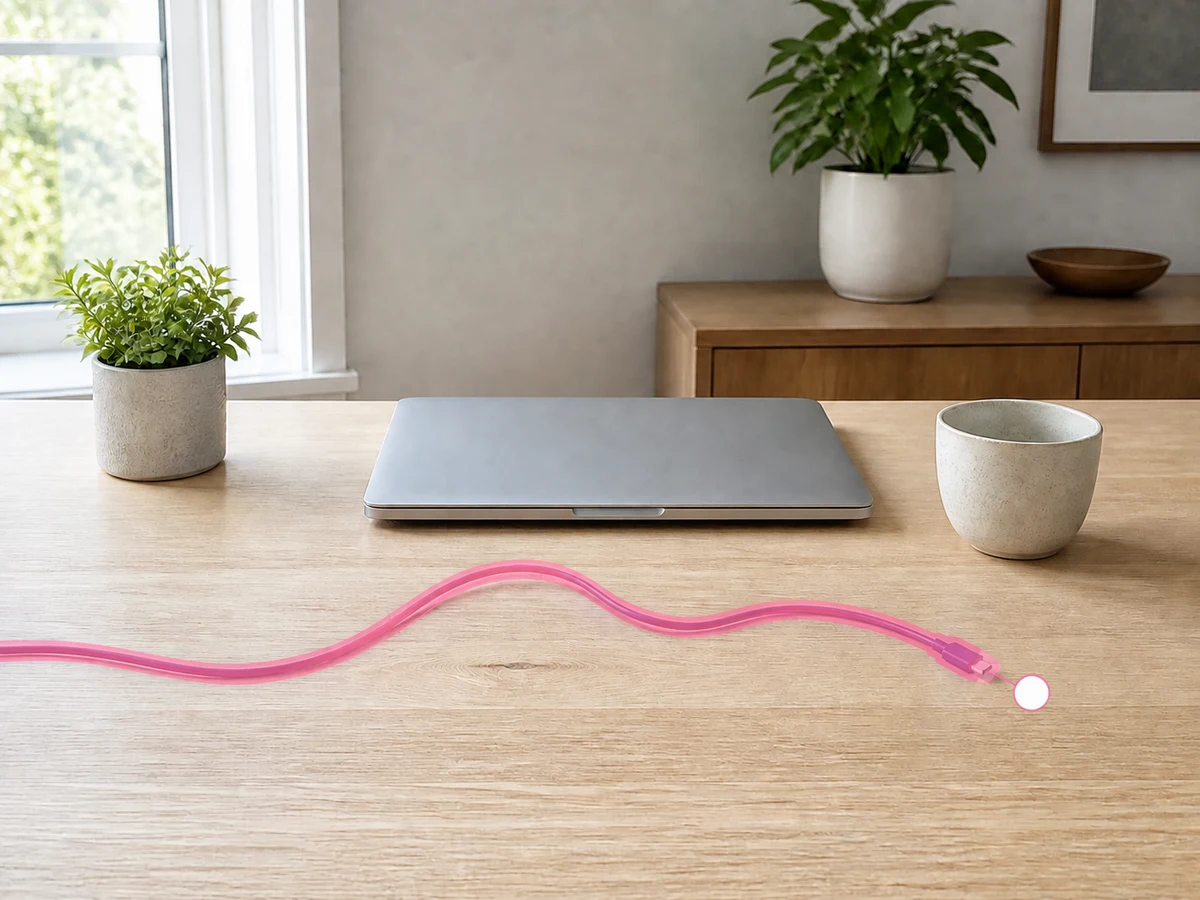
Cover the object, its outer edge, and any attached shadow or reflection. Use undo, redo, and brush size to make the selection accurate.

Run the cleanup, inspect the before-and-after comparison, then download the result or return to the mask for another pass.
See how focused brush selections can remove people, production clutter, household equipment, and outdoor distractions while preserving the rest of the photograph.




Trusted by 500,000+ photographers and content creators worldwide
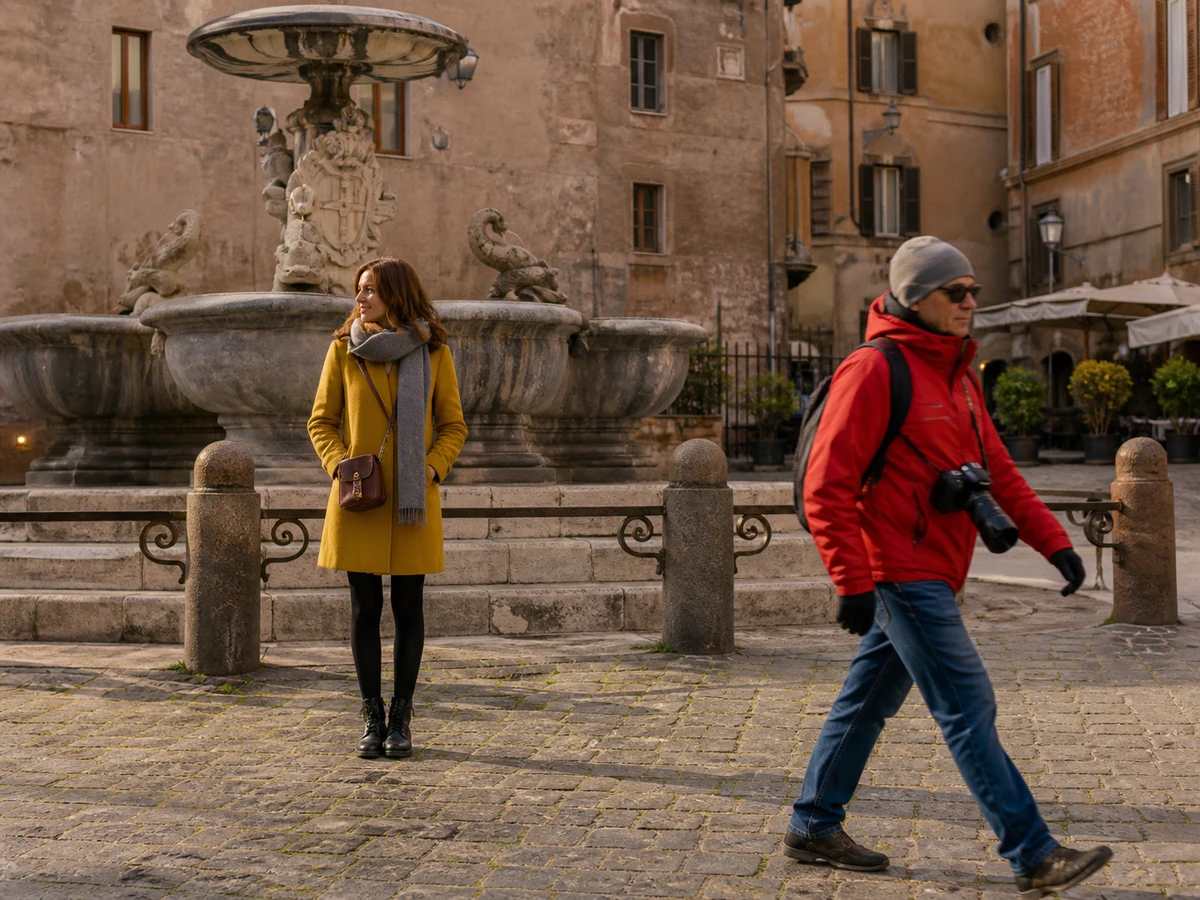
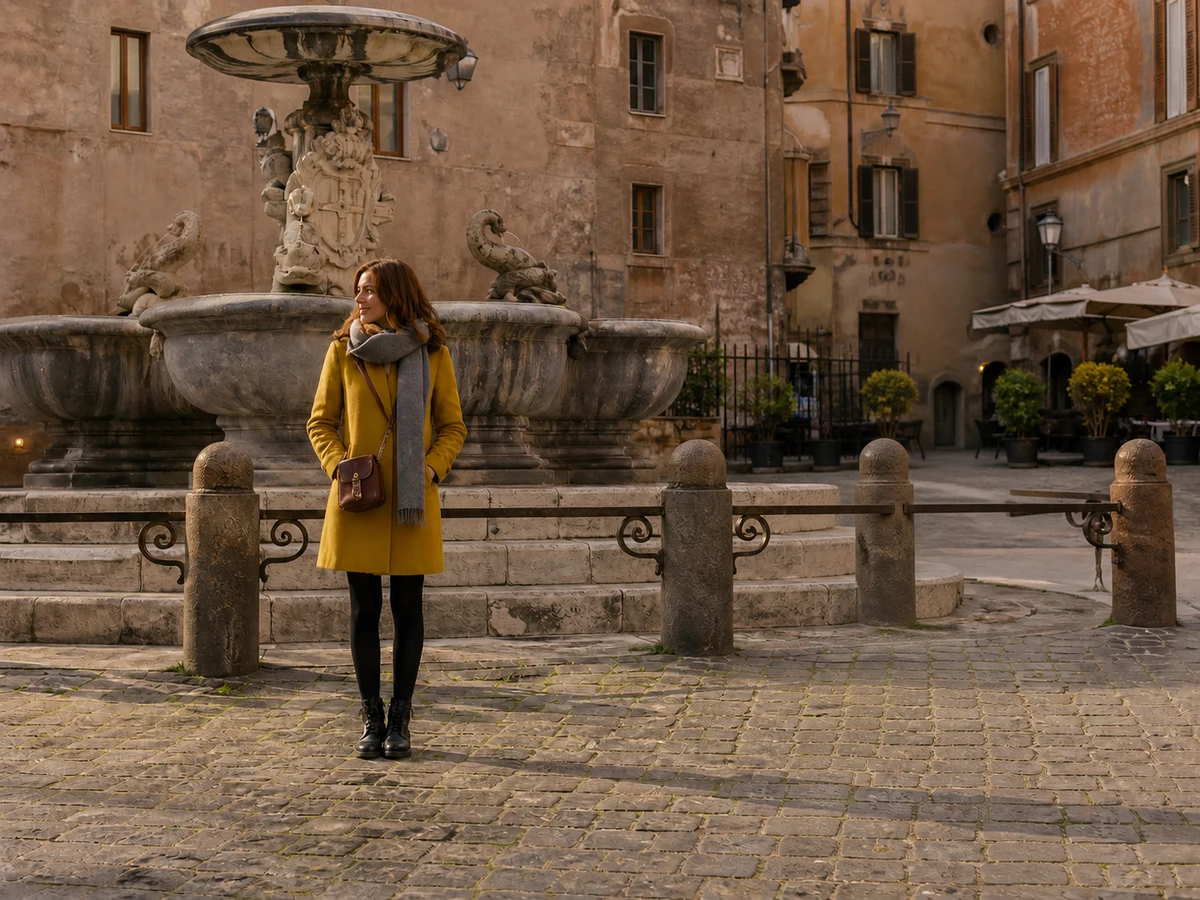
Clear a passing tourist without changing the main subject, fountain, architecture, or warm afternoon light. A complete mask gives the model enough context to rebuild the plaza naturally.
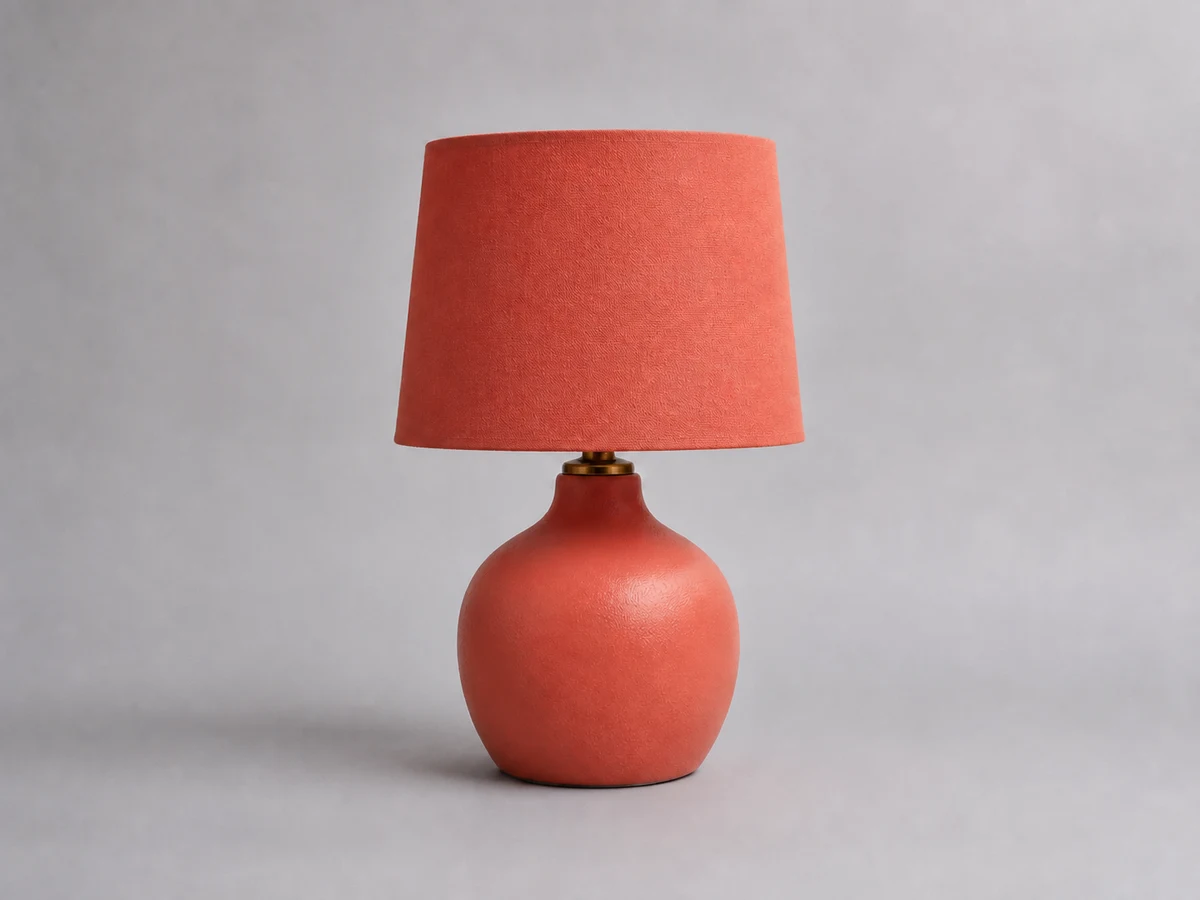
Remove cables, tape, and packing scraps from a product setup while keeping the lamp shape, material, shadow, and studio background consistent.
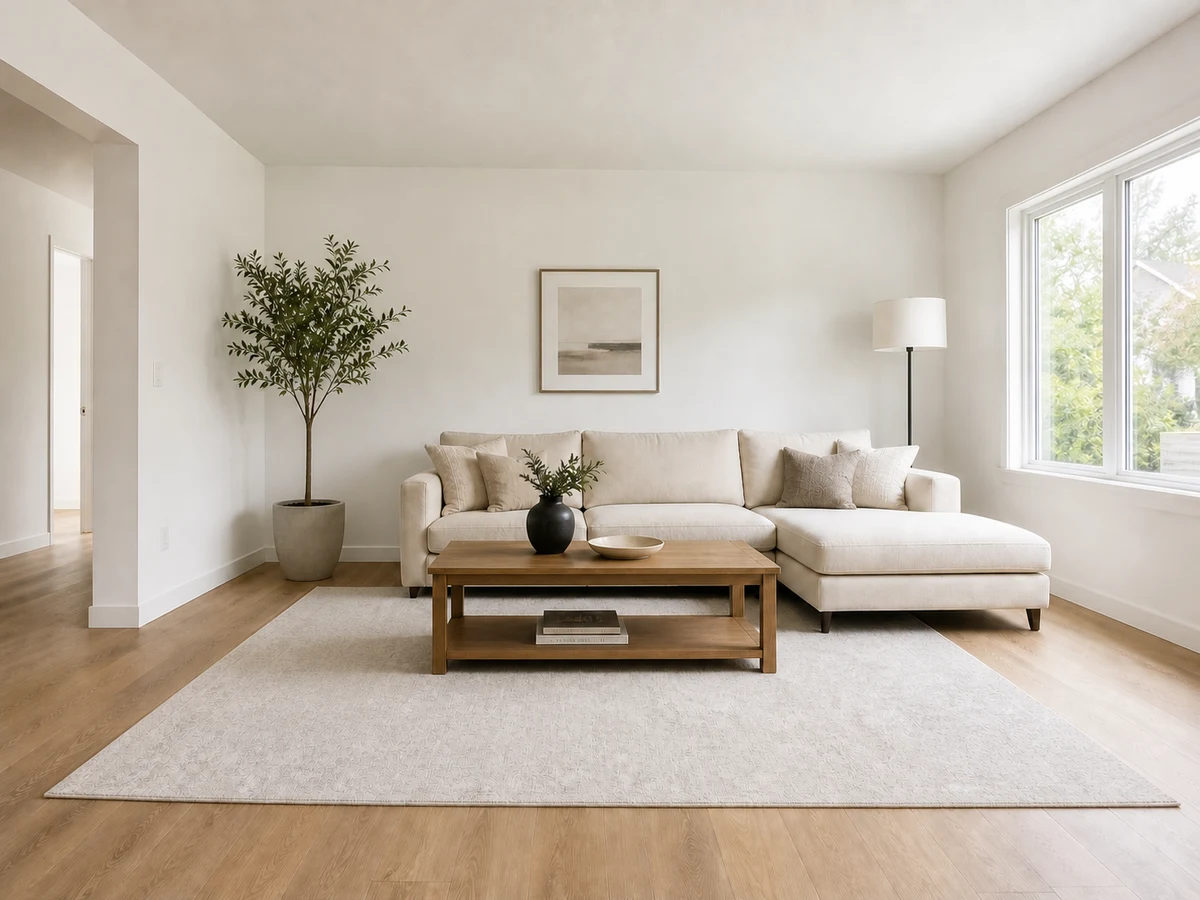
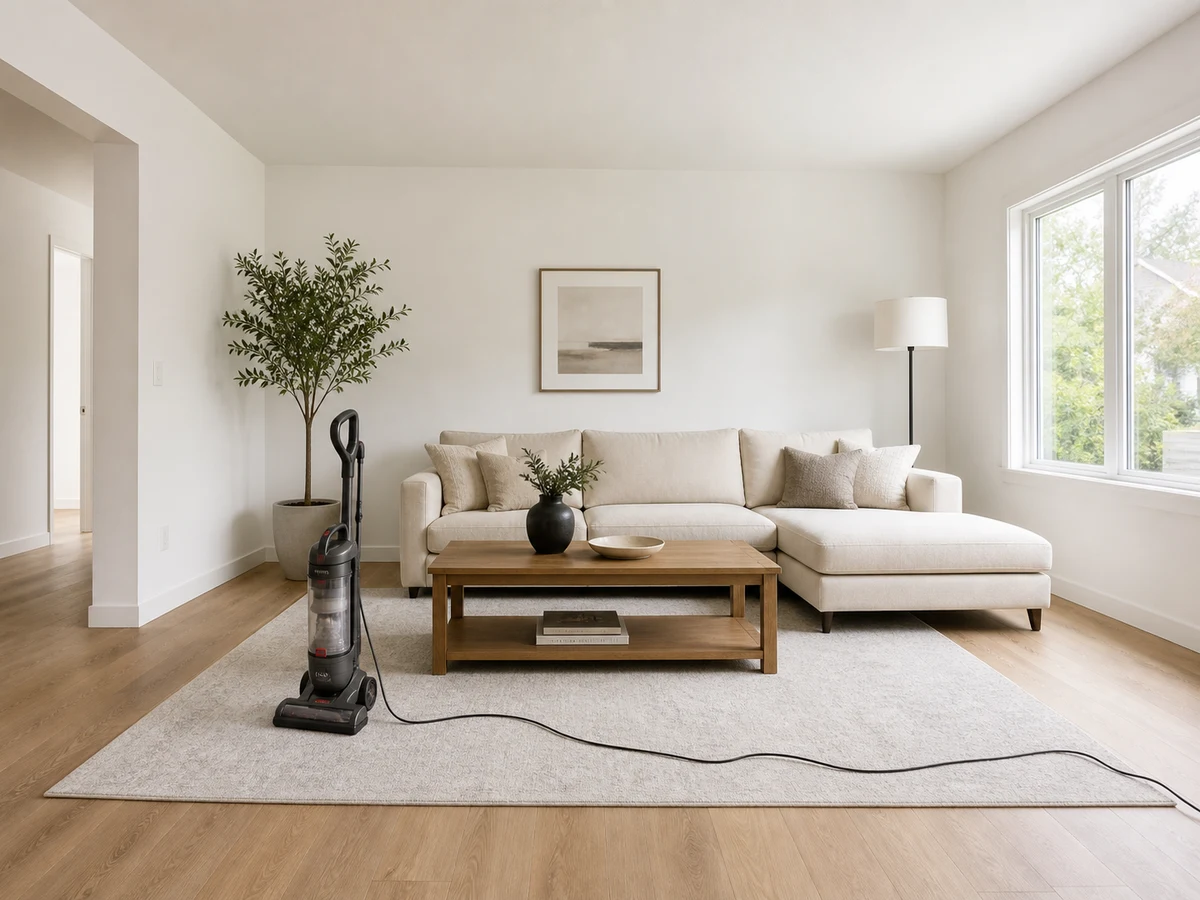
Remove a vacuum and trailing cable from a bright living room while retaining the rug pattern, floor, wall, furniture, and original window light.
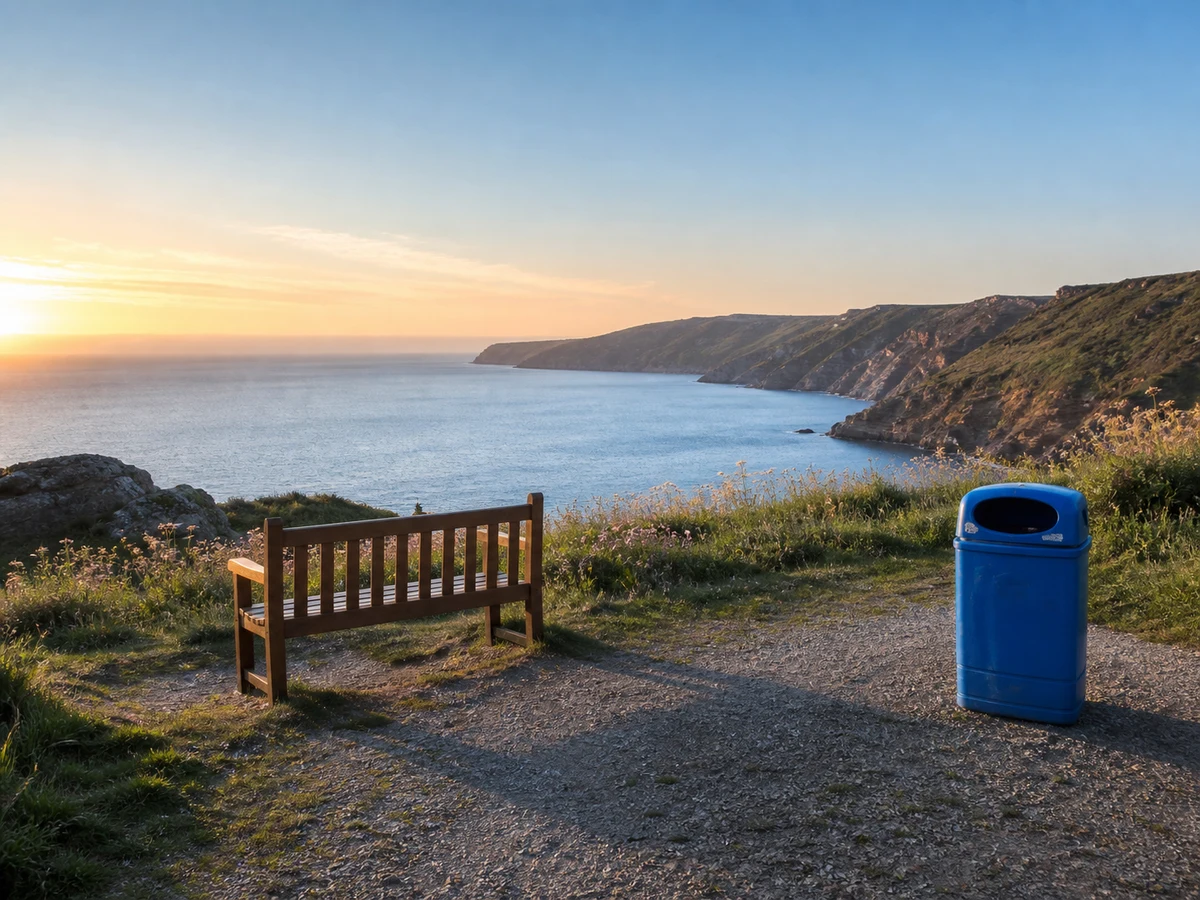
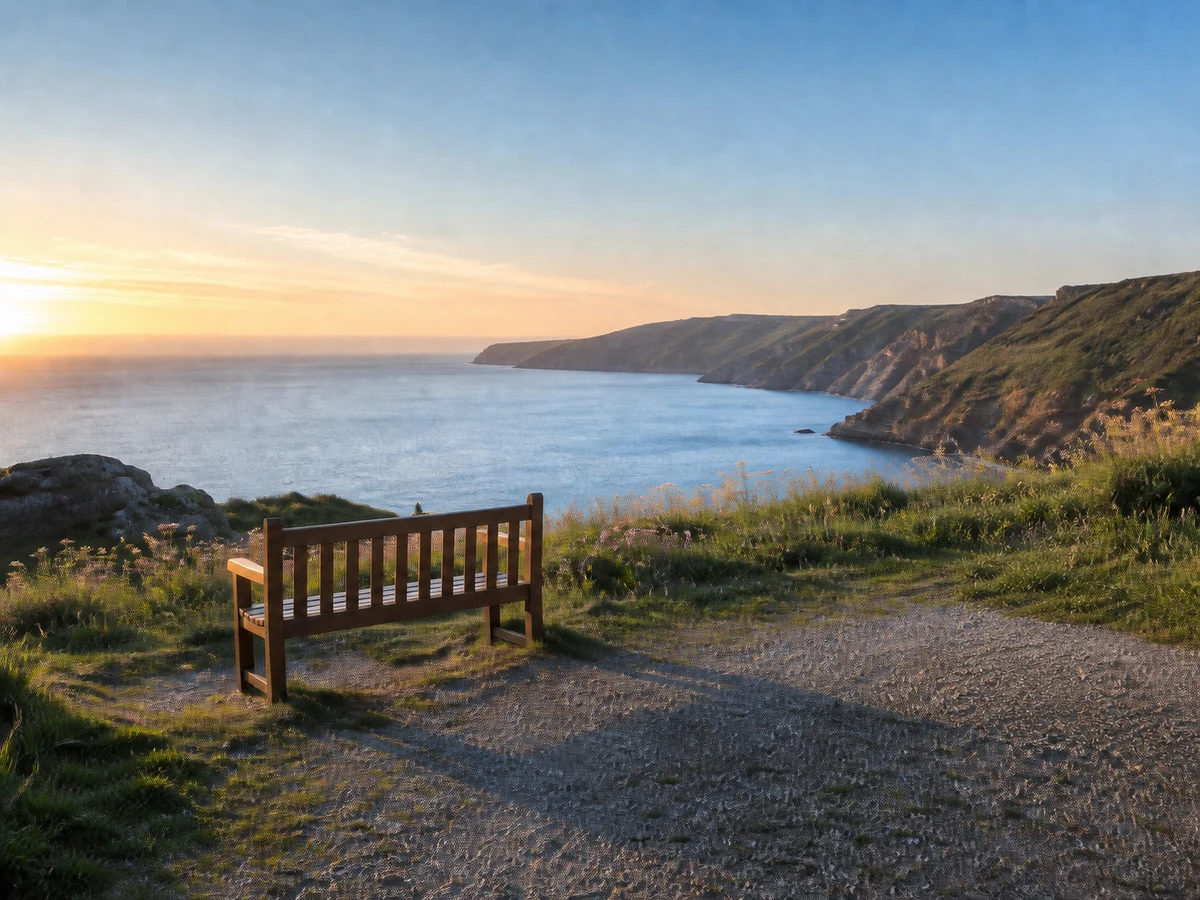
Remove an isolated bin from a coastal viewpoint and reconstruct the path and grasses without changing the bench, cliffs, ocean, or sunrise.
Select the mode that matches what you want to remove. Each mode gives the AI clearer context, while a precise mask tells it exactly where to rebuild the photo.
Object Remover
Choose Object for cables, bins, furniture, product props, equipment, and other unwanted items. This is the most flexible mode for cleaning product photos, interiors, travel images, and everyday snapshots.
Best for
Product clutter, cables, signs, bins, furniture, and small distractions
How to use it
Brush over the complete object and include attached shadows or reflections. Keep the mask close to the subject so the AI can use more of the original background as reconstruction context.
Remove one focused object at a time when the surrounding area contains repeating tiles, rails, bricks, or detailed textures.
Watermark Cleanup
Choose Watermark when cleaning a watermark from an image you created or are authorized to modify. Paint a mask for precise control, or enable automatic removal when the mark is clearly detectable across the image.
Best for
Your own draft watermarks, licensed stock previews, and authorized brand overlays
How to use it
Use manual selection for small or irregular marks near important details. Use automatic detection for clearly visible repeated or corner watermarks, then compare the reconstructed texture carefully.
This mode is intended only for lawful edits. Keep original licensing records and never remove protected ownership or attribution marks without permission.
Text Remover
Choose Text for captions, date stamps, labels, annotations, or temporary promotional copy that you own or have permission to edit. The tool reconstructs the pixels behind the selected letters instead of covering them with a flat patch.
Best for
Captions, date stamps, labels, annotations, and temporary text overlays
How to use it
Paint every character plus a narrow margin around its edge. For text across a complex background, remove one line at a time and inspect repeated patterns before continuing.
Do not remove copyright notices, signatures, ownership marks, or protected attribution from content you do not own.
People Remover
Choose People to remove passersby, tourists, or isolated background figures while preserving the main subject and location. Results are strongest when the person does not overlap faces, hands, or other important foreground details.
Best for
Travel photos, street scenes, events, portraits, and property images
How to use it
Cover the full body, hair, carried items, and connected shadow. If several people are far apart, erase them in separate passes so each reconstruction keeps enough scene context.
When a person overlaps the main subject, use a smaller mask and expect to refine the selection in more than one pass.
Magic Eraser combines a user-defined mask with visual context from the original photo. The model reconstructs only the selected area while using nearby structure, texture, perspective, and lighting as evidence.
The painted mask identifies which pixels may be replaced. Everything outside that boundary remains the primary visual reference, keeping the edit focused instead of asking AI to redesign the complete image.
The model studies surfaces and structures around the mask to infer what belongs behind the removed subject. More visible background gives the AI stronger evidence for a plausible reconstruction.
Lines, scale, shadows, color temperature, and light direction are evaluated together so the generated area follows the geometry and atmosphere of the original photograph.
Pixels near the mask boundary are blended with reconstructed content to reduce seams and colored fringes. Small, accurate masks preserve more original detail and usually produce cleaner transitions.
If an object removal looks unnatural, the cause is usually an incomplete mask, too little scene context, a difficult overlap, or a repeating pattern. Use these targeted fixes before processing the photo again.
Choose the next tool based on whether the cleaned image needs higher resolution, stronger detail, or a broader creative change.
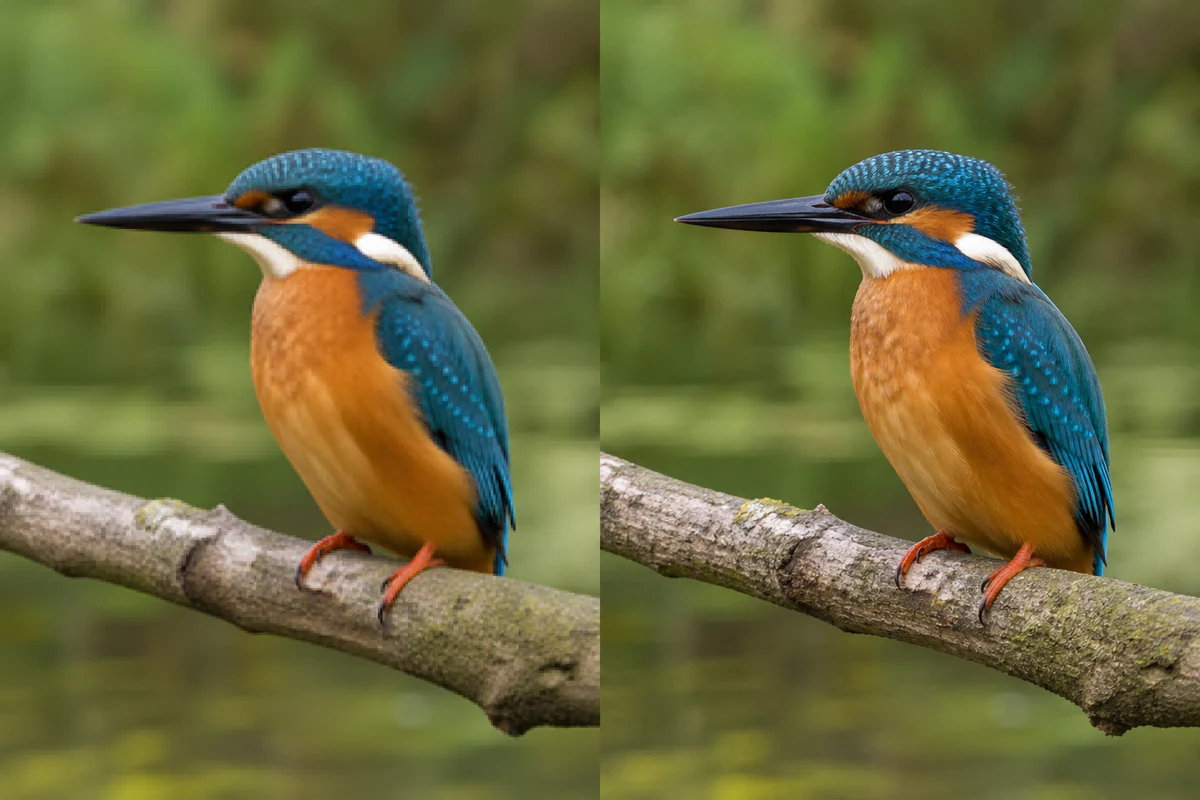
Use Image Upscaler after removing unwanted objects when the finished photo needs more pixels for printing, presentation, product listings, or high-resolution screens. Cleaning first prevents the upscaler from enlarging cables, clutter, and other distractions you already intend to erase.
Upscale the Cleaned Image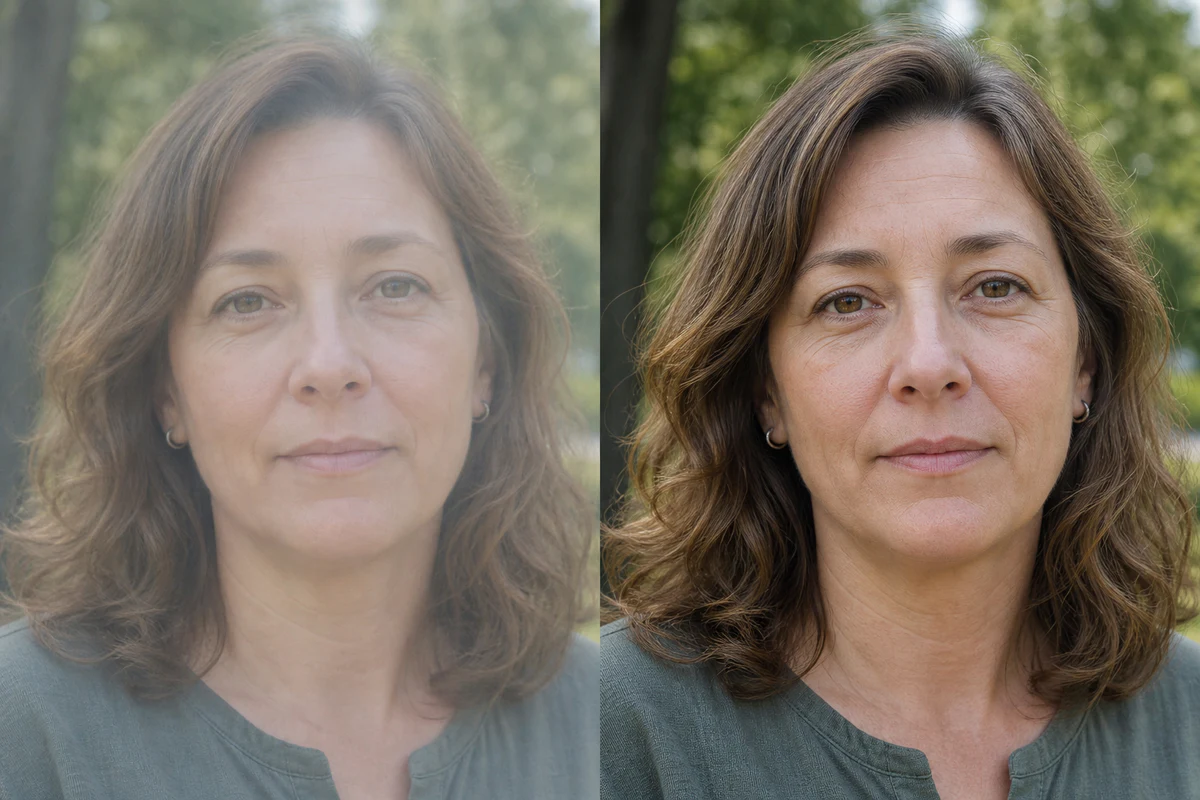
Once unwanted objects are gone, use Image Enhancer to improve clarity, texture, and fine detail across the finished composition. Cleaning first avoids sharpening an object or cable that you already plan to remove.
Enhance the Cleaned Photo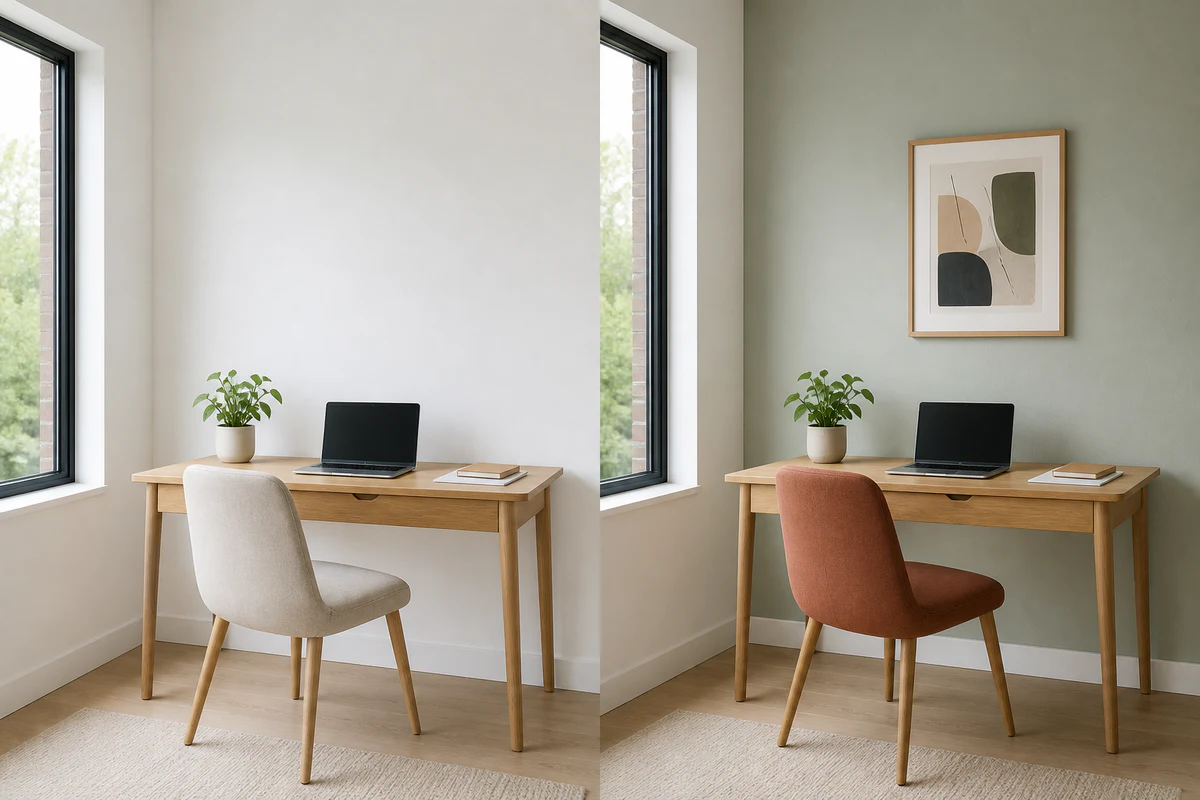
Open AI Photo Editor when the next task involves restyling, replacing a larger scene element, or describing a more creative transformation. Magic Eraser handles the focused cleanup; the editor changes the broader visual direction.
Open AI Photo EditorI use the brush to remove isolated passersby from city photos without changing the architecture. Being able to return to the mask is especially useful around railings and patterned pavement.
It is a practical final cleanup step for cables, tape, and small setup pieces. The comparison view makes it easy to check product edges before I export a catalog image.
For room photos, removing one appliance or loose cord at a time gives a much cleaner listing while keeping the furniture and natural light consistent.
An AI Magic Eraser is a brush-based object remover that replaces a selected area and reconstructs it from the surrounding image context. You control which pixels should be replaced.
Yes. Brush over the complete person and any connected shadow. Results are strongest when the person does not overlap the main subject and enough background remains visible.
The mask defines the area to replace. The rest of the image remains the visual reference, although pixels near the mask edge may be blended to create a natural transition.
Cover the unwanted subject completely and extend slightly beyond its visible edge. Include shadows, reflections, or small connected parts that should disappear with it.
Large masks leave less original context for reconstruction. Remove one focused object at a time and keep as much of the original background visible as possible.
It can reconstruct selected pixels, but you should only edit content you own or have permission to modify. Do not use it to remove copyright notices, ownership marks, or protected attribution.
You can upload JPG, PNG, and WebP images up to 18 MB. The cleaned result is returned as a high-quality JPG.
Yes. Return to the mask, change the brush strokes, and process the original image again without uploading it a second time.
No. Magic Eraser fills a selected area with reconstructed scene content. Background Remover isolates the main subject and makes the full background transparent.
Choose Object for physical items and general clutter, Text for authorized captions or labels, Watermark for marks you own or may legally edit, and People for passersby or isolated background figures. The mode supplies task context, while your brush mask defines the exact area to rebuild.
Use manual masking when the watermark is small, irregular, or close to important details. Automatic removal is more convenient for clearly detectable repeated or corner marks. Only remove watermarks from images you own or are authorized to modify.
Yes. Uploaded content is subject to the EzEnhancer AI content policy and automated moderation before processing.