











Free Online Image Cropper and Splitter

Crop a photo, make a transparent circle image, split one picture into a 3x3 grid, or cut a long image into smaller sections. Everything runs locally in your browser.

Image crop workspace

Upload one image, crop or split it, then download clean results.

Crop

Drop an image to crop or split

Upload a JPG, PNG, or WebP image. Cropping and splitting run locally in your browser.

JPGPNGWebPLocal processing

Crop and Split Images in One Local Tool

Handle everyday photo cropping and image splitting without switching apps, creating an account, or uploading private files to a server.

Precise Crop Controls

Drag the crop box or choose 1:1, 4:3, 16:9, 3:4, 9:16, and custom aspect ratios.

Flexible Image Splitting

Split by the long side, rows and columns, or fixed pixel tiles, then inspect every numbered result before download.

Private Browser Processing

JPG, PNG, and WebP files are processed with browser canvas APIs and stay on your device.

From Upload to ZIP in Three Steps

Upload once, choose the crop or split method that matches your destination, preview the exact output, then download one image or a complete ZIP.

1

Upload an image

Choose a JPG, PNG, or WebP file. The editable preview appears immediately in your browser.

2

Crop or split

Adjust the crop area, aspect ratio, grid, split count, shape, or fixed tile size.

3

Preview and export

Check every result before downloading a single image or all slices in a clearly named ZIP.

Try Real Images for Popular Cropping and Splitting Tasks

Each example below is an actual source image. Load it into the tool to learn the recommended setup, then replace it with your own file.

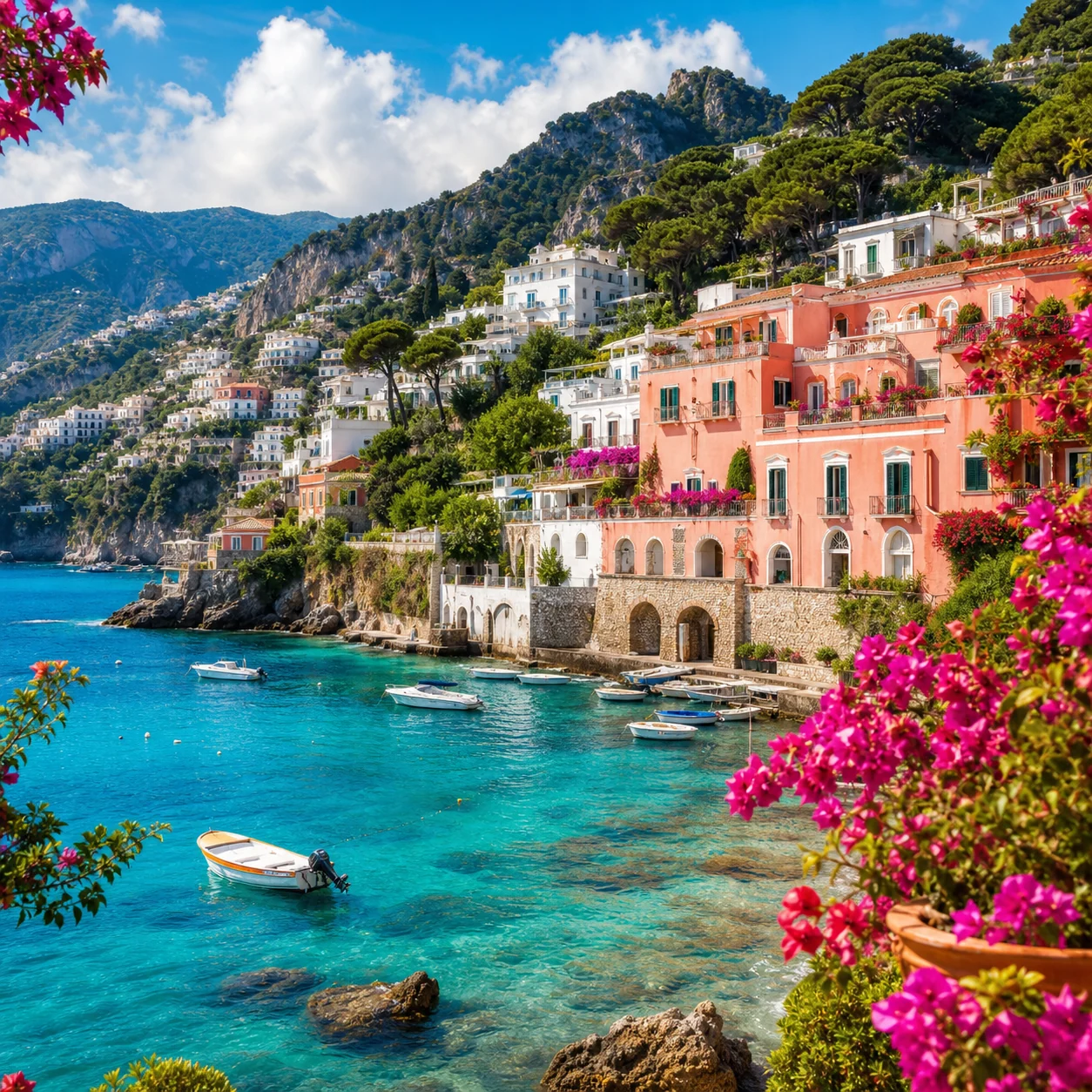
Colorful coastal photograph ready to split into a 3x3 image grid
Mode: Grid splitSetting: 3 x 3

3x3 Social Media Grid

Split one square photograph into nine aligned tiles for a puzzle feed, campaign reveal, or profile-grid layout.

  • Start with a square source so every tile has the same shape.
  • Keep faces and important text away from grid lines before exporting.

Centered portrait suitable for a transparent circular profile picture crop
Mode: Shape cropSetting: Circle PNG

Circle Profile Picture

Turn a centered portrait into a round avatar with transparent corners for profiles, team pages, and community accounts.

  • Leave space above the hair and around the shoulders.
  • Use PNG so the area outside the circle stays transparent.
Unbranded skincare product photo with room for a square ecommerce crop
Mode: Ratio cropSetting: 1:1

Square Ecommerce Product Photo

Reframe a product image into a balanced 1:1 square for store listings, catalogs, ads, and marketplace tiles.

  • Keep even breathing room around the product instead of cropping tightly.
  • Preview the square result at thumbnail size before publishing.
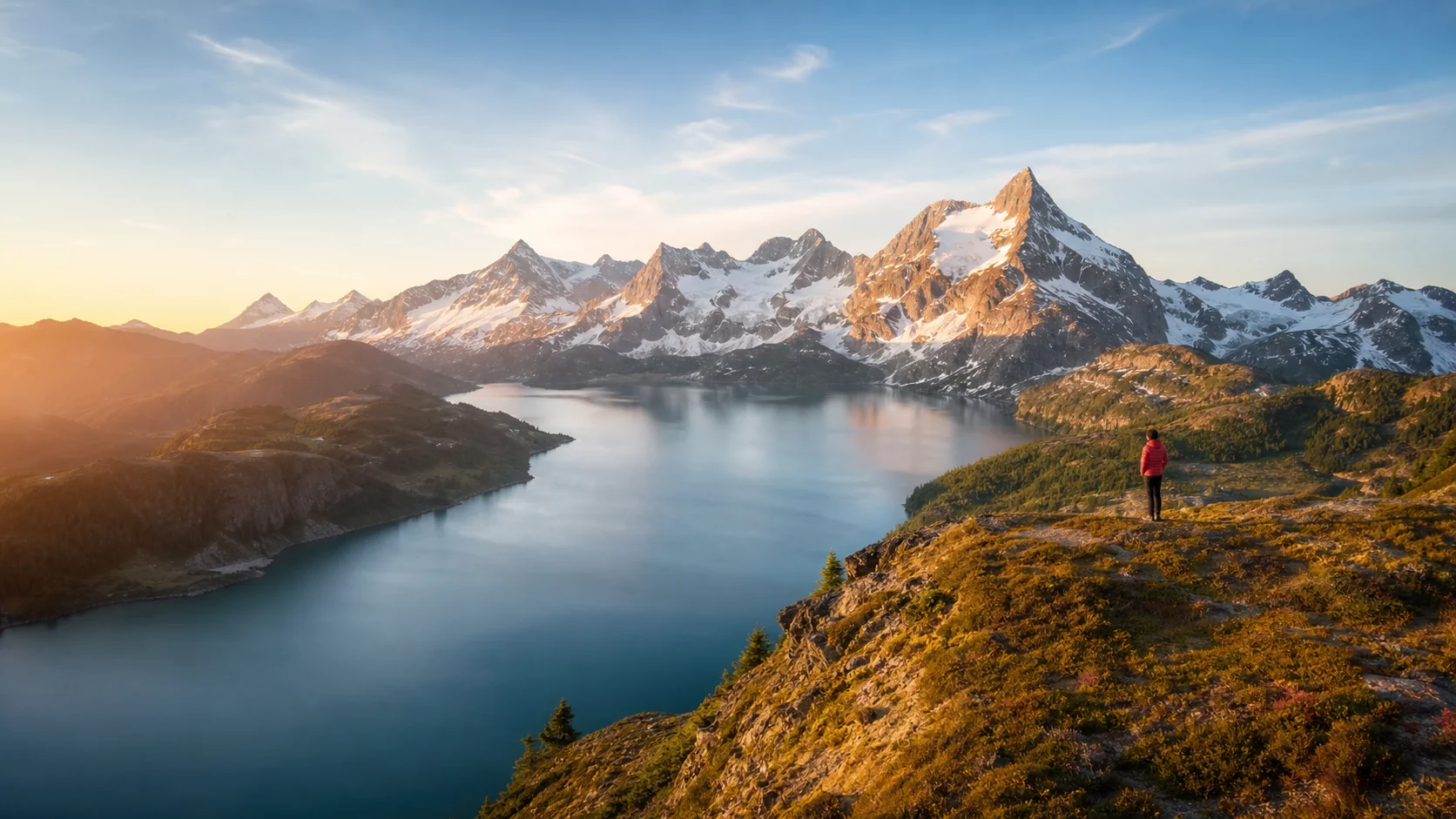
Wide mountain landscape prepared for a 16:9 cover image crop
Mode: Ratio cropSetting: 16:9

Blog Cover or Video Thumbnail

Crop a landscape image to 16:9 for article headers, presentation covers, and video-thumbnail layouts.

  • Place the main subject away from corners that platforms may cover with UI.
  • Keep useful negative space if the final design will add a title later.
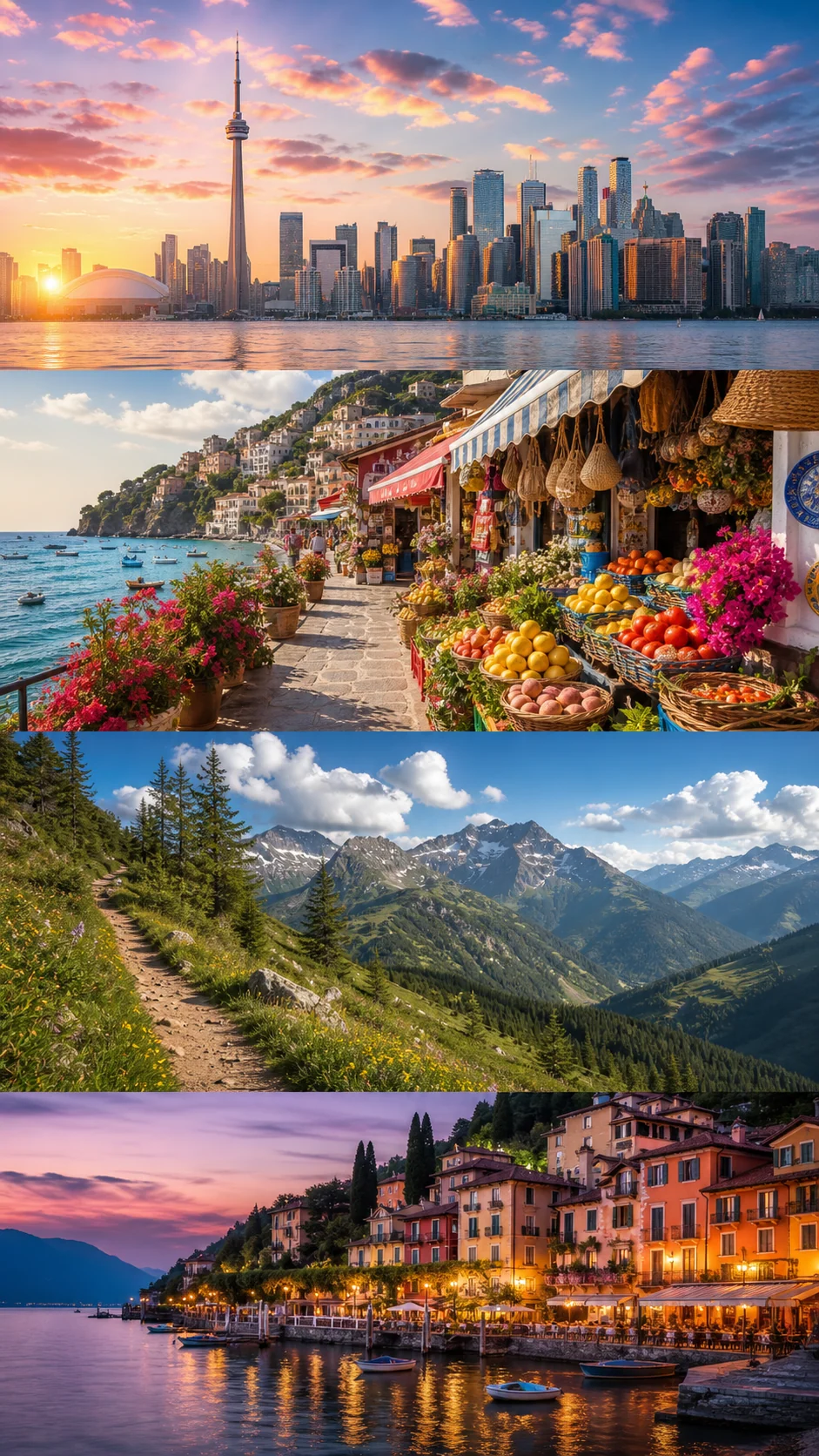
Tall travel story collage designed to split into four horizontal sections
Mode: Long-side splitSetting: 4 parts

Long Screenshot or Story Split

Cut a tall screenshot, tutorial, comic, or visual story into readable sections that are easier to share and view.

  • Choose a split count that keeps each section readable on a phone.
  • Inspect the cut lines so faces and key details stay inside one piece.
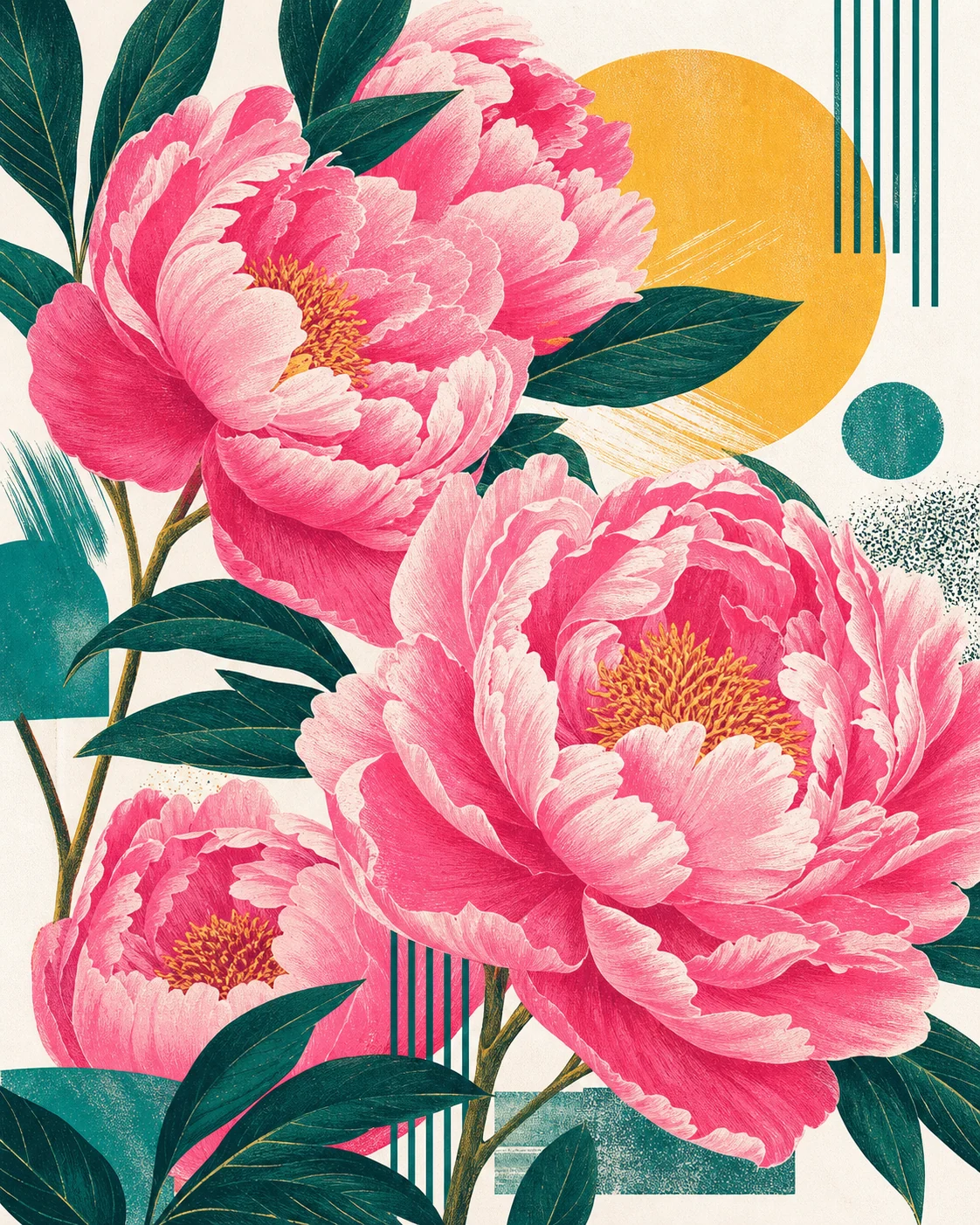
Botanical poster artwork suitable for fixed-size image tile splitting
Mode: Fixed tilesSetting: 561 x 701 px

Print Tiles and Design Handoff

Divide poster art, texture sheets, or design assets into predictable pixel tiles for printing, review, and development handoff.

  • Match tile dimensions to the destination before generating files.
  • Check edge tiles because they may be smaller when dimensions do not divide evenly.

Should You Crop, Split, or Tile the Image?

Start from the result you need. Cropping keeps one selected area, while splitting creates multiple files that together cover the full source image.

1

Crop

Best for

One final image for a cover, product card, thumbnail, or custom frame.

What to set

Free crop or a fixed aspect ratio

2

Long split

Best for

Tall screenshots, panoramas, tutorials, comics, and sequential story panels.

What to set

Number of equal sections and split direction

3

Grid split

Best for

3x3 social grids, mosaics, puzzle feeds, galleries, and multi-panel posts.

What to set

Rows and columns

4

Fixed tiles

Best for

Print panels, game assets, design systems, testing, and exact-size handoff.

What to set

Tile width and height in pixels

5

Shape

Best for

Square thumbnails and transparent circular avatars, logos, or badges.

What to set

Square or circle; circle exports as PNG

Get a Cleaner Result Before You Download

A good crop is not only the correct size. It should protect the subject, stay sharp at the destination, and use an output format that matches the job.

01

Choose the destination first

Set the target ratio or tile layout before refining the framing. A 1:1 product card and a 16:9 cover need different composition decisions.

02

Protect faces and focal points

Keep eyes, faces, products, and important details away from crop edges and split lines so the result still reads clearly.

03

Start with the largest source

Cropping removes pixels and splitting cannot create new detail. Use the highest-resolution original available when the output will be large.

04

Leave useful breathing room

Avoid framing too tightly. A small margin helps circular avatars, responsive cards, and platform previews survive additional automatic cropping.

05

Inspect every split tile

A complete grid may look good while one tile looks empty or cuts through a subject. Review numbered outputs individually before downloading the ZIP.

06

Match the format to the content

Use PNG for transparency and crisp graphics, JPG for compact photos, and WebP when you want a practical balance of image quality and file size.

Local, Predictable, and Format-Aware

The source image, crop area, split count, output format, and generated results remain visible before download, so you can catch framing mistakes early.

JPG and WebP exports include quality control, while PNG keeps transparent pixels.

Circle crops automatically use PNG to preserve clean transparent corners.

Grid, long-side, and fixed-tile modes show numbered previews before creating a ZIP.

Image Cropper and Splitter FAQ

Is this image cropper free and does it require an account?

The cropper and splitter can be used directly in the browser without signing in. Crop, preview, and export controls are available on the same page.

Are my images uploaded to EzEnhancer servers?

No. This tool uses browser canvas processing, so the selected JPG, PNG, or WebP stays on your device during cropping and splitting.

Which image formats can I upload and export?

You can upload JPG, JPEG, PNG, or WebP. Most modes export JPG, PNG, or WebP, while circular crops use PNG to keep transparent corners.

How do I split an image into a 3x3 grid or nine parts?

Choose Grid Split, set both rows and columns to 3, inspect the nine numbered tiles, then download all pieces as a ZIP.

How do I crop an image into a circle with a transparent background?

Choose Shape mode and select Circle. Move or resize the crop area around the subject; the result is exported as a PNG with transparent outer corners.

Will cropping or splitting reduce image quality?

The tool keeps the selected source pixels, but a crop has fewer total pixels than the original. Start with a high-resolution source and avoid enlarging small outputs after download.

Can I split a picture horizontally, vertically, or into equal parts?

Yes. Long Split can divide the image into equal sections along the long side or a chosen direction, while Grid Split creates equal rows and columns.

Can I cut an image into exact pixel-size tiles?

Yes. Select Fixed Tiles and enter the tile width and height in pixels. Edge tiles may be smaller if the source dimensions are not evenly divisible.

Does the image cropper work on phones and tablets?

Yes. The page adapts to modern mobile browsers and supports touch interaction. Very large images still depend on the memory available on the device.

How are multiple split images downloaded?

After preview generation, multiple results are packaged into one ZIP with ordered filenames. A single crop can be downloaded directly as one image.