











EzEnhancer LogoEzEnhancer
Enhance & Repair
Photo Enhancer
Photo EnhancerHOT

Enhance photo quality and clarity

Photo Restoration
Photo RestorationHOT

Restore old photos and recover details

Image Upscaler
Image UpscalerHOT

Upscale images to 4K resolution

Unblur Image
Unblur Image

Remove blur and restore sharpness

Sharpen Image
Sharpen Image

Enhance image clarity with AI super resolution

Unblur Text
Unblur TextUPGRADE

Sharpen blurry text in images and screenshots

Edit & Cleanup
AI Photo Editor
AI Photo EditorHOT

Edit and enhance photos with advanced tools

Background Remover
Background Remover

Remove backgrounds and replace with custom colors

Magic Eraser
Magic Eraser

Remove unwanted objects and distractions

AI Generative Fill
AI Generative FillNEW

Replace selected image areas with a text prompt

Remove Glare
Remove Glare

Remove glare and enhance contrast in images

Photo Colorizer
Photo ColorizerHOT

Transform black & white photos into vibrant color images

AI Image Colorizer
AI Image ColorizerNEW

Colorize photos, manga, sketches, and artwork with guided colors

AI Filter
AI FilterNEW

Apply artistic styles and filters to your photos

Create & Generate
AI Image Generator
AI Image Generator

Create images from text online

Free
Image Converter
Image ConverterFREE

Batch convert JPG, PNG, and WebP images

Image Cropper
Image CropperFREE

Crop, split, and export images locally

Coming Soon
Layout Control Generator

Layout Control Generator

Create images with visual bbox control

AI Hairstyle

AI Hairstyle

Try realistic hairstyles and colors instantly

AI Pet Portrait

AI Pet Portrait

Turn pet photos into charming AI portraits

AI Photo Editor HOTPricing

AI Photo Filter

Create cartoon, anime, sketch or watercolor art from your photos, or use a style reference. Try it with available free credits.

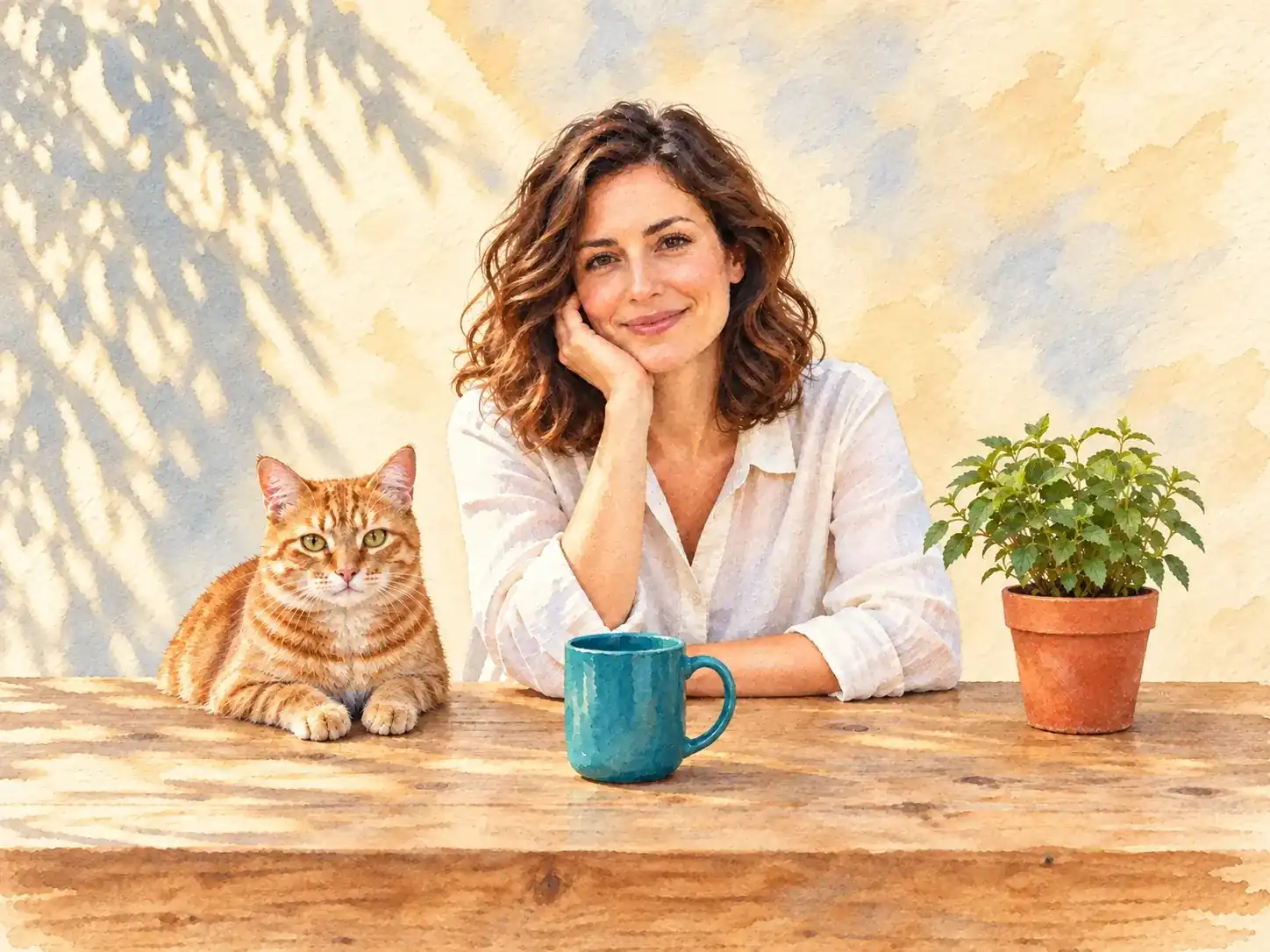
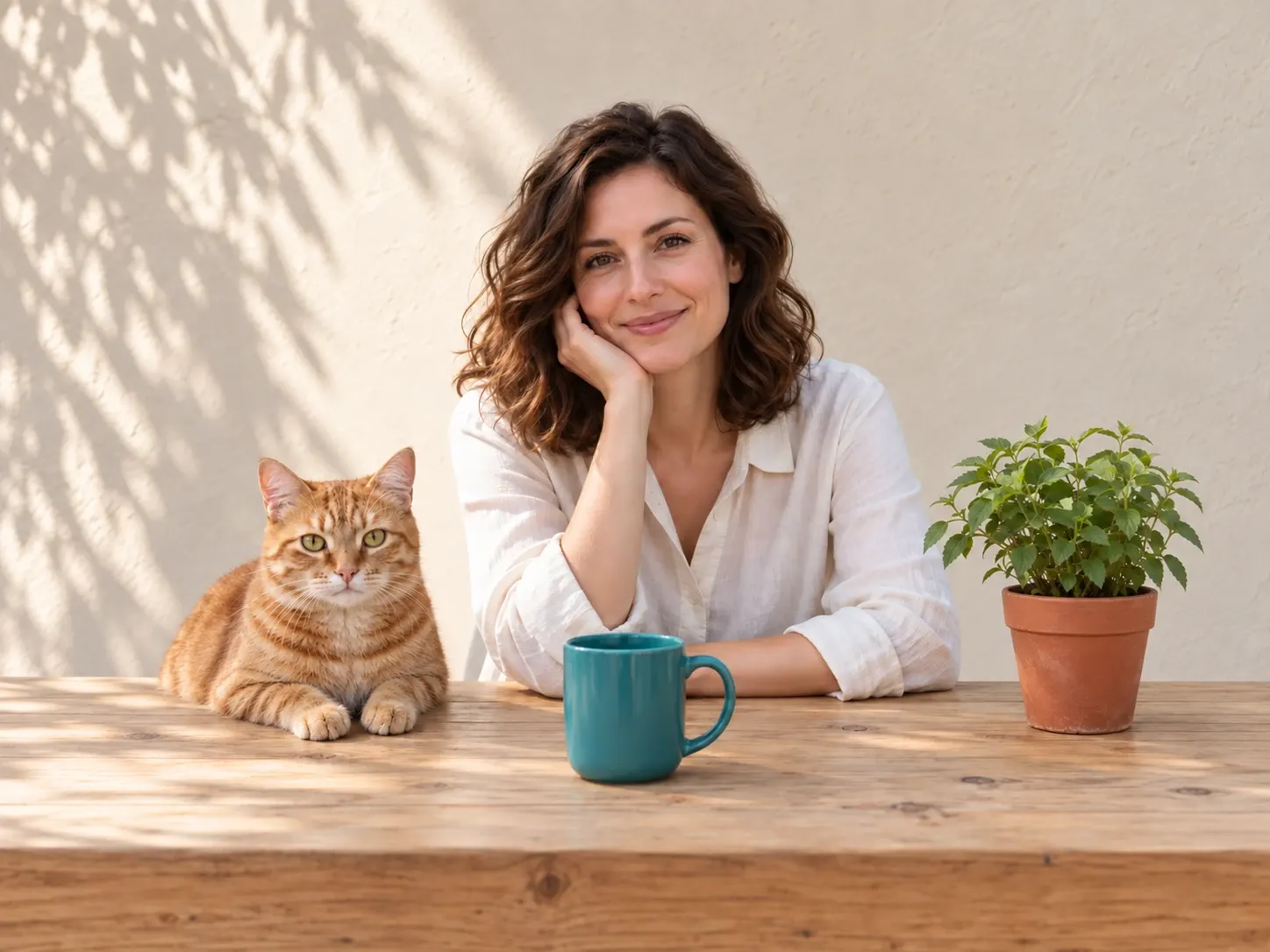
The same woman, cat and café table in a photo and a watercolor style example
Sample
Watercolor

Upload Image

Drag & drop or click to browse

Upload 1–20 images; multiple images require VIP.

SecureFastPreset styles

What can you do with an AI filter?

Start with a picture you like and explore a different way to tell its story. Change the artistic treatment while using your original subject and composition as a guide.

01

Explore AI filters without a prompt

Browse presets across anime, cartoon, illustration, 3D, painting, sketch, clay and retro. An AI photo filter can redraw lines and textures as well as change colors, giving you more than a tint over the original.
02

Bring your own style reference

Use AI style transfer when you have a particular look in mind. Upload a separate image to guide the palette, texture and medium, from soft painted washes to a sculpted clay finish.

03

Compare the new look with your photo

Review the generated image beside the original before downloading. Check whether the face, pose and important objects still work for your project, especially with bold or abstract styles.

04

Create in your browser

Apply an AI filter online without installing editing software. Upload a JPG, PNG or WebP, choose a style and output options, and download the version you want to use.

One photo,
a different visual story

Explore what changes when a photo becomes a drawing, painting or sculpted scene. These examples help you choose a direction before uploading your own image.

AI-generated style illustrations. They show creative directions, not verified outputs from a particular model; your result will depend on the source, style and settings.

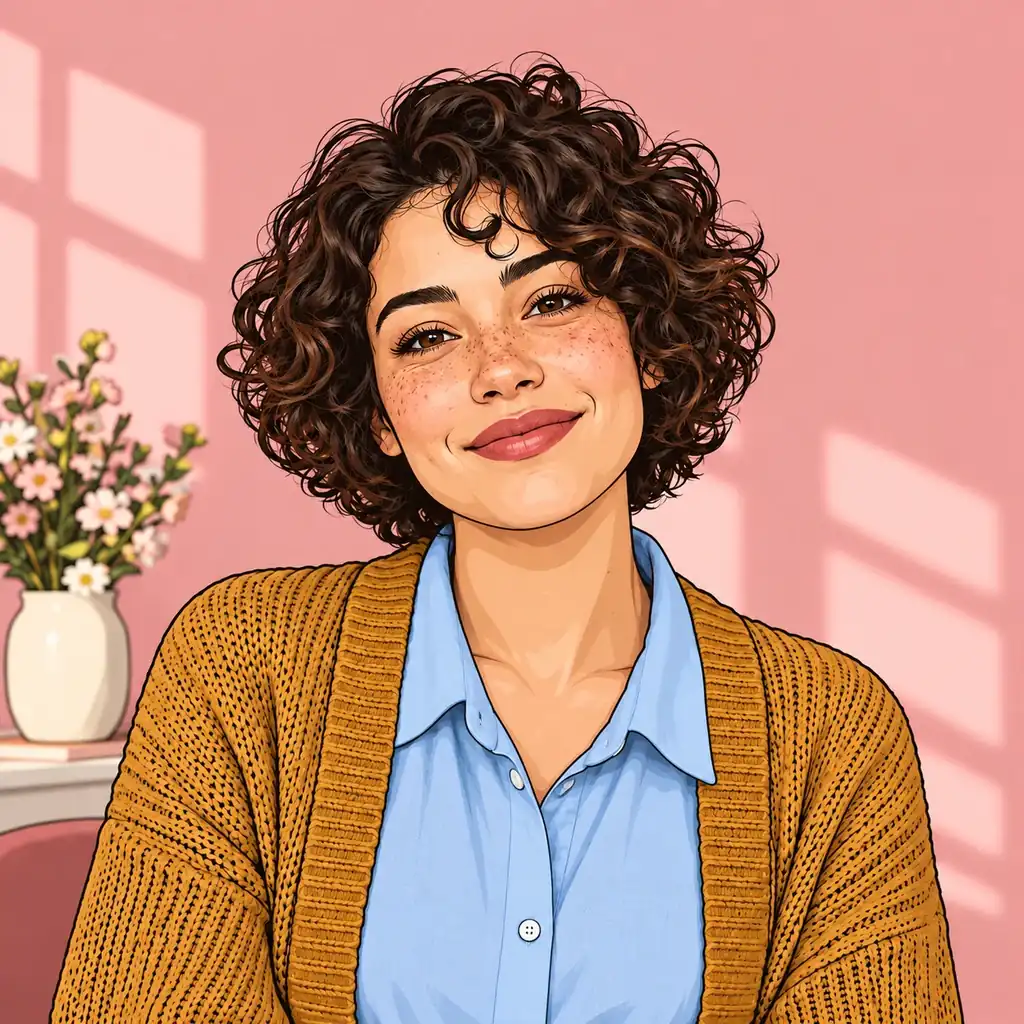
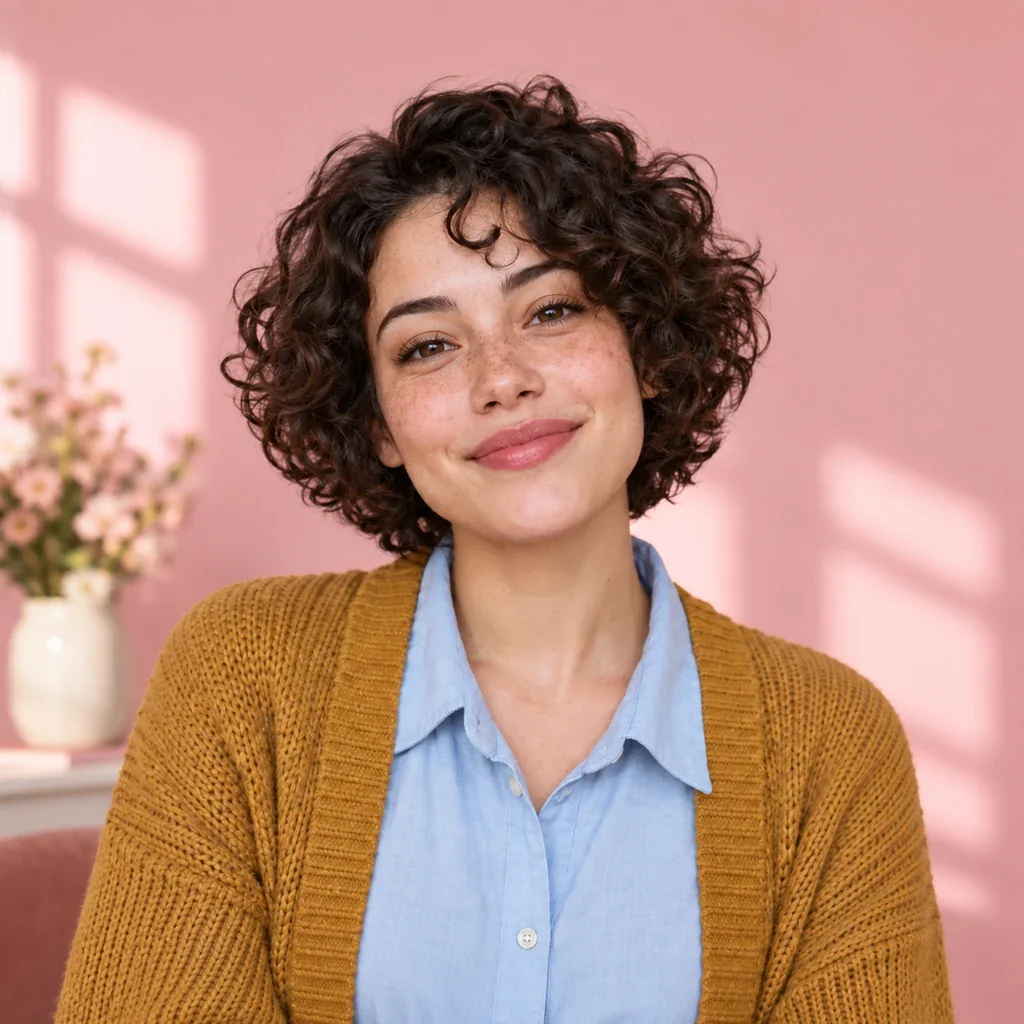
Curly-haired woman in a mustard cardigan shown as a photograph and a matching cartoon illustration
Original
Editorial Cartoon

Photo to cartoon for expressive portraits

Give a portrait crisp outlines and softer blocks of color. A cartoon filter is a useful starting point for an avatar, while an anime filter offers another way to explore expressive character art.

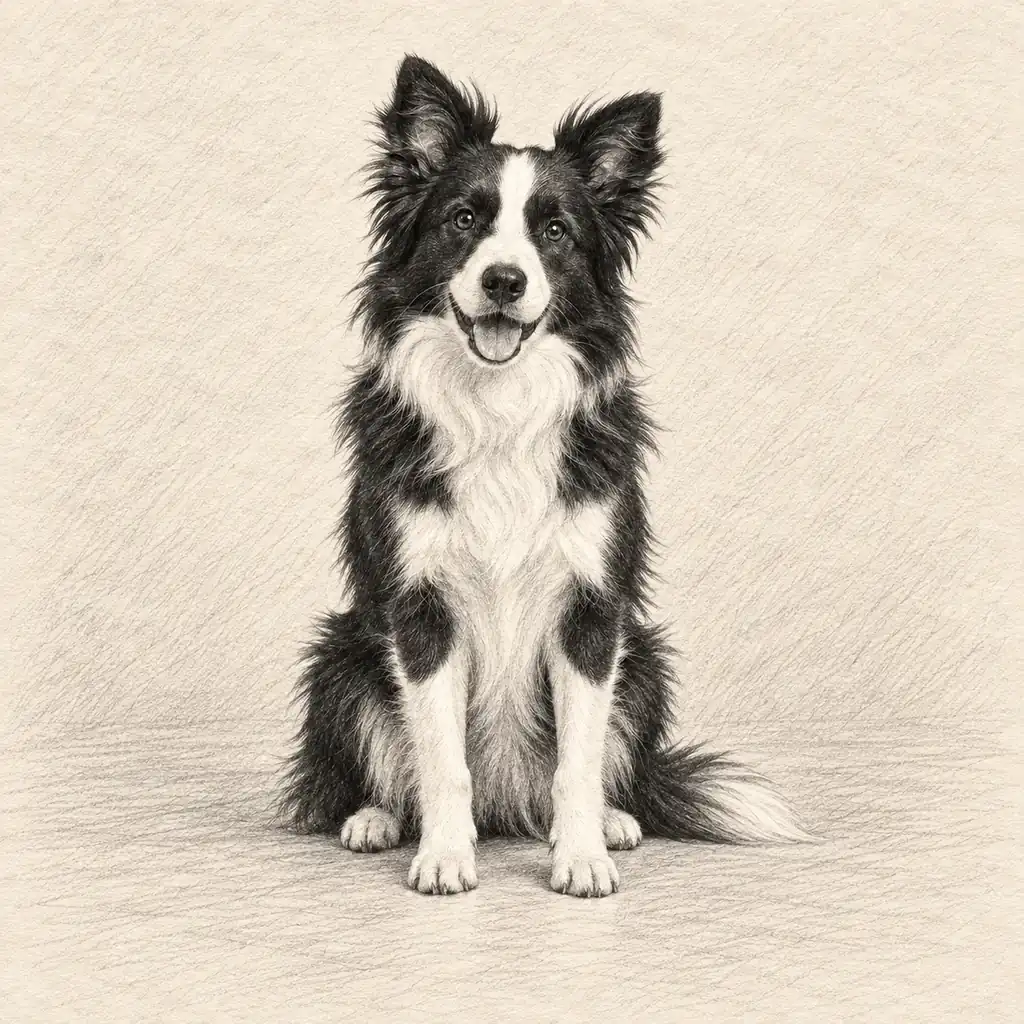
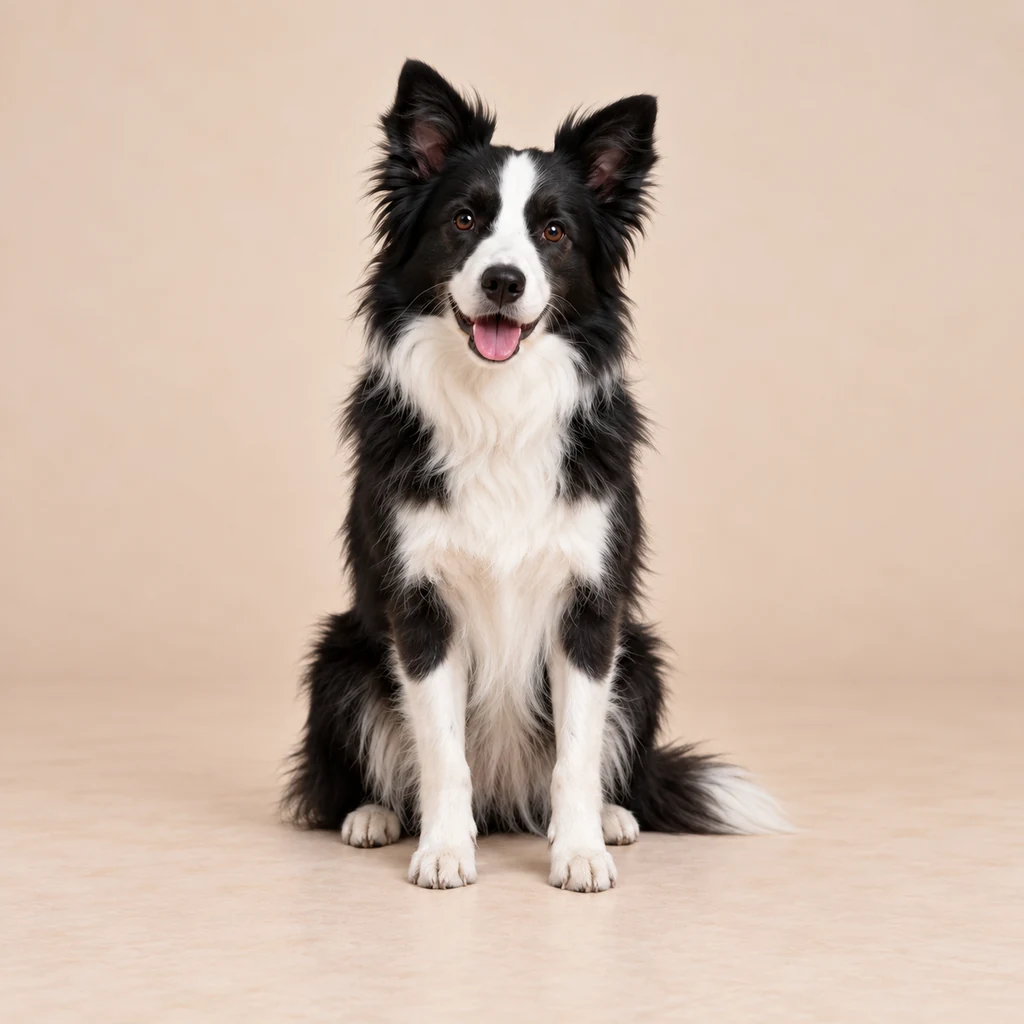
Seated black-and-white border collie beside a graphite pencil interpretation of the same pose
Original
Pencil Sketch

Photo to sketch with pencil texture

Try a sketch filter when you want linework to carry the image. Pencil strokes can bring out a pet’s fur and silhouette, while a simple background keeps attention on the subject.

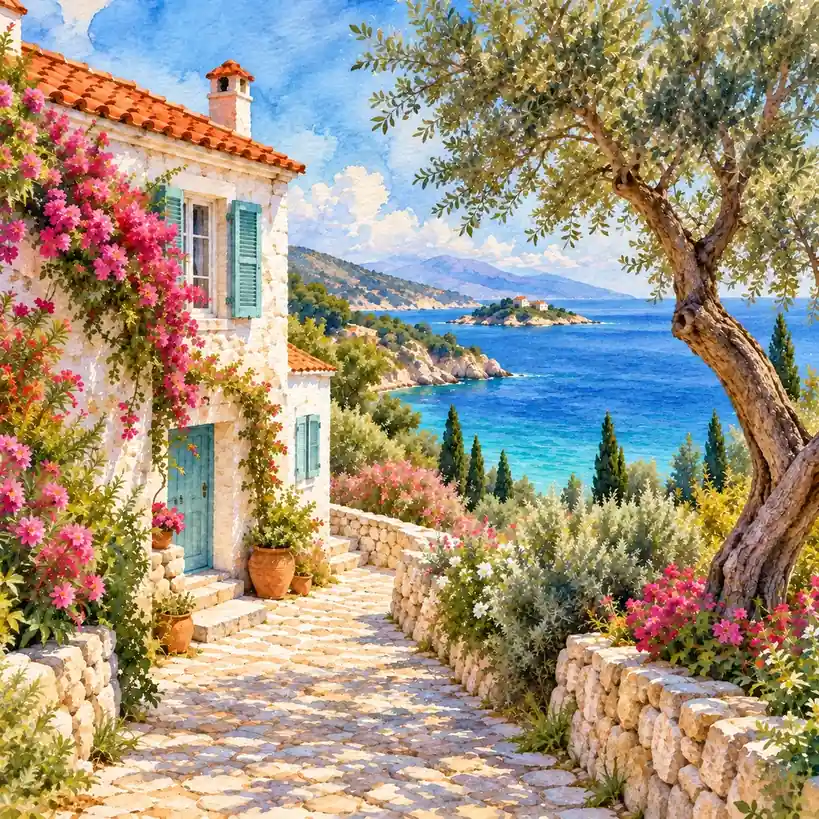
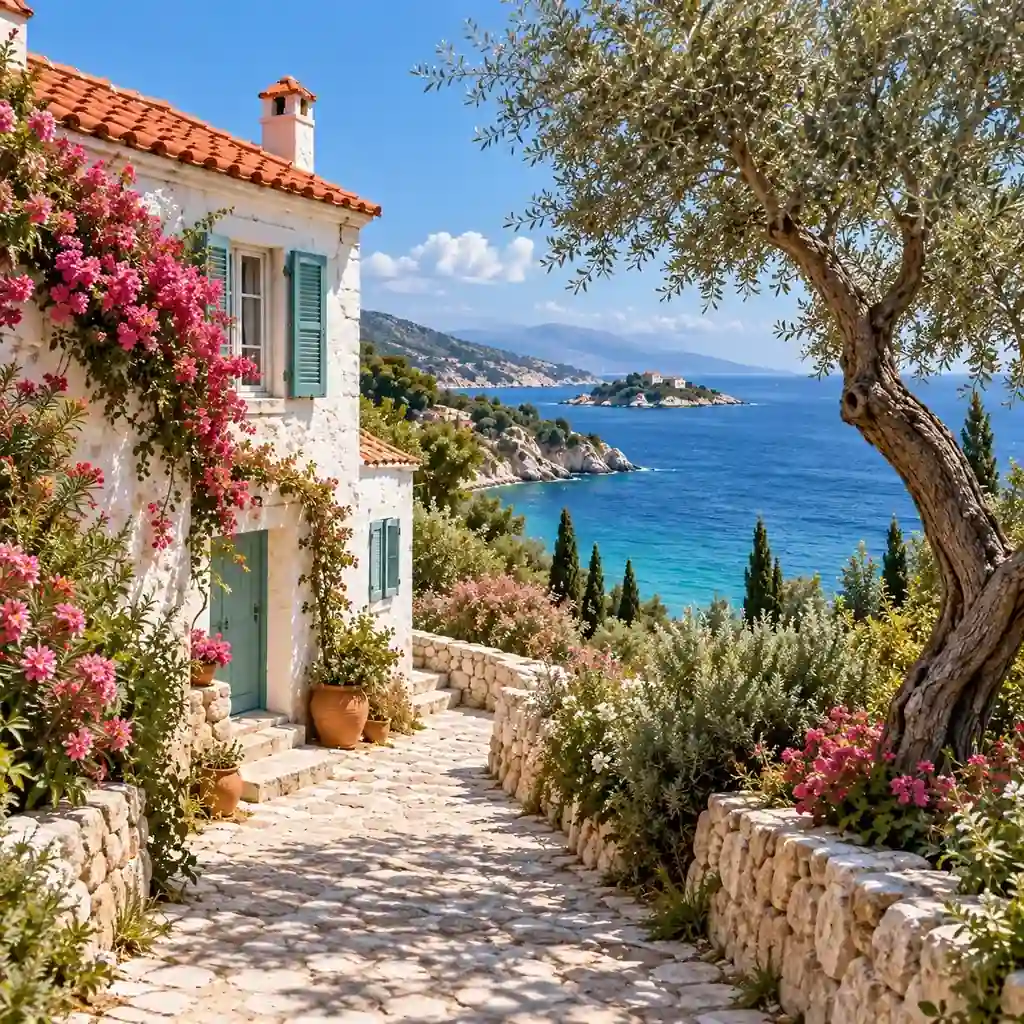
Seaside cottage with a coral roof shown in photographic and watercolor styles
Original
Watercolor

Watercolor for travel memories

Use a watercolor filter to explore soft edges, translucent color and paper grain. Coastal scenes, gardens and street photos can become ideas for personal postcards or a travel journal.

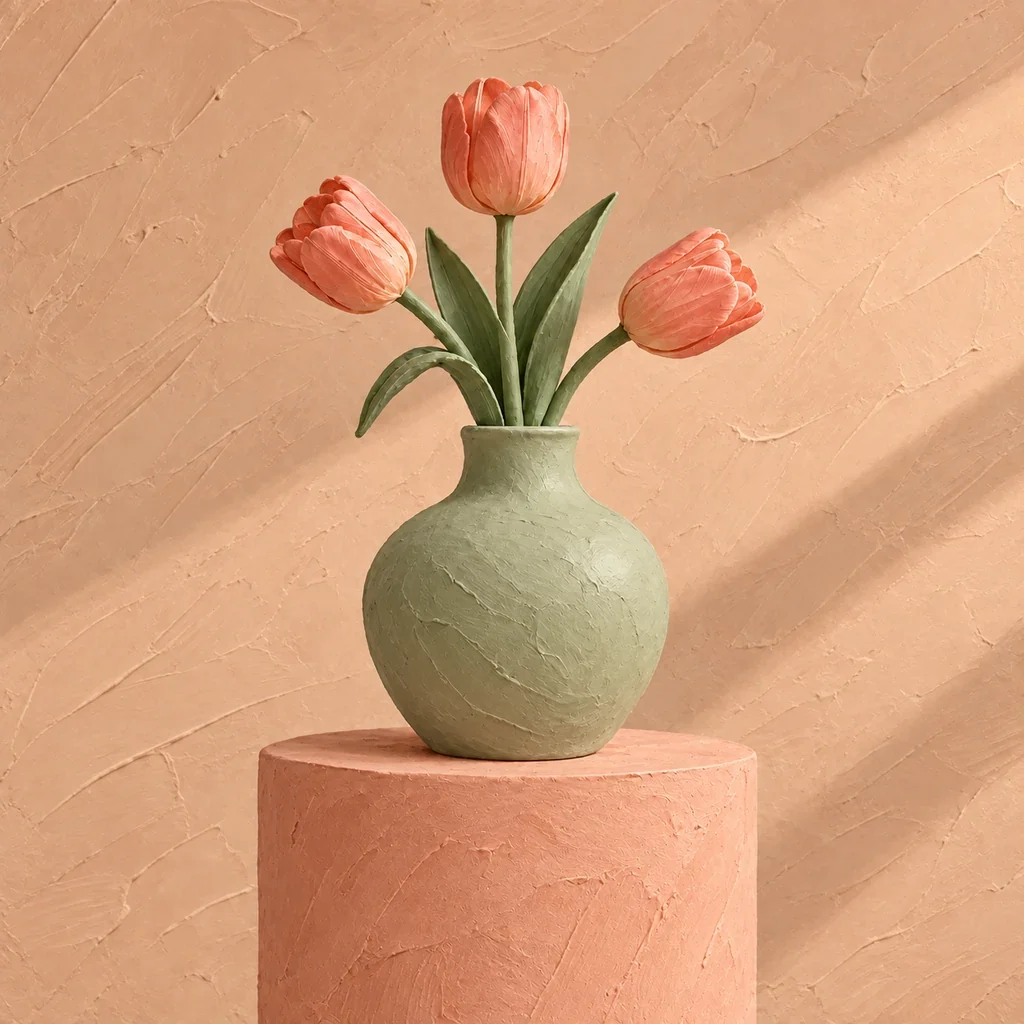
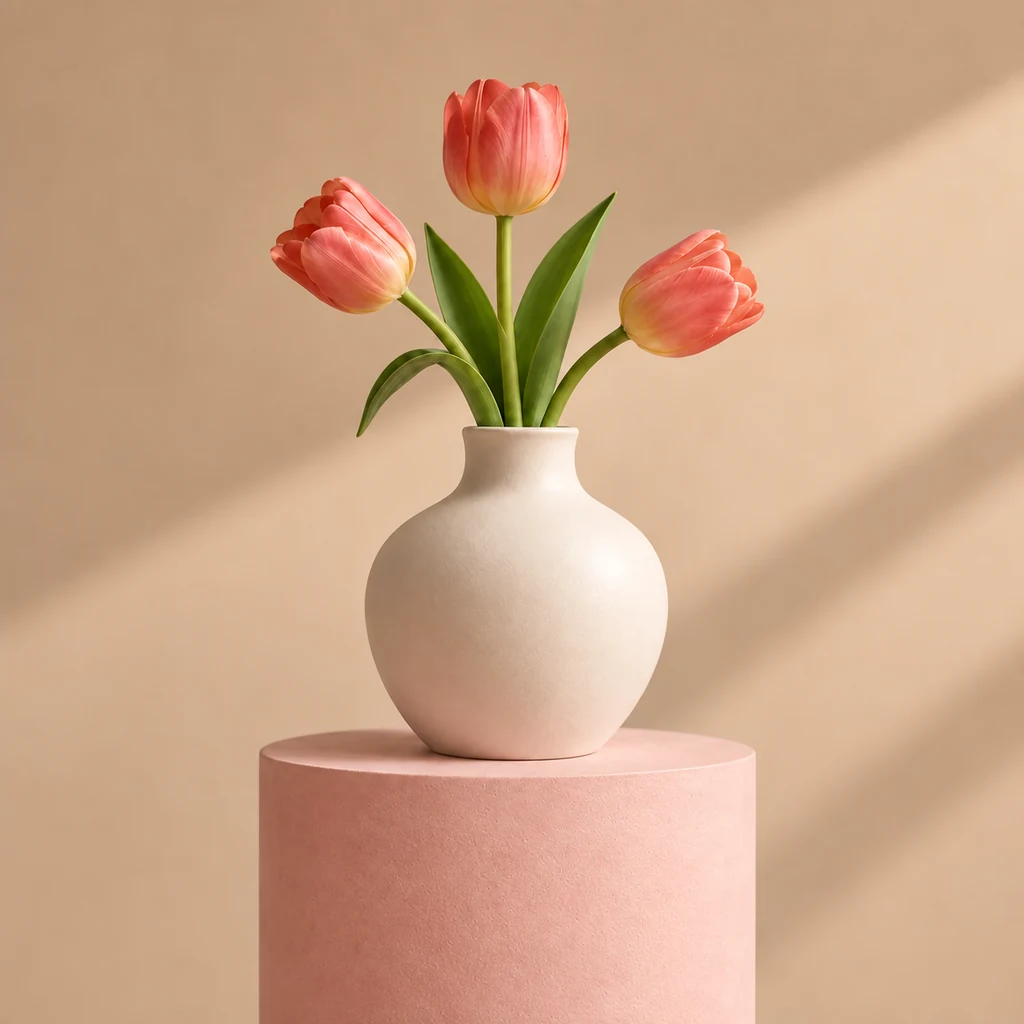
Ivory vase with coral tulips shown as a photograph and a sage-green clay interpretation
Original
Clay Figure

Reference-led color and material

A custom AI image filter can take its direction from a reference. Here, a clay texture suggests a tactile treatment for a vase and flowers while the original arrangement guides the scene.

An AI filter for photos you already want to use

A new style can give a familiar picture another purpose. Choose a treatment for the person who will see it and the place you plan to share it.

Profile pictures and avatars

Try an AI photo filter for a personal profile, community avatar or creator page. Use a clear portrait, then check that the expression and facial features still feel like you.

Pet portraits and gift ideas

Turn a favorite pet photo into a sketch, cartoon or felt-inspired picture. Choose a source with visible eyes and distinctive markings so you have useful details to compare.

Travel journals and postcards

Revisit a landscape or city walk in watercolor or a painterly style. Keep the landmarks that matter in the frame and leave room for a caption in your final layout.

Social posts and thumbnails

Give an existing photo a visual theme for a seasonal post or a video cover. Test how the image reads at a small size before adding headlines or platform-specific cropping.

Product and campaign concepts

Use an AI image filter to explore materials and moods for a creative brief. Treat stylized product images as concepts, and check shape, labels and color before using them in a listing.

Moodboards and visual collections

Use the same preset or reference across a collection. VIP users can process up to 20 photos together; compare the results for consistent color, texture and detail.

How to apply an AI filter online

  1. 1

    Upload a photo

    Choose one JPG, PNG or WebP up to 18 MB and 40 megapixels. Start with the original file when possible, with the main subject clearly visible.

  2. 2

    Choose a preset or reference

    Pick a style from the gallery, or add a separate image in Reference image mode. Select a model and its output options, then check the credit cost displayed before you generate.

  3. 3

    Generate, compare and download

    Apply the AI filter and wait for processing to finish. Compare the result with the original, inspect important details and download your preferred version.

Preset or reference: which should you choose?

The right starting point depends on how specific your idea is. Use the gallery to explore, or bring a reference when you can already picture the result.

Presets for quick exploration
Start with cartoon, sketch, anime or painting when you want to compare broad styles. The gallery examples make differences in linework, texture and color easier to judge without writing a prompt.
A reference for a particular look
Image style transfer uses a second image as visual guidance. Choose a reference with a clear palette and medium; a busy collage with conflicting styles gives a less focused direction.
Original ratio for familiar framing
Keep the original aspect ratio when the existing composition suits your project. A square avatar or wide thumbnail may need another ratio, which can reframe or extend the scene.
Output settings for the final use
Choose the model, format and available quality or resolution to suit your project. Options and credit costs vary; some settings require VIP access. Judge the downloaded image at the size you plan to use.

A reference guides the overall look. It is not a request to paste a reference object into a particular part of your photo.

Get more from your AI filter

A clear source and a deliberate style choice give you a better starting point for a result you will want to keep.

Start with a clear subject

Choose good light and a face or object that is easy to see. If blur hides the subject, improve the source photo first, then return to try a style.

Decide what belongs in the frame

Remove distracting edges with the image cropper before styling. Keep enough space around hair, ears and important objects for the intended composition.

Inspect the details that matter

Look closely at faces, hands, text and product markings. AI can reinterpret these details; use the photo editor for further adjustments and check again before sharing.

Check your available credits

Browsing presets and uploading do not start a generation. Review the displayed cost and your plan and credits before trying several variations.

Take your styled photo to the next step

Prepare the source, choose a look, then finish the image for its destination. Use the next tool when your photo needs a specific adjustment.

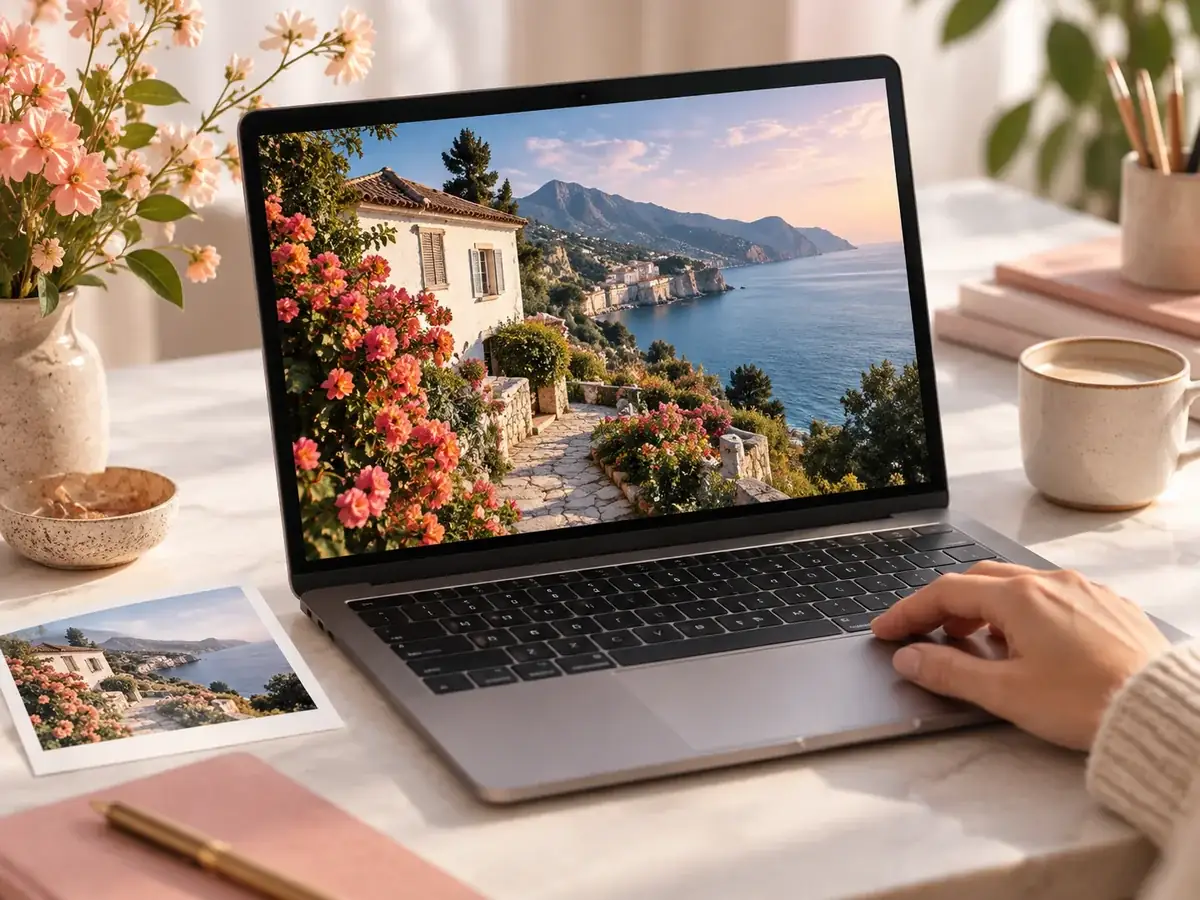
Laptop displaying a coastal garden photograph on a bright creative desk

Edit your source before applying a style

Remove a distraction or change an element in the photo editor, then bring the finished source to AI Filter. Settling the content first makes it easier to judge which artistic treatment works.

Edit your source photo
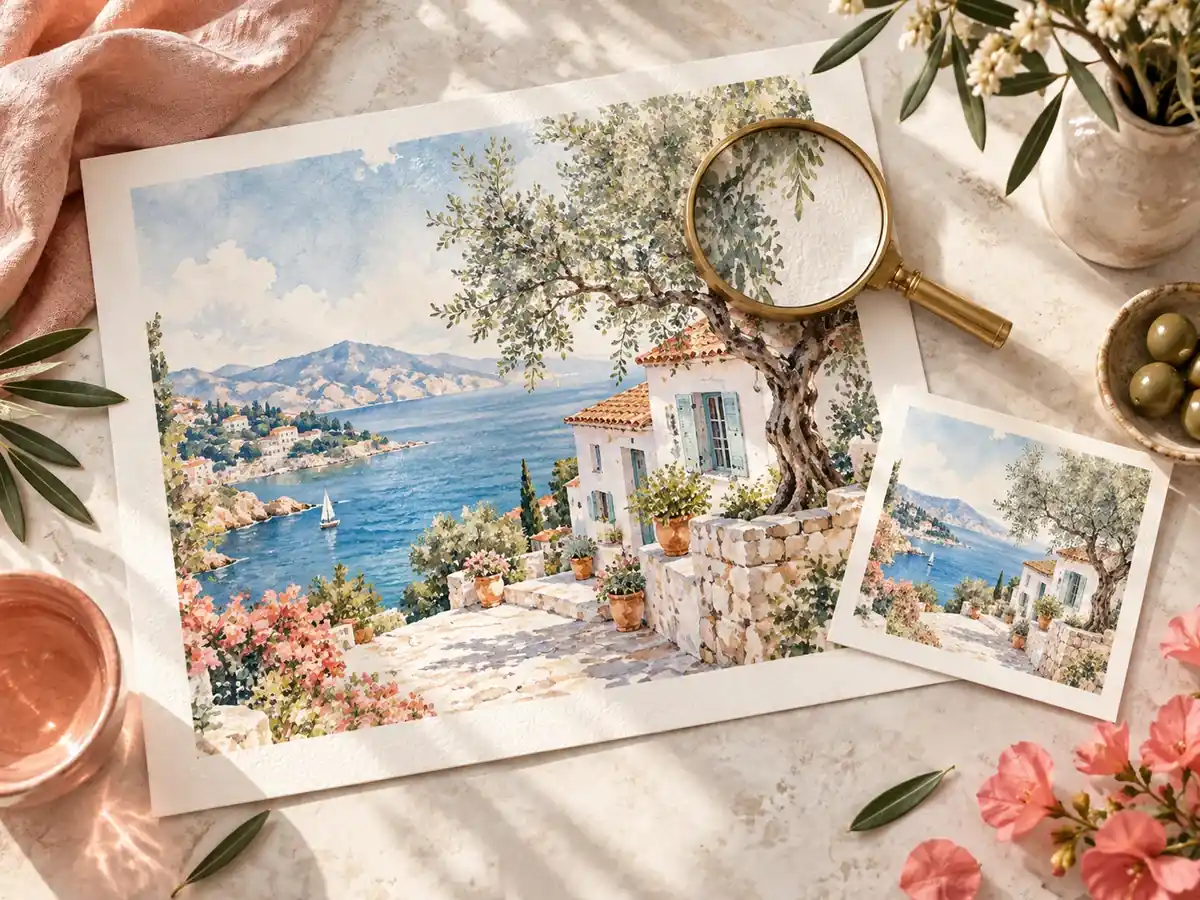
Large watercolor cottage print and matching postcard on a studio table with a loupe

Upscale your favorite version for a larger display

Once the style feels right, increase the image resolution for a portfolio, presentation or print. Compare fine lines and textures after enlargement so added detail still suits the chosen look.

Upscale a styled image
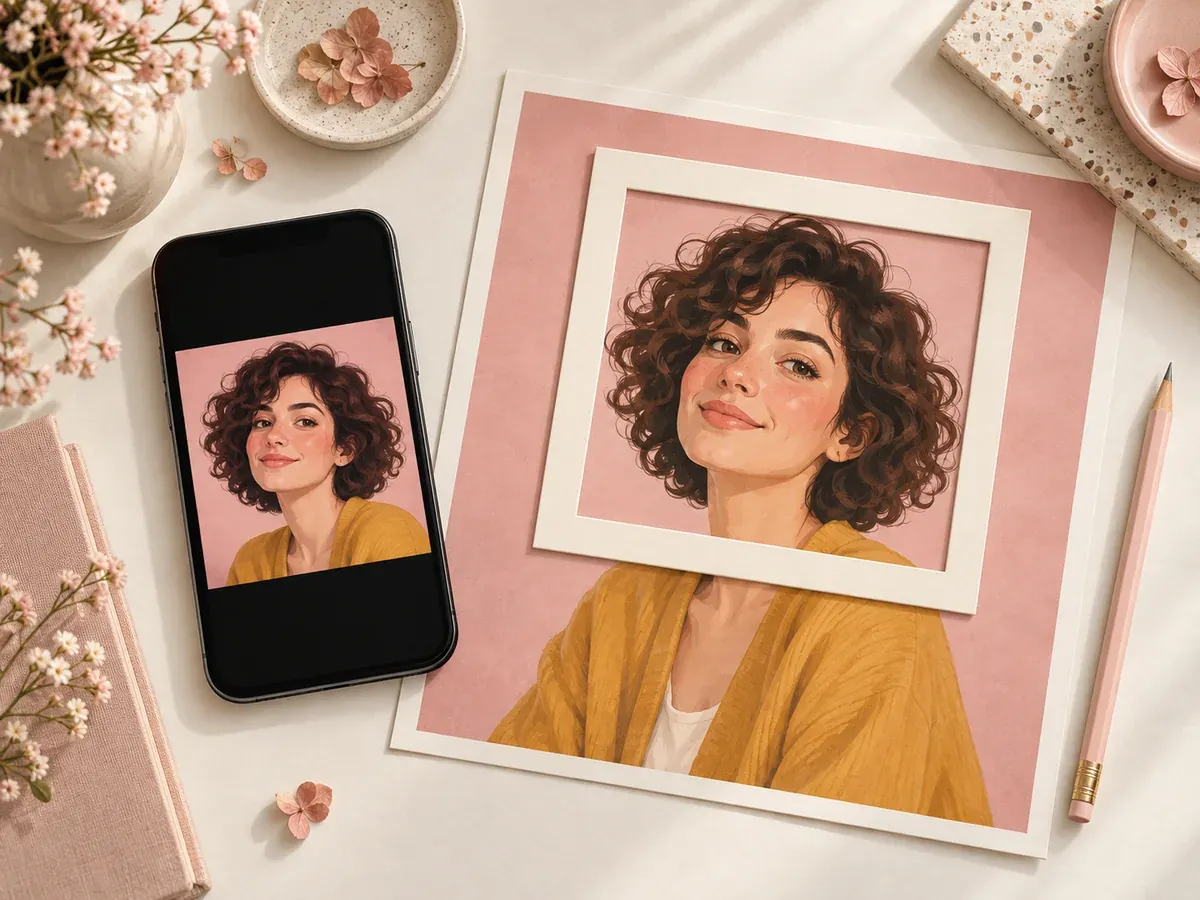
Phone with a square cartoon profile image beside a wider matching portrait print and cropping mat

Crop the result for its destination

Fit a portrait to a profile picture or a landscape to a social cover. Set the final crop around the subject and preview it at the display size before publishing.

Crop your finished photo

AI filter questions

What is an AI filter?

An AI filter generates a new interpretation of a photo using a selected style or reference image. It can change linework, texture, material and color. A traditional photo filter usually adjusts existing pixels; generative styling can also redraw details.

How do I use an AI filter on my photo?

Upload a photo, select a preset or add a style reference, then choose your output settings. Check the displayed credit cost and start generation. When the image is ready, compare it with the original and download the result.

Is there a free AI filter option?

You can browse styles and upload a photo without starting a paid generation. Generating an image uses credits. If your account has enough available free credits, you can use them; otherwise you need additional credits. The tool shows the cost for the selected settings.

Can I turn a photo into a cartoon, anime or sketch?

Yes. Choose a cartoon, anime, manga or sketch preset from the gallery. You can also explore painting, watercolor, clay, felt and retro styles. The result depends on your photo and selected model, so compare faces and fine details before sharing.

How does reference image style transfer work?

Your first image supplies the subject and composition. In Reference image mode, a second image guides color, texture, lighting and artistic technique. Choose a visually clear reference; it guides the whole image rather than placing an object into a chosen area.

Will the filter keep my face and composition unchanged?

The model is guided to retain the main subject and composition, but exact identity or detail preservation is not guaranteed. Faces, text and small objects can change. Keeping the original ratio preserves the aspect ratio; it does not lock every element in place.

Which image formats and sizes can I upload?

Upload one JPG, PNG or WebP up to 18 MB and 40 megapixels. Reference mode accepts one additional image with the same limits. Available download formats, quality and resolution depend on the selected model and are shown in the tool.

Can I apply the same style to several photos?

VIP users can upload up to 20 photos, apply the same preset or reference and output settings, then generate them as a batch. Review each result, retry failed items, and download images individually or together as a ZIP. Credits are charged per image.

Can I use the tool on my phone?

Yes. Open this page in your mobile browser and upload a photo from your device. Choose a preset or reference and adjust the output settings, then generate and download. No separate mobile app is needed.

How is an AI photo filter different from an image enhancer?

A style filter changes the artistic look, such as turning a photograph into a drawing. An image enhancer focuses on clarity, lighting or detail, and an upscaler increases pixel dimensions. Choose the tool that matches the change you want.

EzEnhancer LogoEzEnhancer

Free online AI photo enhancement with professional-grade upscaling, background removal, photo restoration, and creative effects. No download required. Free to try with daily credits.

Contact Us[email protected]

Enhance & Repair

  • Photo Enhancer
  • Image Upscaler
  • Unblur Image
  • Sharpen Image
  • Photo Restoration

Edit & Cleanup

  • AI Photo Editor
  • AI Image Generator
  • Background Remover
  • Magic Eraser
  • AI Generative Fill
  • AI Filter
  • Photo Colorizer
  • AI Image Colorizer
  • Remove Glare

Free

  • Image Converter
  • Image Cropper

Resources

  • Blog
  • Changelog
  • Pricing
  • Billing & Cancellation
EzEnhancer

© 2026 EzEnhancer.ai. All rights reserved.

Privacy PolicyTerms of ServiceCookie Policy