












How to Unblur Text in Images & Screenshots (2026 Guide)
Quick Answer: What is the best way to unblur text in 2026?
To unblur text in an image or screenshot quickly, the best method depends on the severity of the blur:
- Slight Focus Blur: Use traditional manual Sharpening (like Photoshop's High-Pass filter).
- Scanned Documents: Use Thresholding to convert grey, blurry backgrounds into crisp black-and-white text.
- Heavy Blur & Pixelation: Use AI Text Restoration (Generative AI). This is the only way to recover unreadable text from compressed WhatsApp/Discord screenshots or shaky mobile photos.
Not sure which method to choose? Use this quick guide:
| Method | Key Features | Main Advantages | Best Use Cases |
|---|---|---|---|
| AI Text Restoration (EzEnhancer.ai) | Neural Reconstruction, 4K Upscaling, AI denoising. | Reconstructs missing pixels; One-click automation; high OCR accuracy. | Low-res screenshots, heavy motion blur, pixelated WhatsApp/Discord images. |
| High-Pass Filter (Manual) | Edge sharpening, Layer blending (Overlay/Hard Light). | No AI artifacts; full control | Slight blur, high-quality images |
| Thresholding (Binary) | Converts image to pure Black & White (1-bit). | Maximum readability, OCR friendly | Scanned receipts, old documents, preparing text for OCR scanning. |
Ending the "Unreadable Screenshot" Anxiety
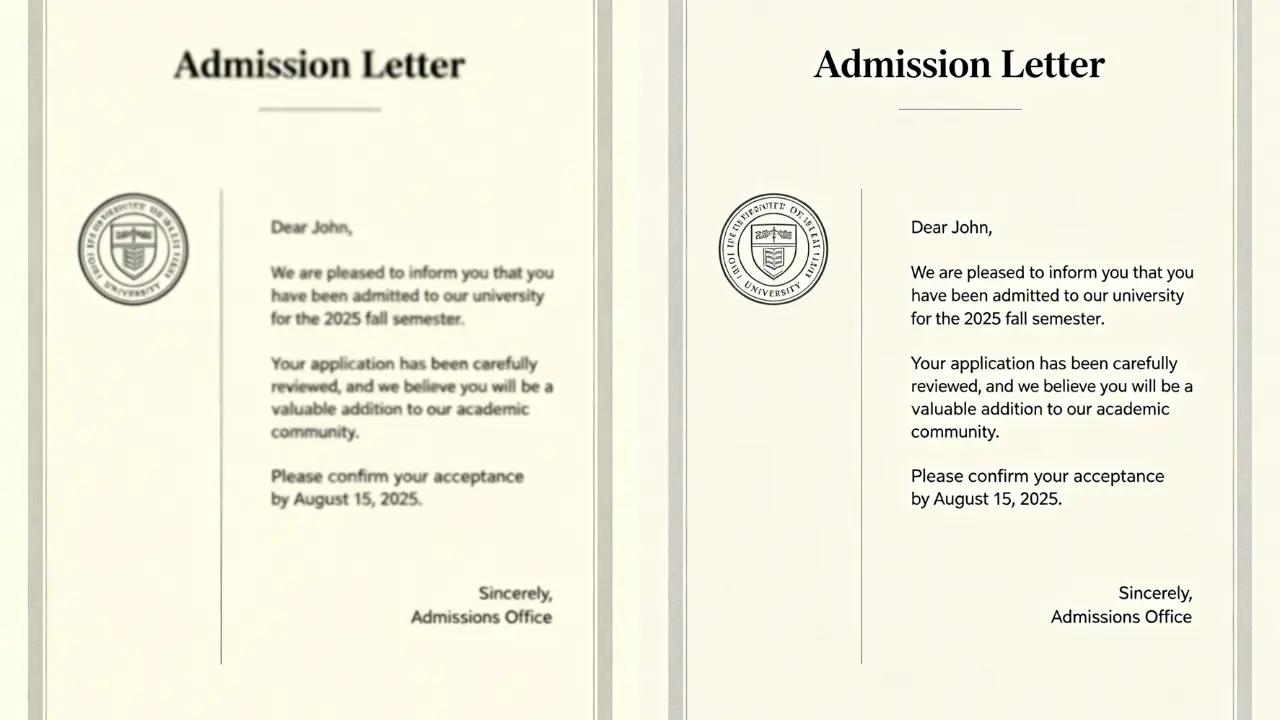
In 2026, our workflows are entirely digital, yet we still struggle with blurry document photos and pixelated screenshots. Whether it’s a handwritten class note taken in a hurry or a legal contract compressed by messaging apps like WhatsApp, losing text clarity means losing critical data.
Traditional photo editors fail because they only increase contrast, adding "noise" without recovering the actual letters. AI Text Clarifiers have changed the game by "understanding" typography to make blurry text readable instantly.
Why Is Text Blurry and Hard to Fix?
To restore blurry text, we must understand the three types of digital blur that traditional tools struggle to handle:
- Motion Blur: Caused by a shaky camera. Text appears to have a "ghosting" effect in one direction.
- Focus Blur: Occurs when the lens isn't aligned with the text plane, causing pixels to "bleed" into each other.
- Compression Artifacts: The #1 issue for fixing blurry Discord/WhatsApp screenshots where font edges turn into "mosaic" blocks.
The 2026 Edge: While old software uses basic math to sharpen edges, EzEnhancer.ai uses inference. Trained on billions of font samples, it recognizes the "intent" of a stroke and redraws the character with surgical precision.
How to Unblur Text: 3 Proven Methods
Before jumping into AI, there are professional manual text enhancement techniques. These are excellent free ways to unblur text for minor focus issues.
Method 1: Photoshop Sharpening (Best for slight blur)
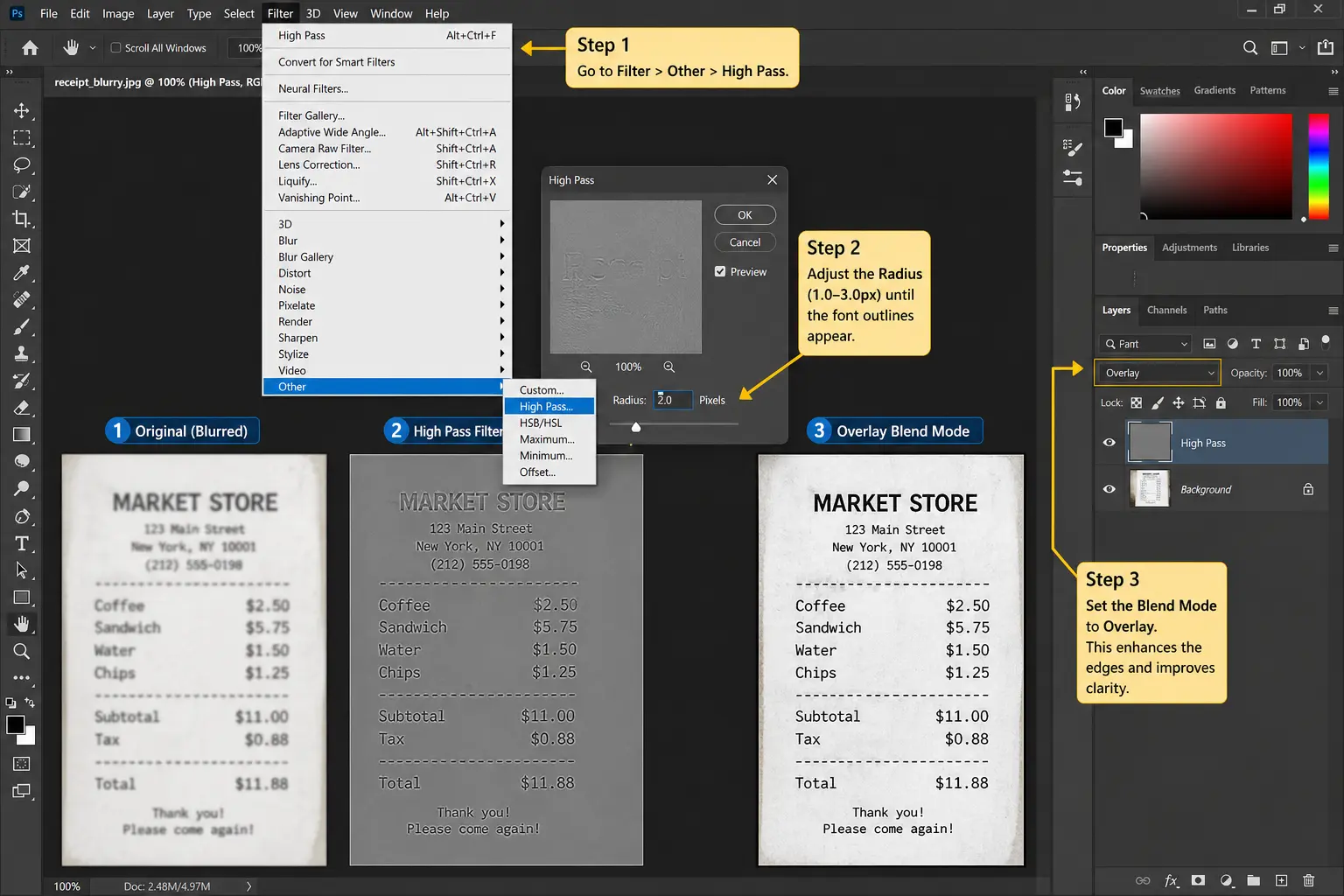
Use this if: the text is slightly blurry but still readable
Steps:
- Duplicate Layer and apply Filter > Other > High Pass.
- Adjust radius (1.0–3.0px) until font outlines appear.
- Set Blend Mode to Overlay. This targets the "semantic edges" of the letters.
👉 This enhances edges and improves clarity without heavily distorting the image.
Method 2: Photoshop Thresholding (Best for documents)
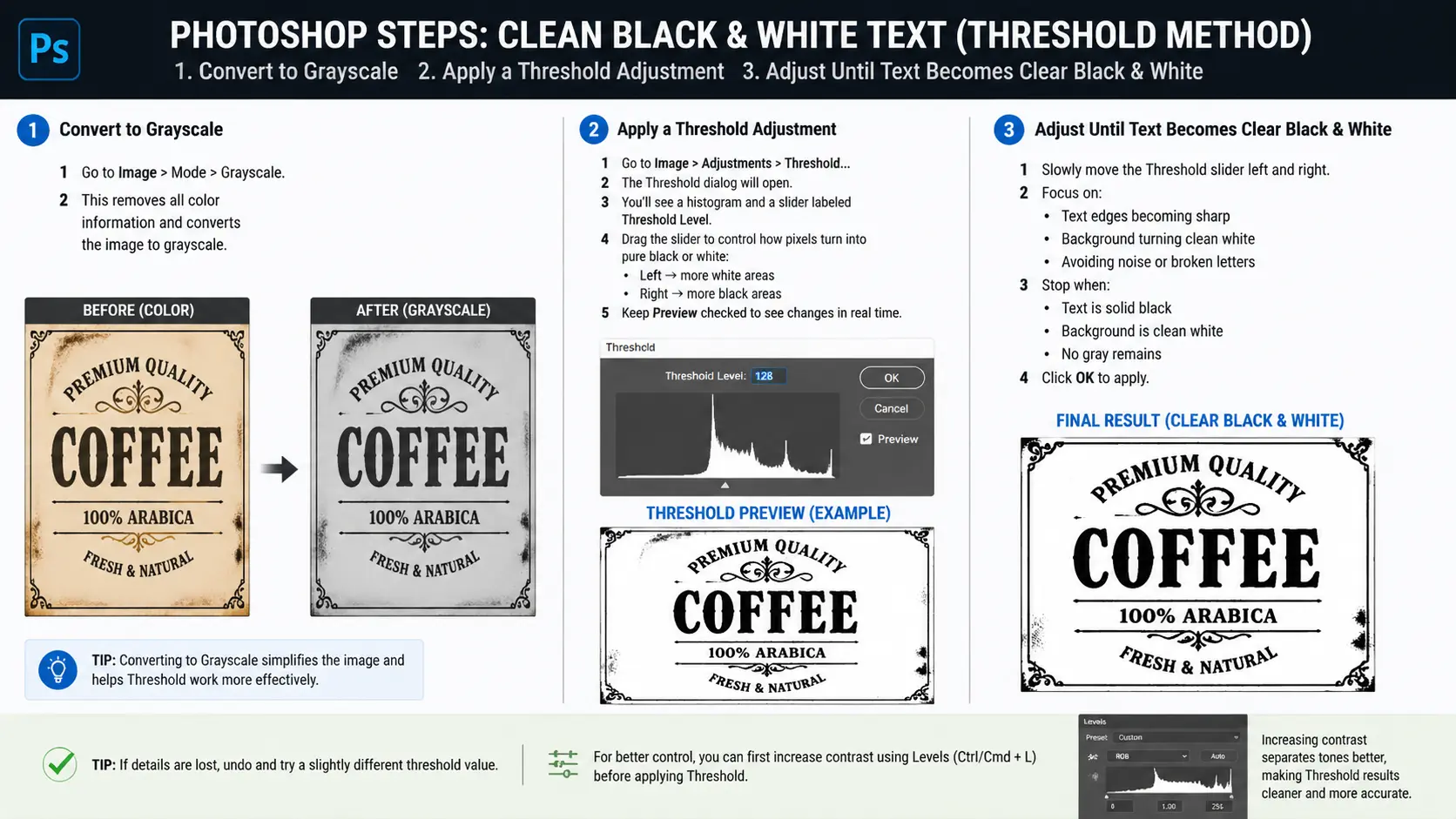
Use this if: you’re working with receipts, scans, or printed text
Steps:
- Convert image to grayscale
- Apply a threshold adjustment
- Adjust until text becomes clear black & white
👉 This removes background noise and improves readability, especially for OCR.
Method 3: AI Text Restoration (Best for heavy blur)
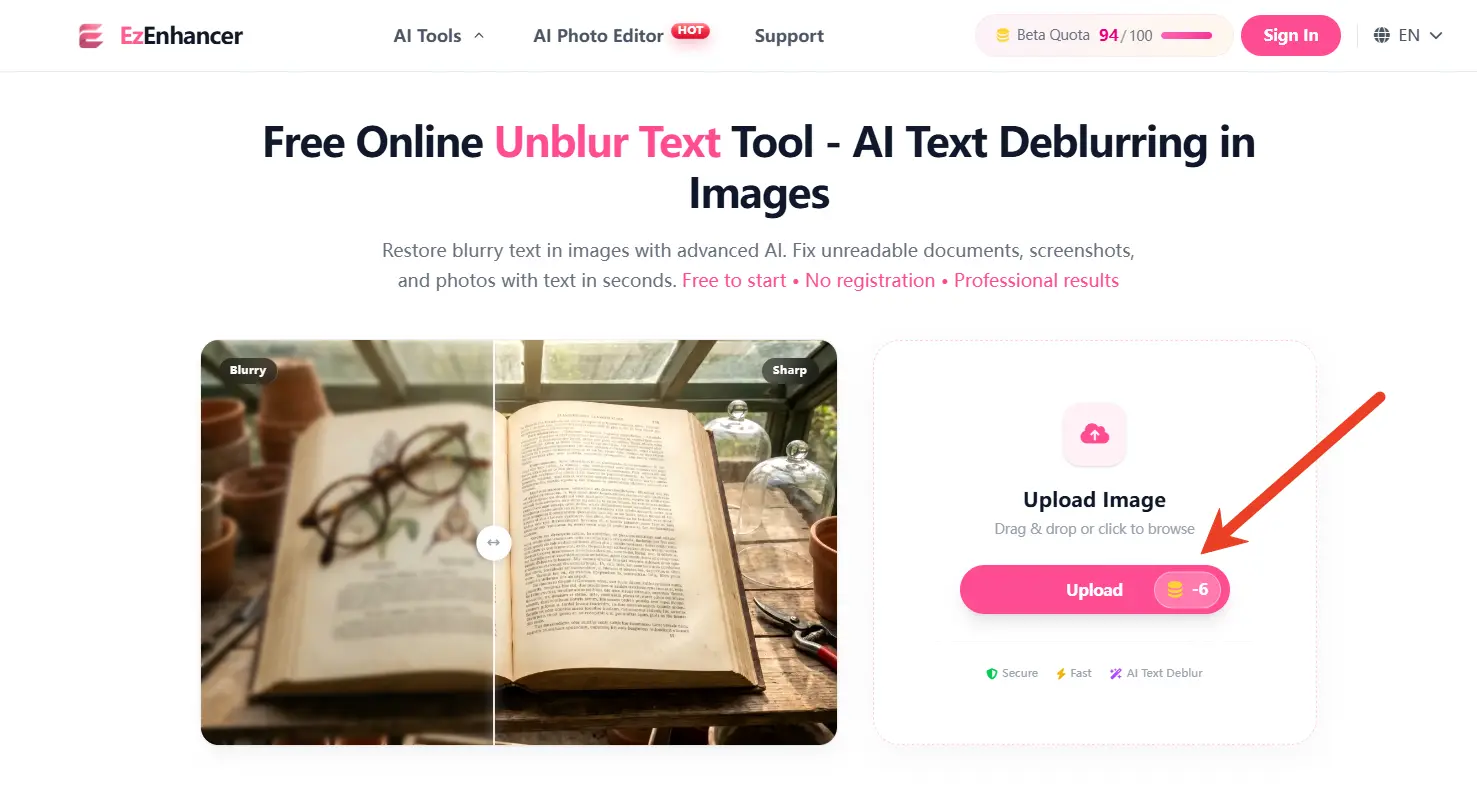
Use this if:
- The text is unreadable
- The image is pixelated
- The screenshot is compressed
AI tools (such as EzEnhancer.ai and similar platforms) use Generative Text Restoration to reconstruct missing parts of letters.
How it works:
- Select the "Unblur Text" feature
- Upload your blurry text image directly to the web dashboard
- Apply enhancement (with optional upscaling)
- Download the restored image
👉 Results are usually generated in seconds and can significantly improve readability.
Case Studies: AI Unblur Text vs. Traditional Sharpening
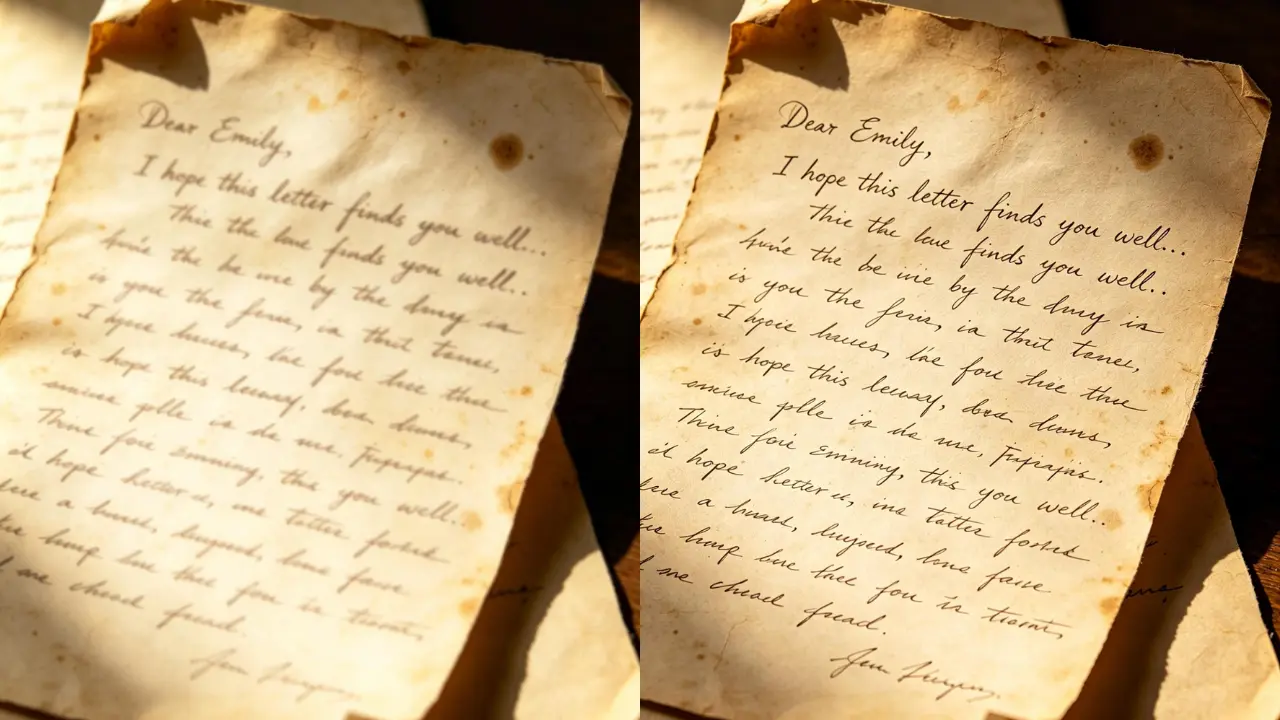
Here’s how different methods perform in real-world scenarios:
| Scenario | Traditional Sharpening Result | EzEnhancer.ai Result |
|---|---|---|
| Distant Whiteboard | Letters remain smudged; "e" and "o" look identical. | Sharp, distinct characters; fully readable |
| Compressed Discord Screenshot | Increased "ringing" artifacts and grainy background. | Smooth background; reconstructed font edges. |
| Handwritten Legal Notes | Thin strokes disappear or break apart. | Preserves the natural flow and pressure of the handwriting. |
2026 Best Practices for Perfect Text Restoration
To get the most out of AI restoration, keep these tips in mind:
- Avoid AI Hallucinations: Don't over-process; one pass is usually enough to restore text clarity.
- Multi-Language Support: Optimized for English, Chinese, Japanese, and Russian character sets.
- Remove Glare First: Use our Remove Glare tool before sharpening if your photo has light reflections.
When You Can't Unblur Text?
Even with AI, unblurring text is not guaranteed. It only works when enough original information still exists in the image. If too much detail is lost, the text cannot be reliably recovered.
1. Fully Covered or Redacted Text
If text is covered with black boxes, white blocks, or any solid color overlay, the original pixels are completely replaced.
➡️ There is nothing left for AI to recover.
2. Heavy Pixelation (Mosaic Blur)
When an image is intentionally pixelated, small blocks replace the original letters.
➡️ The shape of each character is destroyed, so accurate reconstruction is usually impossible.
3. Extremely Low-Resolution Images
If text is reduced to just a few pixels, AI has to “guess” what it might be.
➡️ This can cause mistakes, such as confusing similar-looking characters (e.g., 8 vs B, 0 vs D).
⚠️ Important Note
AI reconstruction is based on guessing patterns, not reading hidden information. So results should never be trusted for important details like:
- Bank numbers
- Legal documents
- Medical information
Always double-check with the original source.
4. Over-Compressed Images (“Deep-Fried” Images)
If an image has been repeatedly saved, sent, and re-uploaded, it accumulates noise and distortion.
➡️ The AI may reconstruct compression artifacts instead of real text.
FAQ: Common Questions on AI Text Enhancement
Q: How to make blurry text readable?
A: Use sharpening for minor blur, thresholding for documents, and AI tools for heavily blurred or pixelated images.
Q: Can AI really recover text from a pixelated mosaic?
A: It depends on the cause. If the pixelation is caused by heavy image compression (like sending an image over WhatsApp), Yes, EzEnhancer.ai can reconstruct the remaining structural data. However, if the text was intentionally censored using a privacy mosaic blur tool, AI cannot (and should not) recover it.
Q: Is EzEnhancer.ai safe for sensitive documents?
A: Absolutely. We follow the C2PA (Content Provenance and Authenticity) protocols, ensuring your data is processed securely and its integrity is maintained. Files are automatically deleted from our servers after processing.
Q: Does this work on blurry text in videos?
A: While this guide focuses on screenshots, our Video Enhancer tool applies similar GTR technology to every frame of your footage.
Conclusion: Don't Let Blur Block Your Information
In the information age, clarity is efficiency. Whether you are saving a historical document or trying to read a critical business lead from a grainy image, blur should never be the barrier.
Try it now: Upload your frustratingly blurry photo to EzEnhancer.ai and see the truth revealed in less than 3 seconds.
Top 5 AI Photo Editors for Social Media in 2026
Discover the top 5 AI photo editors for social media in 2026. Create, edit, and optimize content faster with powerful AI tools to streamline your workflow.
How to Upscale Midjourney Art to 4K for Printing: The Ultimate 2026 Guide
Learn how to easily upscale Midjourney art to 4K resolution for flawless printing. Compare Photoshop vs. EzEnhancer's AI image upscaler in this 2026 guide.