




AI Photo Editor for Multiple Ad Creatives
Ad creative gets tired quickly. A product image that works for one audience, placement, or season may not work for the next. The problem is that most teams do not have unlimited photoshoots, designers, or source assets.
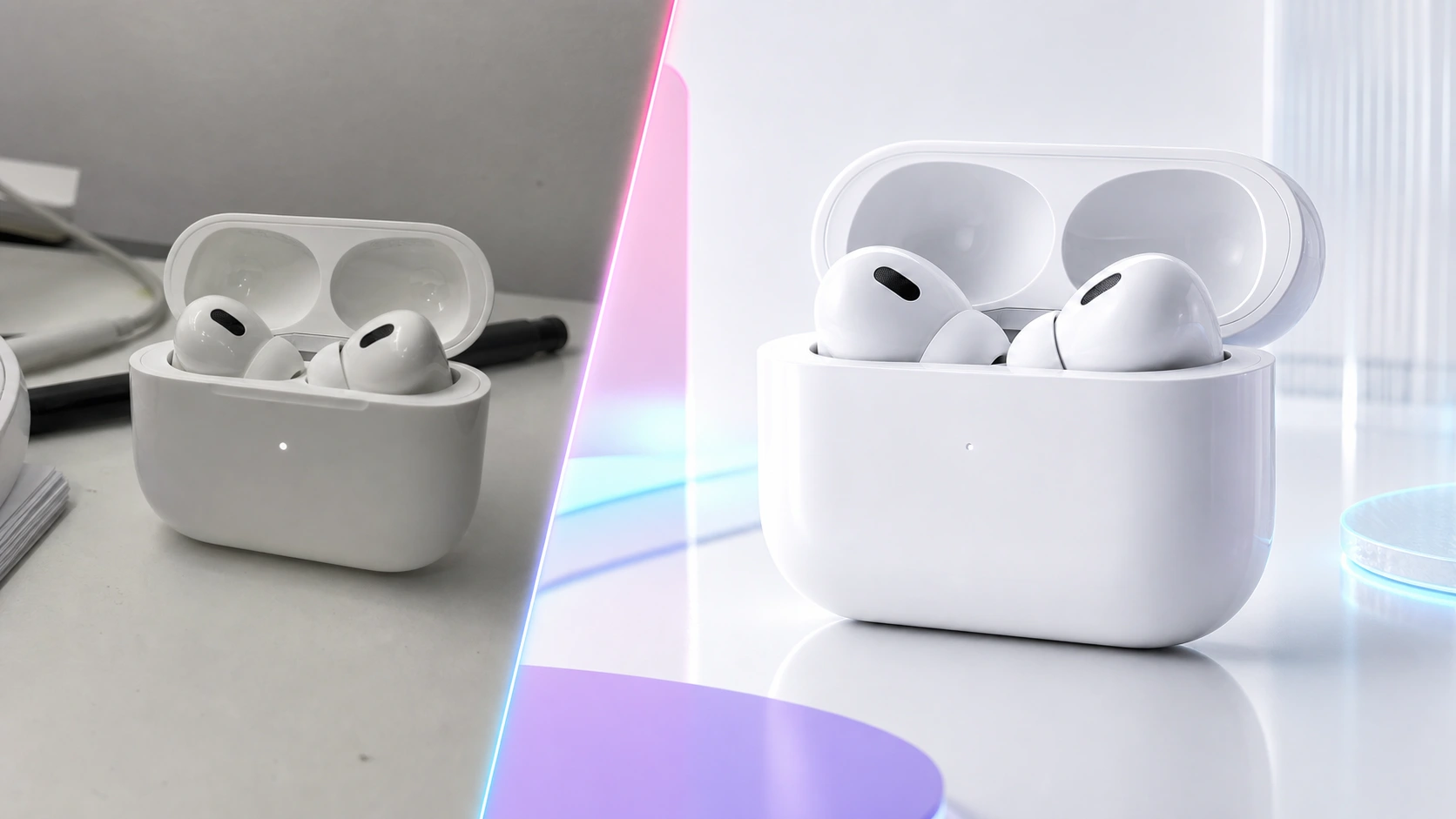
An AI photo editor for ads helps solve the variation problem. You can start with one product photo, portrait, room, or lifestyle image, then create different backgrounds, lighting treatments, compositions, and campaign concepts without rebuilding every image manually.
The goal is not to fake the product. The goal is to create more useful visual angles while preserving the subject, offer, and brand truth.
Quick Answer
An AI photo editor for ads helps marketers turn one source image into multiple campaign-ready creative variations. Use it to test backgrounds, scenes, lighting, seasonal styles, product contexts, and layout-safe compositions. Keep the product accurate, review every variation manually, and export sizes that match each ad platform's image requirements.
Why Ad Creative Needs More Than One Image
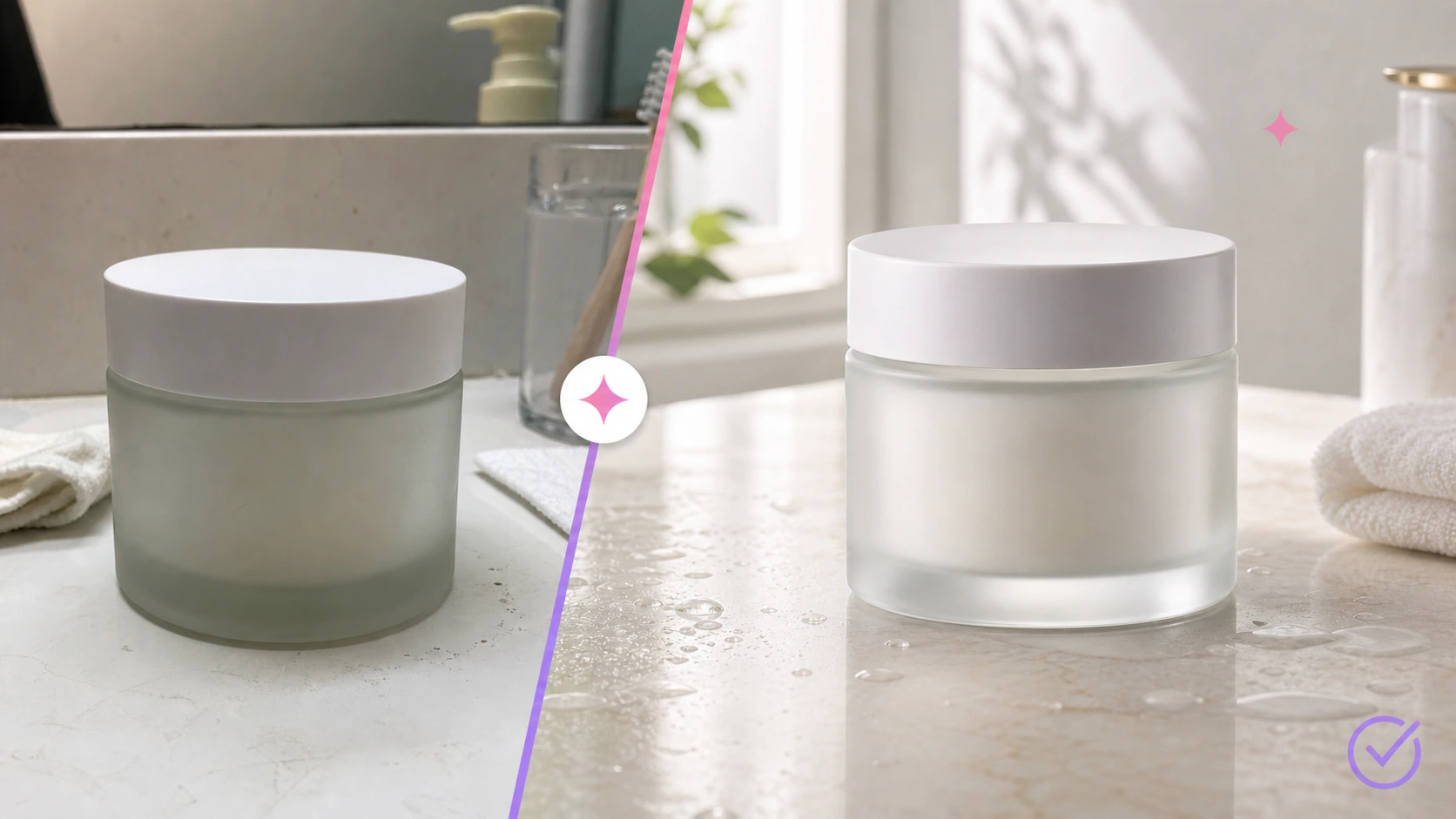
One image rarely fits every placement. A square product ad, vertical story image, horizontal display asset, and lifestyle landing-page banner all need different composition decisions.
You may need variations for:
- Different audiences
- Different benefits or objections
- Seasonal campaigns
- Marketplace listings
- Social ads
- Retargeting ads
- Landing-page hero images
- Email banners
- Product launch teasers
AI editing can create those variants faster because it changes the scene around a source asset while keeping the core subject recognizable.
What to Vary in an AI Ad Creative Workflow
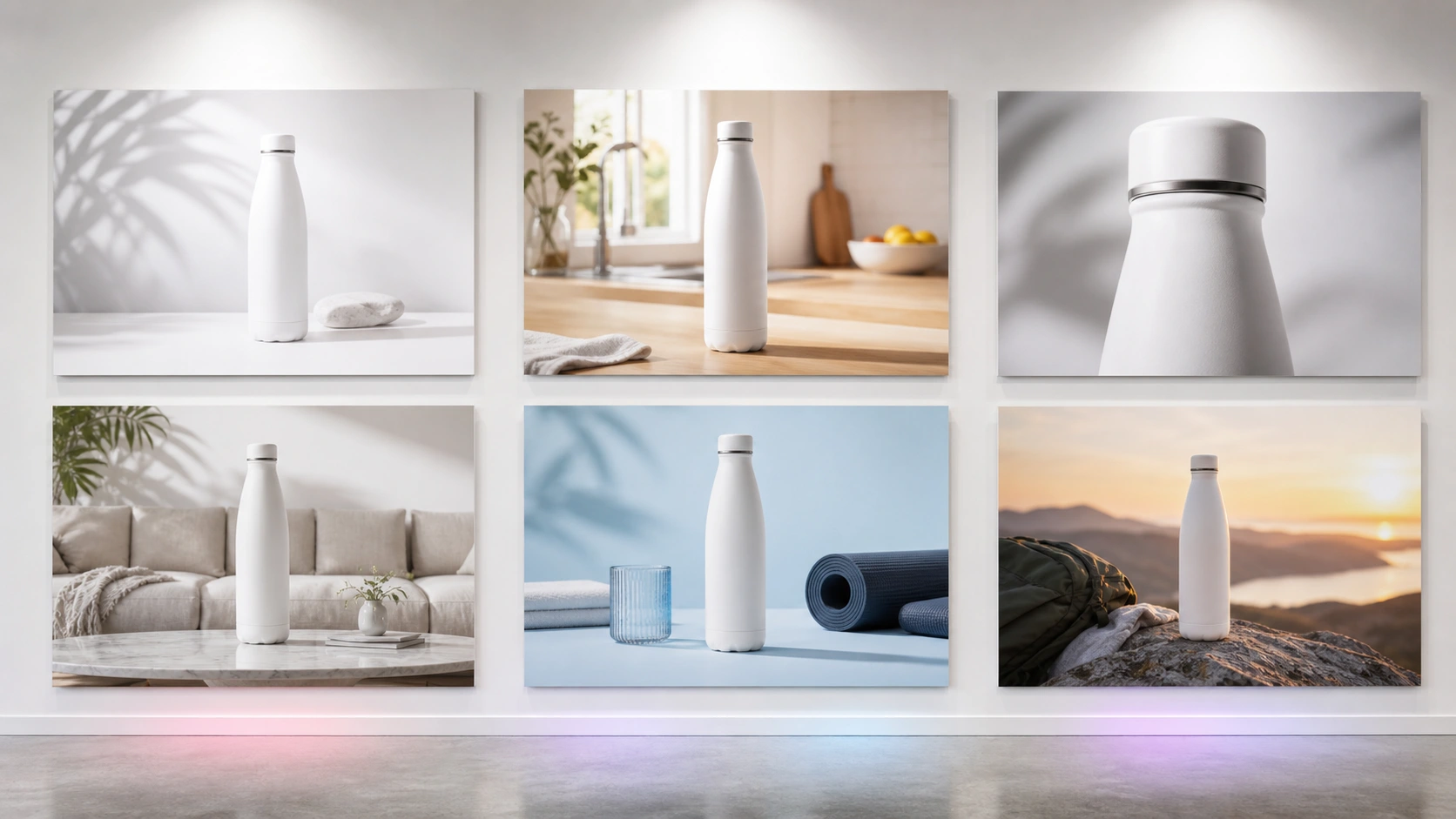
Do not vary everything at once. Strong ad testing usually changes one creative dimension at a time so the result is easier to judge.
| Creative Dimension | What Changes | Good Use Case |
|---|---|---|
| Background | Studio, lifestyle, seasonal, indoor, outdoor | Test context and brand mood |
| Lighting | Soft daylight, studio light, warm evening, high contrast | Test attention and perceived quality |
| Composition | Centered product, negative space, close crop, room for headline | Fit different placements |
| Use context | Desk, bathroom, kitchen, travel, fitness, retail shelf | Match audience situations |
| Color mood | Bright, calm, premium, playful, natural | Align campaign tone |
| Asset format | Square, portrait, landscape crop | Prepare for platform delivery |
For cleaner testing, keep the product, offer, and main visual message stable while changing only the environment or presentation style.
Step-by-Step: Turn One Image into Ad Variations
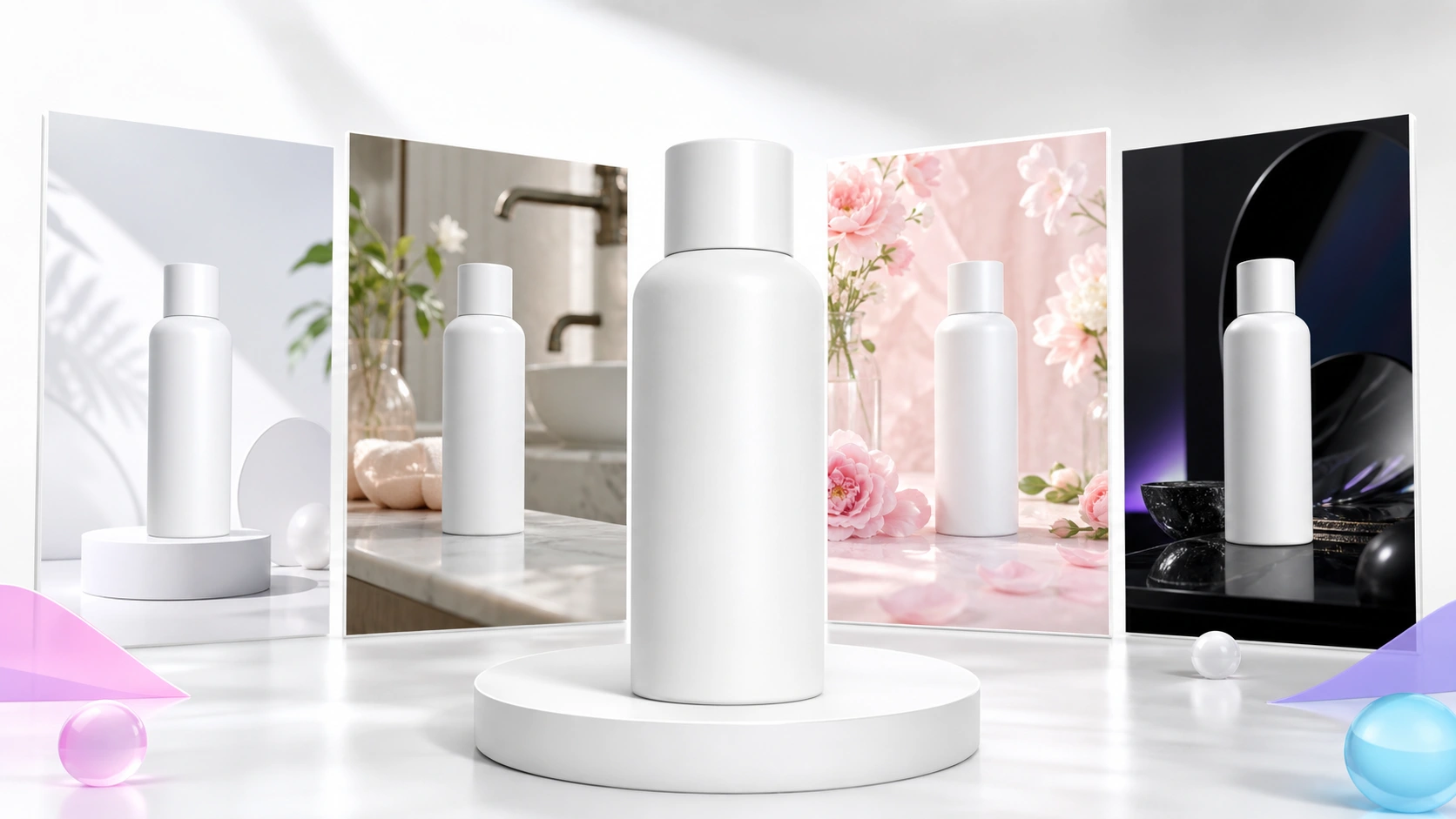
1. Choose a Source Image That Can Survive Cropping
Start with a photo where the product or subject is fully visible. Leave enough space around it so the final image can become square, portrait, or landscape without cutting off important details.
Before editing, check:
- Is the subject sharp?
- Are key edges visible?
- Is the label, face, or object shape clear?
- Can the image be cropped safely?
- Is there space for ad copy or platform overlays?
Google's official ad specs note that common image sizes include 1200 x 628 and 1200 x 1200, while Performance Max guidance recommends keeping important content within the center area of the image. Treat that as a practical reminder: do not place the product too close to the edge.
2. Define the Campaign Job
An ad image should have a job. Do not generate a pretty background before knowing what the creative needs to communicate.
Choose one job:
- Show the product clearly
- Explain a use case
- Make the product feel premium
- Make the product feel practical
- Support a sale or launch
- Create a seasonal angle
- Build trust through a clean, realistic scene
Once the job is clear, the prompt becomes much easier to write.
3. Write a Product-Safe Prompt
For ads, the prompt should protect the commercial truth of the image. The edited result should not change the product's color, scale, function, package details, or claim.
Use this formula:
Source subject + campaign job + scene + lighting + safe area + protected details
Example:
Create a clean social media ad image using this product as the hero. Place it on a warm-white studio surface with soft natural shadows and generous negative space on the right for a headline. Keep the product shape, label, color, material, scale, and camera angle unchanged.
For a lifestyle ad:
Place this reusable bottle on a bright kitchen counter with soft morning light and a simple healthy-lifestyle mood. Keep the bottle shape, logo placement, color, material, cap, and proportions unchanged. Leave clean space near the top for ad copy.
4. Generate a Variation Set
Create a small, intentional set instead of dozens of random images. A practical first batch is six ad variations:
| Variation | Prompt Direction | Purpose |
|---|---|---|
| Clean studio | Neutral backdrop, soft shadow | Main clarity image |
| Lifestyle use | Product in realistic environment | Show context |
| Seasonal | Subtle seasonal props or lighting | Campaign freshness |
| Premium | Refined surface, controlled lighting | Higher perceived value |
| Problem-solution | Messy-to-clean or before-after concept | Explain benefit |
| Negative space | Simple background with room for copy | Paid ad layout |
Review each variation for product accuracy before using it in a campaign.
5. Adapt for Placement
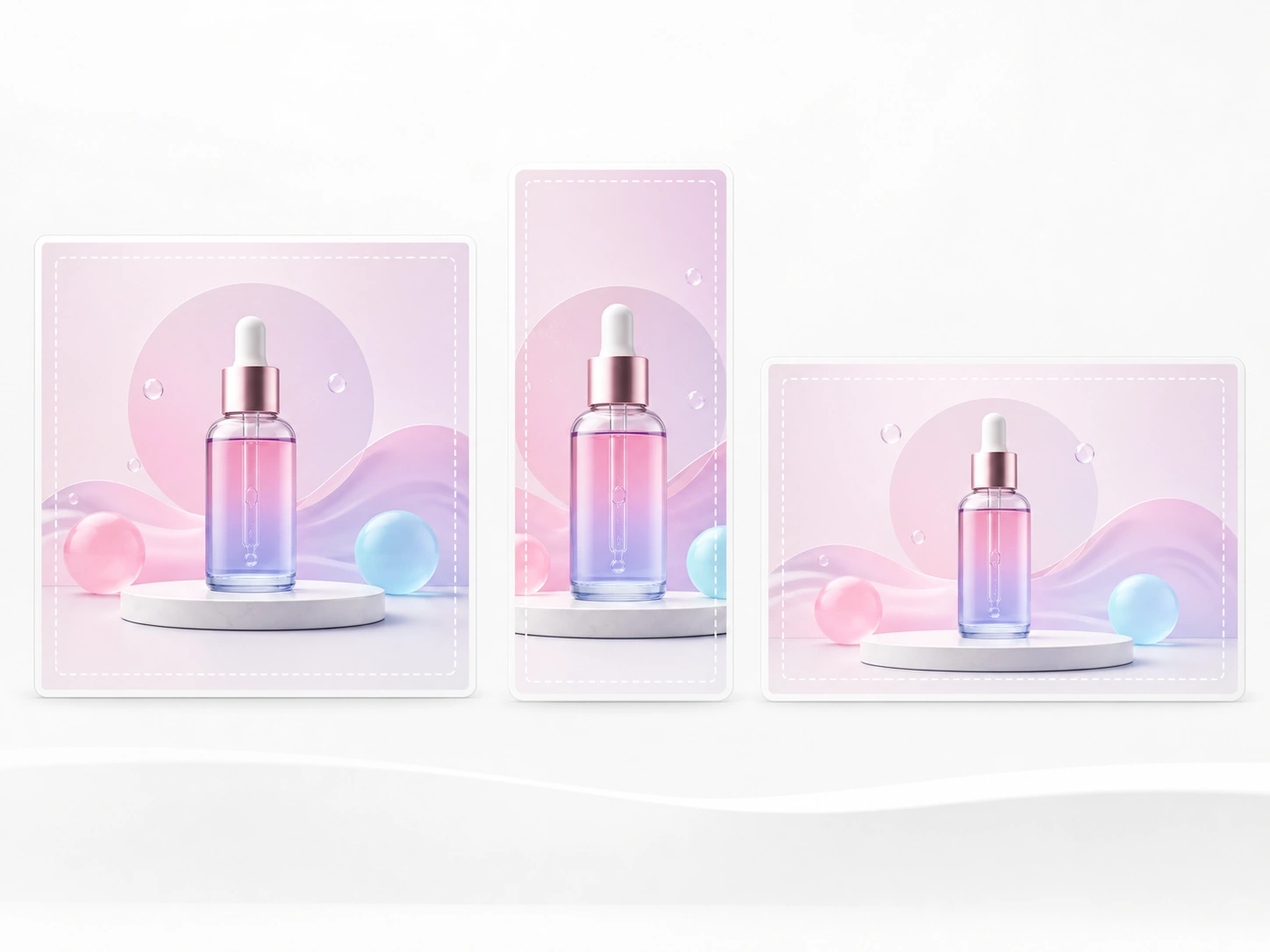
After choosing the strongest concepts, adapt them for placement. Do not simply stretch or crop the same image.
| Placement | Useful Format Direction | Creative Note |
|---|---|---|
| Instagram Feed | Square or 4:5 portrait | Keep product large and readable |
| Instagram Stories/Reels cover | 9:16 vertical | Keep important elements away from UI zones |
| Facebook Feed | Square or vertical | Use clear subject and simple background |
| Google image assets | Square and landscape | Keep key content centered and clean |
| Landing page hero | Wide landscape | Leave space for headline and CTA |
| Email banner | Wide crop | Avoid tiny product details |
Meta's Ads Guide lists many formats and placements across Meta technologies, so the safest workflow is to design around the placement first, then generate or crop the image for that placement.
Prompt Templates for AI Ad Creative
Product Launch Ad
Create a polished product launch ad image with this product centered on a clean studio surface. Use bright premium lighting, a subtle shadow, and generous negative space for headline copy. Preserve the product shape, label, material, color, and proportions exactly.
Seasonal Campaign Ad
Create a seasonal ad image using this product as the hero. Add a simple winter holiday setting with soft warm light and minimal tasteful props. Keep the product accurate, fully visible, and unchanged. Avoid clutter and leave clean space for copy.
Lifestyle Use-Case Ad
Place this product in a realistic everyday use setting that matches its category. Keep the product as the visual focus, with natural lighting and a simple background. Preserve the label, shape, color, material, and scale.
Problem-Solution Visual
Create a clean before-and-after style ad concept showing the product's use case. Keep the product accurate and central. Use a simple editorial layout with visual contrast between the problem state and improved result. No readable text.
Negative Space Creative
Create a minimal ad image with the product on the left third of the frame and clean negative space on the right for copy. Use soft studio lighting, a neutral background, and realistic shadows. Preserve all product details exactly.
What Not to Change in AI Ad Images
AI makes variation easy, but advertising requires accuracy. Protect the details that buyers rely on.
Do not change:
- Product shape or size
- Label text, dosage, ingredients, or regulated details
- Color or material
- Logo placement
- Included accessories
- Packaging claims
- Before-and-after results
- Human identity or body proportions
- Real customer likenesses without permission
If a generated image makes the product look better by changing the product itself, reject it.
How EzEnhancer Fits an Ad Creative Workflow
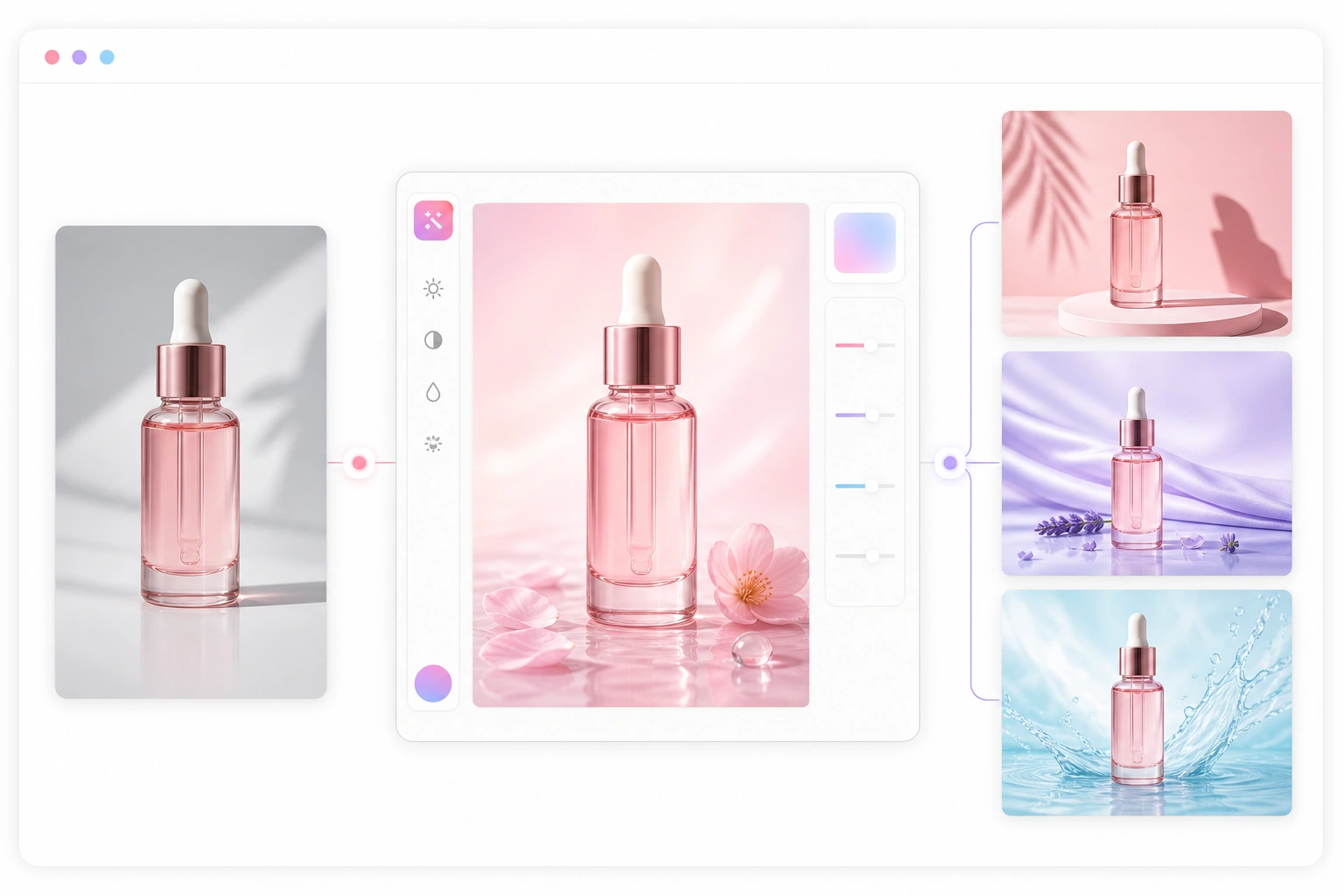
EzEnhancer's online AI Photo Editor supports prompt-based editing for backgrounds, objects, outfits, lighting, styles, and multi-image references. That makes it useful when a marketer needs to turn one source image into multiple ad-ready directions.
| Ad Workflow Need | EzEnhancer Fit |
|---|---|
| Fast browser-based editing | Upload and edit from a modern desktop or mobile browser |
| Product ad backgrounds | Replace messy settings with clean studio or lifestyle scenes |
| Social creative variations | Change lighting, mood, style, or environment from one source image |
| Subject preservation | Prompt for protected details such as product shape, face, pose, and camera angle |
| Reference-based art direction | Use multiple images for subject, background, or style reference |
| Final asset preparation | Pair with Background Remover, Photo Enhancer, Image Upscaler, or Image Converter |
For example, a product marketer can remove a rough desk background, create a studio version, build a lifestyle version, generate a seasonal campaign image, and upscale the strongest edit for larger campaign placements.
AI Ad Creative QA Checklist
Before handing AI-edited images to a media buyer or uploading them into an ad account, review:
- Does the image match the product or offer accurately?
- Is the subject still recognizable?
- Are product labels and important details intact?
- Is there enough safe space for platform cropping and UI overlays?
- Does the image work at mobile size?
- Is the background realistic for the product category?
- Are claims, before-after visuals, and human likenesses compliant?
- Is the file format and size suitable for the placement?
This checklist is especially important for automated campaigns, where one creative can appear across many placements.
For campaigns that use generative editing, also review the platform's disclosure rules before launch. Meta's current AI advertising transparency guidance explains how it labels ads created or significantly edited with generative AI, including content detected as coming from third-party AI tools.
Final Takeaway
An AI photo editor for ads is most valuable when it helps you create structured creative variations from one strong source image. Use it to test backgrounds, contexts, lighting, layouts, and seasonal directions, but keep the product and message accurate.
The best workflow is simple: choose a clear source image, define the campaign job, write a product-safe prompt, generate a small variation set, adapt the strongest concepts for each placement, and review every final asset before launch. EzEnhancer supports this kind of browser-based workflow through prompt editing, background replacement, object cleanup, lighting and style changes, multi-image references, and related tools for final polish.
FAQ
What is an AI photo editor for ads?
An AI photo editor for ads is a tool that helps marketers create campaign image variations from a source photo. It can change backgrounds, lighting, composition, use context, and visual style while preserving the product, person, or subject.
Can I use AI-generated images in ads?
Yes, but you should review every image for accuracy, rights, platform policy, and brand fit. Do not use AI edits that misrepresent a product, imply false results, alter regulated details, or use someone's likeness without permission.
What ad creative variations should I make first?
Start with six practical variations: clean studio, lifestyle use case, seasonal theme, premium product scene, problem-solution concept, and negative-space layout for copy. This gives you useful testing range without creating random clutter.
How do I keep product ads accurate with AI editing?
Write protected details directly into the prompt. Mention product shape, label, material, color, scale, logo placement, packaging, and camera angle. Then compare the final image against the original before publishing.
What image sizes should I prepare for ads?
Prepare images by placement. Square and landscape images are common for Google image assets, while Meta placements may require square, vertical, or landscape formats. Keep important content centered and leave safe space for cropping or overlays.
Is an AI photo editor enough for final ad production?
For simple visual variations, it can be enough after careful review. For regulated products, major campaigns, or strict brand systems, use AI for drafting and variation, then have a designer or compliance reviewer approve final assets.
AI Photo Colorizer vs Photoshop for Old Family Photos
Compare an AI photo colorizer and Photoshop for old family photos. See which works better for speed, realism, repair, privacy, and sharing.
AI vs Professional Photo Restoration: Which Is Best for Old Photos?
Compare AI old photo restoration and professional photo restoration services. Learn which photo enhancer delivers the best results for old photos.