














AI Photo Colorizer vs Photoshop for Old Family Photos
If you want to bring an old black-and-white family photo back to life, the choice often comes down to an AI photo colorizer or Photoshop. Both can add color, but they are built for different users, different timelines, and different levels of control.
For most family photos, the better first step in the AI photo colorizer vs Photoshop decision is an AI colorizer. It is faster, easier, and better suited to casual restoration, family sharing, and quick visual cleanup. Photoshop is still the stronger choice when you need pixel-level edits, historically researched color choices, or a professional composite.
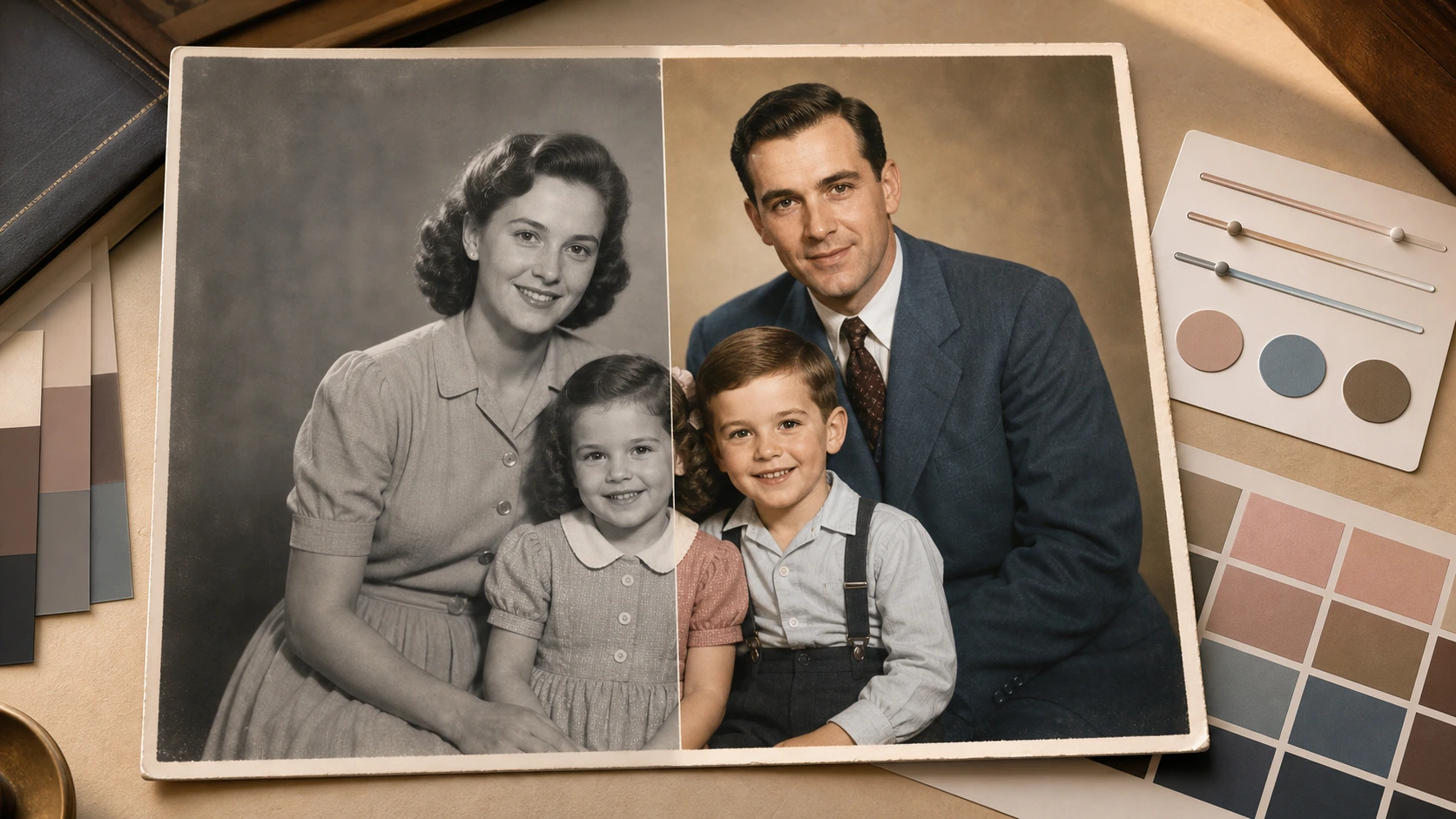
Quick Verdict
An AI photo colorizer is best when you want a natural-looking result in minutes without learning manual editing. Photoshop is best when the photo needs precise creative control, selective color correction, or advanced retouching after colorization.
| Best choice | Use it when |
|---|---|
| AI photo colorizer | You want to colorize old family photos quickly, especially portraits, wedding photos, school photos, and scanned snapshots. |
| Photoshop | You need manual control over every color, layer, mask, blemish, background, and print-preparation detail. |
| Both together | You want AI to create the first color pass, then Photoshop for fine retouching, selective edits, or complex print work. |
What Each Tool Actually Does
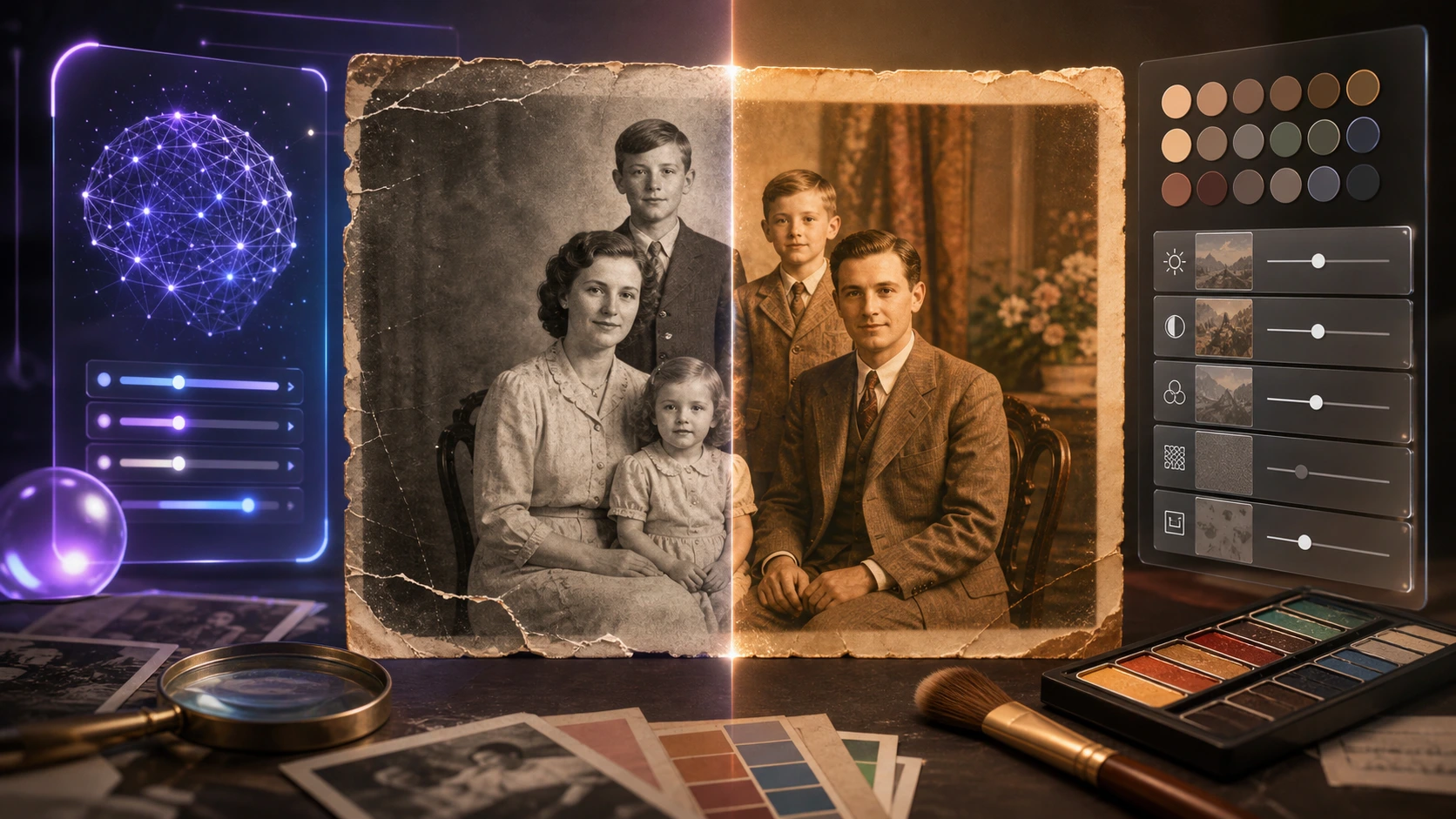
Before comparing quality, it helps to separate the jobs. Colorizing is not only "adding color." A good result also needs face detection, skin tone balance, clothing separation, background interpretation, edge control, and sometimes light repair.
AI Photo Colorizer
An AI photo colorizer analyzes the image, predicts plausible colors, and applies them automatically. EzEnhancer's Photo Colorizer is designed for black-and-white photos, with emphasis on natural skin tones, HD colorization, texture recognition, and light cleanup for scratches or soft focus.
It is especially useful when the goal is emotional restoration: making a grandparent's wedding photo, childhood portrait, or family reunion image feel more present without turning the project into a manual editing session.
Photoshop
Photoshop offers both manual colorization methods and AI-assisted features. Adobe's own documentation explains that Photoshop's Colorize Neural Filter can automatically assign colors, then let users adjust color balance inside the Neural Filters panel.
That means Photoshop is not only manual. It can also start with AI. The main difference is that Photoshop gives more control after the first pass, but it also requires more editing knowledge.
AI Photo Colorizer vs Photoshop: Core Comparison
| Dimension | AI photo colorizer | Photoshop | Better fit |
|---|---|---|---|
| Ease of use | Upload, process, download | Requires software familiarity, layers, masks, filters, and export settings | AI photo colorizer |
| Speed | Usually minutes for a first result | Fast with Neural Filters, slower with manual cleanup | AI photo colorizer |
| Skin tones | Built for quick natural-looking portraits | Strong, but may need manual correction | Depends on skill |
| Clothing colors | Predicts plausible colors automatically | Can be manually specified if you know the likely color | Photoshop |
| Background control | Good for automatic scenery and simple rooms | Better for selective masks and complex backgrounds | Photoshop |
| Old family snapshots | Low-friction and practical | More control but more work | AI photo colorizer |
| Historical accuracy | Plausible, not guaranteed | Better if paired with research and manual references | Photoshop |
| Repair features | Can combine colorization with enhancement and minor repair | Stronger for deep retouching and reconstruction | Photoshop |
| Cost and setup | Browser-based, no complex setup | Requires Photoshop access and learning time | AI photo colorizer |
| Output preparation | Good for sharing and simple prints | Better for professional print workflows | Photoshop |
Which Looks More Realistic?
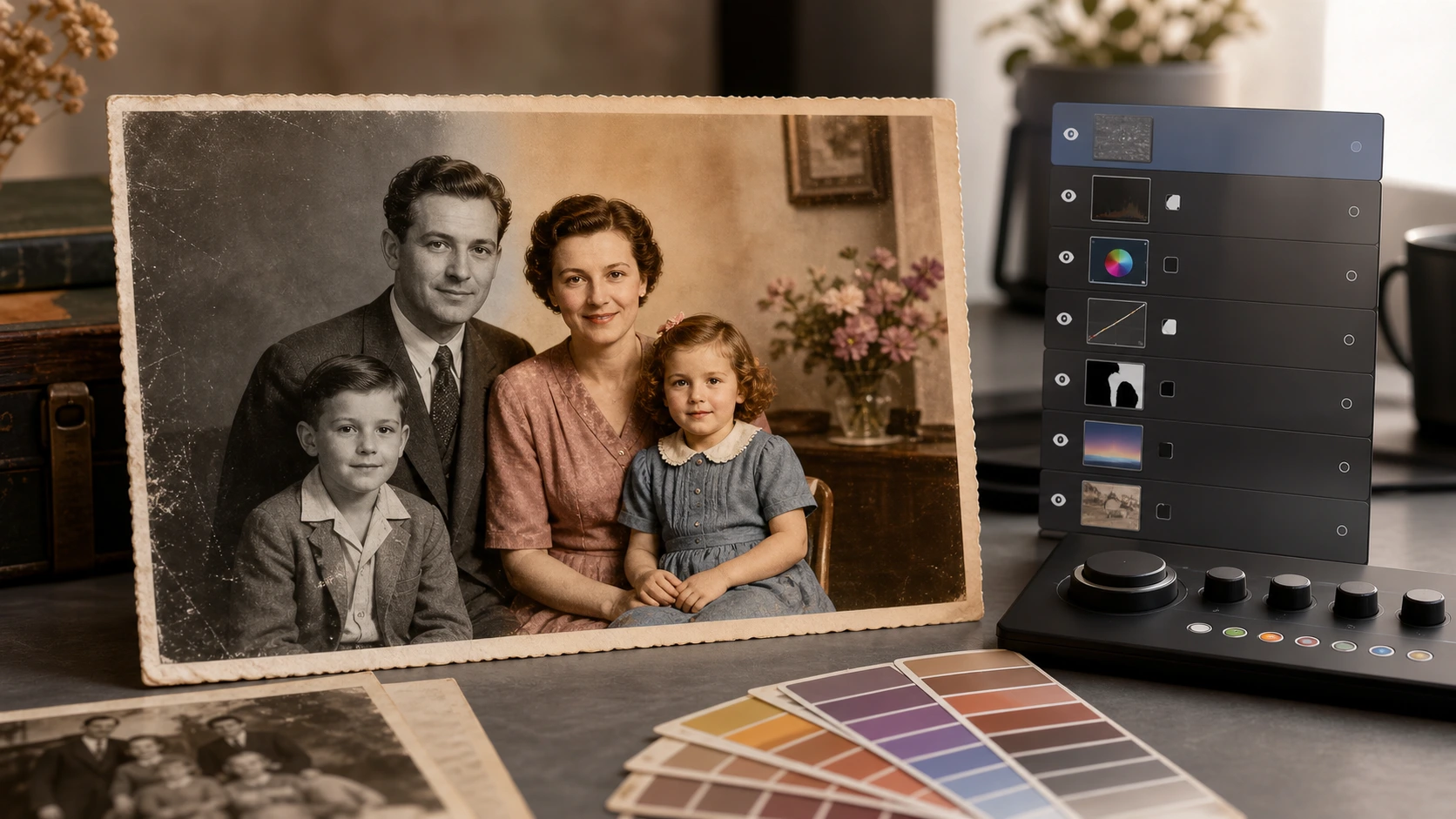
Realism depends less on the tool name and more on the condition of the original photo.
Portraits and Family Faces
For family portraits, realism usually starts with skin tone. The image fails quickly if faces become gray, yellow, waxy, or overly saturated.
EzEnhancer is built around natural skin tone restoration for vintage portraits. That makes it a strong fit for:
- grandparents' wedding photos
- school portraits
- military portraits
- family reunion prints
- childhood snapshots
- scanned album photos
Photoshop can also produce excellent skin tones, especially when an editor manually adjusts hue, saturation, layer masks, and local corrections. The tradeoff is time.
Clothing, Rooms, and Backgrounds
Photoshop wins when you know the actual color of an object. If you know the dress was navy blue, the car was red, or the living-room wall was pale green, Photoshop lets you enforce those choices.
An AI colorizer predicts likely colors from context. That is often enough for family sharing, but it should not be treated as verified historical evidence.
Damaged or Soft Photos
Many old family photos are not clean black-and-white files. They may be faded, dusty, scratched, blurry, or compressed from a phone scan.
In those cases, the best workflow is not only colorization. You may need repair and enhancement as well.
| Photo condition | Better first move | Why |
|---|---|---|
| Clean black-and-white portrait | AI photo colorizer | Fast natural color pass. |
| Faded print with minor scratches | AI colorizer plus light repair | Efficient for family-use results. |
| Torn, folded, or heavily stained print | Restoration first | Damage may confuse color prediction. |
| Blurry face or soft focus | Sharpen or unblur before colorizing | Color applies better to clear details. |
| Photo needed for archival display | Manual review after AI | Accuracy and context matter more. |
Time, Skill, and Cost Comparison
For old family photos, the practical question is often not "Which tool is more powerful?" It is "Which tool helps me finish this memory project?"
| Question | AI photo colorizer | Photoshop |
|---|---|---|
| Can a beginner use it? | Yes, usually with upload-and-process steps. | Possible, but slower for non-editors. |
| Can it process one photo quickly? | Yes. | Yes, if you know the workflow. |
| Can it handle many family photos? | Better for quick batches and first passes. | Better for selected hero photos. |
| Can it make exact color decisions? | Not reliably. | Yes, with references and manual editing. |
| Can it fix difficult local mistakes? | Limited. | Strong. |
| Is it better for non-designers? | Yes. | Usually no. |
| Is it better for professional restoration? | Not by itself. | Often yes. |
When an AI Photo Colorizer Is the Better Choice
Choose an AI photo colorizer when the goal is to make old family photos feel warm, clear, and shareable without heavy editing.
This is the better route if:
- you have a folder of scanned family photos
- you need results for a reunion, family tree, memorial, or slideshow
- you do not know Photoshop
- the photo is mostly intact
- realistic skin tone matters more than exact historical color
- you want a browser-based workflow
- you need PNG, JPG, or WEBP output for easy sharing
EzEnhancer fits this use case because its Photo Colorizer is designed for online black-and-white photo colorization, natural-looking portraits, HD output, and related cleanup steps.
When Photoshop Is the Better Choice
Photoshop is better when colorization is only one part of a more controlled editing job.
Use Photoshop when:
- you need exact garment, uniform, car, or room colors
- you have historical references
- you need advanced layer masks
- you must retouch specific areas by hand
- the photo has complex damage
- the final image is going into a professional print, book, exhibit, or paid restoration project
- you need to combine several images or rebuild missing details
Photoshop is not only "better" or "worse." It is more flexible. That flexibility matters when the image has to be edited like a professional restoration, not simply colorized for family viewing.
Best Workflow for Old Family Photos
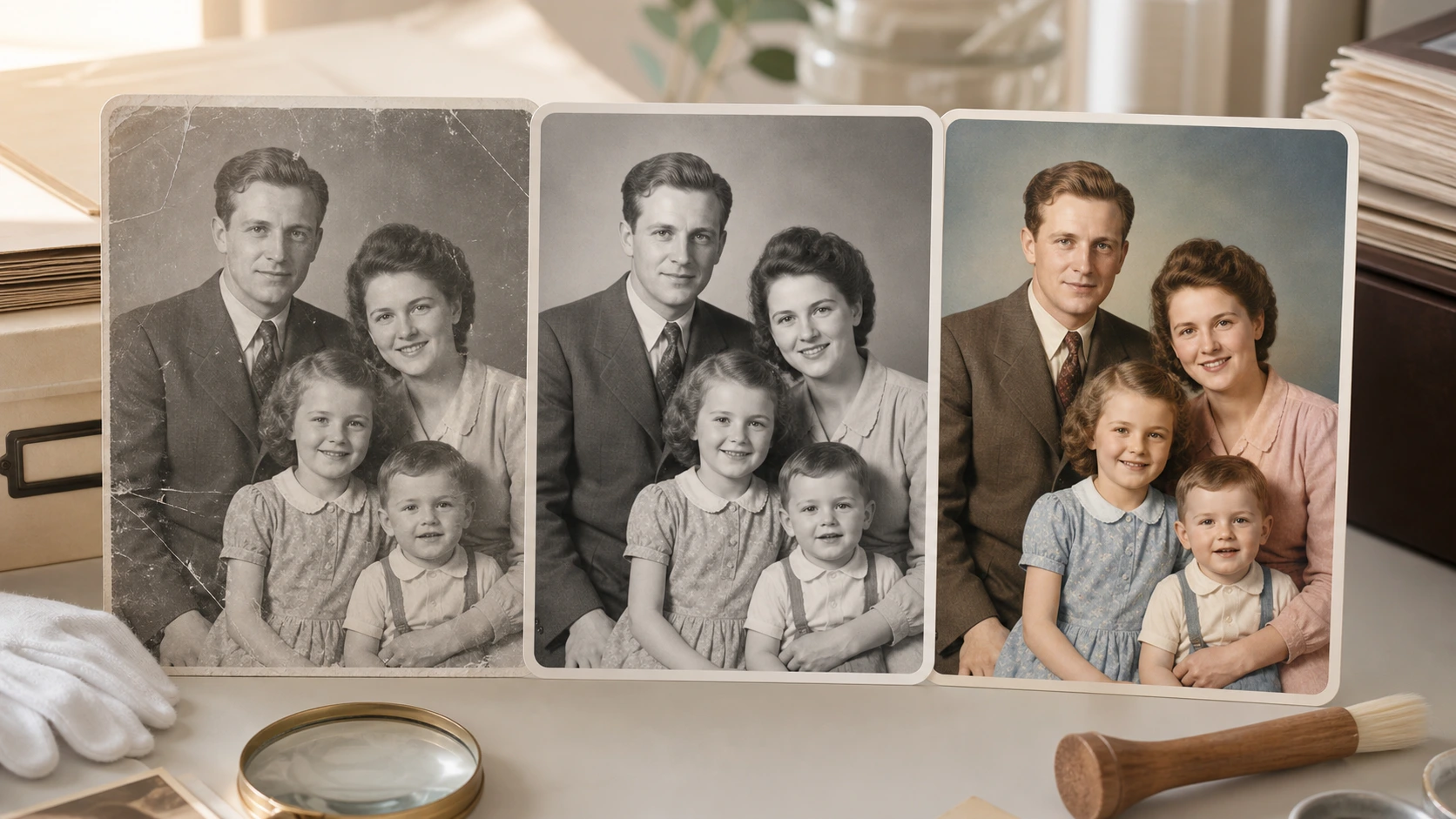
The strongest workflow is often not one tool versus the other. It is choosing the right tool for the right stage.
1. Start with a clean digital scan
Before using any color tool, create the cleanest digital copy you can. The Library of Congress notes that photographs should be protected from dust, light, and handling with proper storage materials, so digitizing a working copy helps reduce repeated handling of fragile originals through careful photo preservation.
Practical scan tips:
- scan the photo flat when possible
- avoid harsh glare from phone lighting
- keep the original photo safe after scanning
- save an untouched backup before editing
- do not overwrite the original scan
2. Repair or sharpen if needed
If the image has scratches, blur, or faded detail, repair it before making final color decisions. A blurry face gives any colorizer less structure to work with.
For EzEnhancer users, this can mean pairing the colorizer with related tools such as old photo restoration for scratches or AI image upscaling when the final image needs more resolution.
3. Colorize and review the result
Use the color pass as a visual reconstruction, not a guaranteed historical record. Look closely at:
- skin tone
- lips and cheeks
- hair color
- clothing edges
- hands and ears
- background spill
- areas where gray tones become muddy
If the result is natural and the goal is sharing, an AI colorizer may be enough. If one area needs precise correction, Photoshop can be used afterward.
How EzEnhancer.ai Supports This Comparison
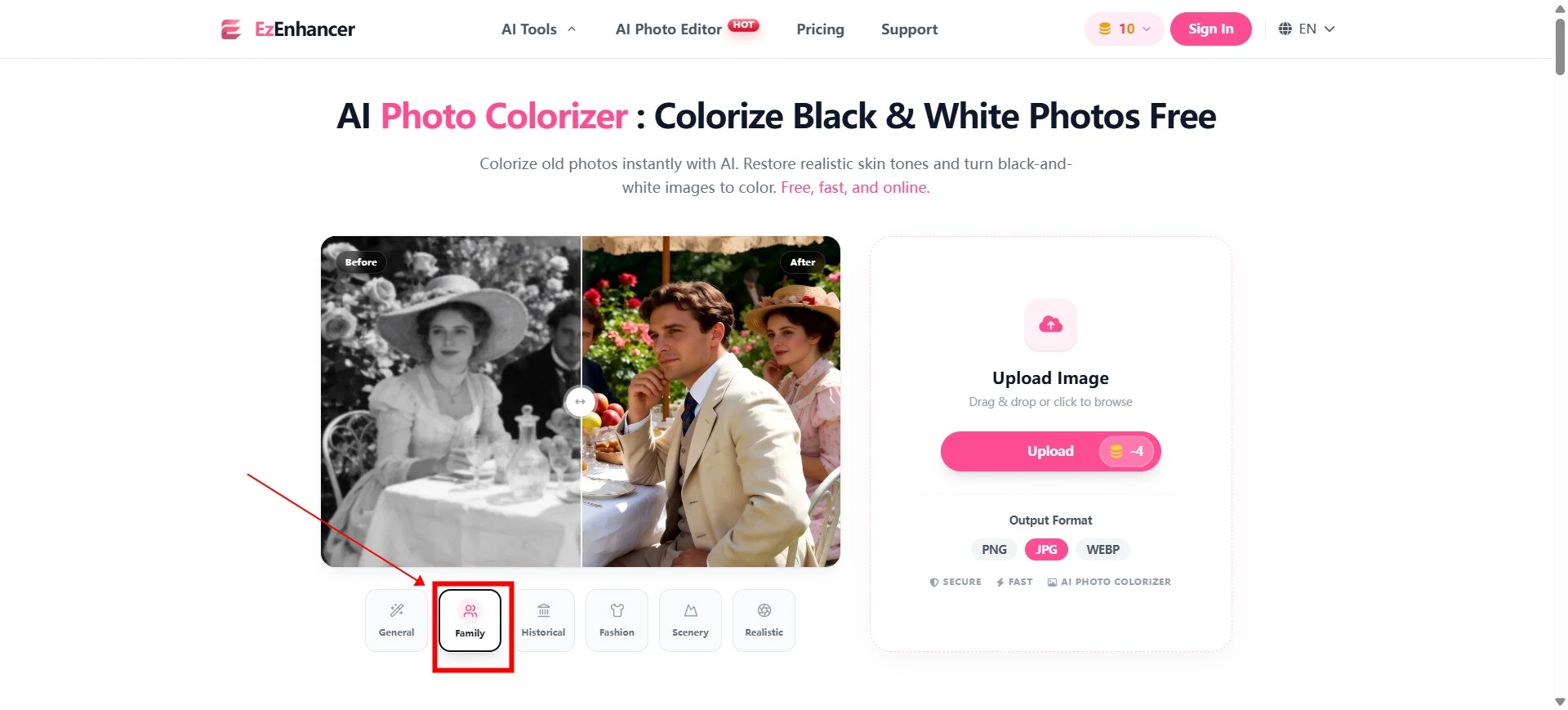
EzEnhancer is not trying to replace every professional Photoshop workflow. Its Photo Colorizer is more useful as the fast, accessible path for people who want to turn black-and-white photos into color without a full editing setup.
| Reader need | EzEnhancer fit | Why it matters |
|---|---|---|
| Colorize an old family portrait | Photo Colorizer | Built for natural-looking faces and quick online processing. |
| Improve a soft or faded scan | Colorize plus enhance | Helps color sit on clearer facial and fabric detail. |
| Prepare for a larger print | AI Image Upscaler | Useful after colorization when resolution is too small. |
| Fix scratches before color | Old Photo Restoration | Better source quality can improve the final color result. |
| Share online quickly | Browser workflow and common output formats | Easier for family albums, social posts, and reunion slideshows. |
The product advantage is strongest for non-editors. A user can upload a family photo, colorize it online, review the result, and use adjacent EzEnhancer tools when the image needs repair or enlargement.
Common Mistakes to Avoid
Treating AI color as historical proof
AI can create plausible color, but it does not know the verified color of a relative's dress, a military uniform, or a childhood home unless that information is visible or supplied through editing.
Colorizing before repairing serious damage
Heavy scratches and folds may create strange color patches. Repair the scan first when damage crosses faces, clothing, or important background details.
Oversaturating old photos
Old family photos often look better with gentle color. Too much saturation can make the result feel modern in the wrong way.
Ignoring the original file
Always keep a clean original scan. Colorization should create a new version, not replace the archive copy.
Final Recommendation
For the AI photo colorizer vs Photoshop decision, start with the practical goal. For most old family photos, an AI photo colorizer is faster, easier, and more practical when the goal is to make memories feel vivid again.
Choose Photoshop when you need deeper control, verified historical color, advanced repairs, or professional print preparation.
The best practical answer is simple:
| If your goal is... | Choose... |
|---|---|
| Quick family sharing | AI photo colorizer |
| Natural first-pass color | AI photo colorizer |
| Exact color correction | Photoshop |
| Professional restoration | Photoshop or both |
| Fast online workflow | EzEnhancer Photo Colorizer |
For old family photos, AI usually gets you to a meaningful result faster. Photoshop remains the precision tool when the photo deserves deeper manual attention.
FAQ
Is an AI photo colorizer vs Photoshop better for beginners?
In the AI photo colorizer vs Photoshop comparison, an AI colorizer is better for quick, beginner-friendly colorization of old family photos. Photoshop is better for manual correction, exact color choices, advanced retouching, and professional output.
Can Photoshop colorize black-and-white photos automatically?
Yes. Photoshop includes AI-assisted colorization through Neural Filters, including a Colorize filter. Users can then adjust the result manually, which makes Photoshop powerful but less simple for beginners.
Does AI colorization create historically accurate colors?
Not always. AI colorization creates plausible colors based on image context. For historically accurate work, compare the result with references and use manual editing when exact colors matter.
Should I restore an old photo before colorizing it?
If the photo has scratches, blur, tears, or heavy fading, restore or sharpen it first. A cleaner image gives both AI tools and manual editors better detail to work from.
What is the easiest way to colorize old family photos online?
The easiest method is to use a browser-based AI photo colorizer, upload the black-and-white image, process it automatically, then download the colored result in a common format such as PNG, JPG, or WEBP.
AI Image Colorizer Settings Guide: What Each Option Does
Compare AI image colorizer models, modes, palettes, prompts, and export options. Learn what each setting does for photos, manga, line art, and illustrations.
AI Photo Editor for Multiple Ad Creatives
Learn how to use an AI photo editor for ads to turn one product or lifestyle image into multiple campaign-ready creative variations.